I’ve been writing about my favorite apps ever since … well, since they were still called programs and mobile devices didn’t even have apps.
For this year’s edition, I decided to take a slightly different tack, focusing on the increasing number of productivity apps I use that are completely free. Given how stubborn inflation is these days, especially on the hardware side, that’s a big deal.
1. UniGetUI
- Purpose: Installing, updating, and uninstalling Windows apps
- Price: Free
- Supported platforms: Windows, MacOS, Linux
- Info: UniGetUI by Devolutions
Everything you know about managing apps on a Windows PC needs a full reset. That’s the lesson I quickly learned after I began using UniGetUI in earnest.
In technical terms, this app offers a point-and-click interface over Microsoft’s WinGet and other package managers. (Its new owner is also adapting the app to support package managers for MacOS and Linux.) In plain English, that means you can use this tool to find and install just about any Windows app from a trusted repository. You don’t have to click your way through complex installers, and you don’t have to worry about accidentally downloading a file that’s been tampered with by malicious actors. UniGetUI also handles updates.
Also: 11 Windows apps I replace on every new PC (and the ones I keep)
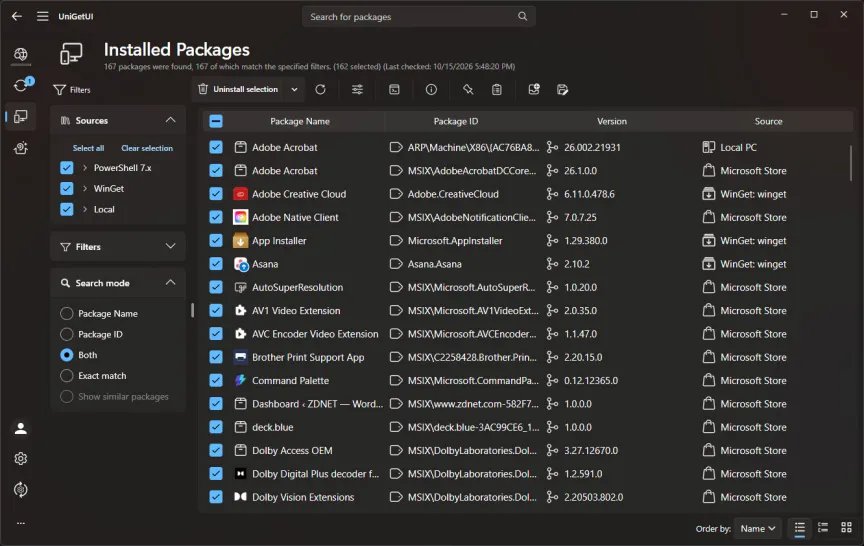
I’m still unlearning those old habits. When I need to install a new app, I have to remind myself to search for it in UniGetUI instead of using my browser. And instead of going to the Installed Apps section in Windows Settings, I’m getting in the habit of looking on the Installed Packages page, shown here.

For a more detailed look, see My new favorite Windows app made my PC safer and more reliable – and it’s free.
2. Proton Pass
- Purpose: Password and passkey management
- Price: Free; some advanced features require a paid subscription
- Supported platforms: Windows, MacOS, Linux, iOS, Android, Web app/nrowser extension
- Info: Proton Pass
If I’ve said it once, I’ve said it a thousand times: You need a password manager. To be more precise, you need a credential manager that can sync passwords and passkeys and store other secrets in a secure, encrypted file that only you can access. The good news is that you can now take your choice of a dozen or more apps and services that satisfy that specification.
For years, I was a dedicated 1Password user, but the company’s focus lately is on the enterprise market, not on individual users like me. So, this year, I switched to Proton Pass, which is produced by a privacy-obsessed Swiss nonprofit foundation whose stated mission is “to defend online and offline freedom around the world.” The free version is more than good enough for most people, with the ability to store an unlimited number of credentials, identities, and notes, and support for syncable passkeys across all devices.
For me, the transition was painless. For more details, see: 1Password’s price hike sent me looking for alternatives – here’s what I chose.
3. Obsidian
- Purpose: Text editor
- Price: Free, with subscription-based sync and publish options available
- Supported platforms: Windows, MacOS, Linux, iOS, Android
- Info: Obsidian
For many years, Microsoft Word was my main text editor. These days, I do most of my writing in Obsidian. This easy-to-use app, developed by a small team that started in 2020, uses the lightweight Markdown language to create structured documents with rich formatting that can be saved as text files. It’s also a great way to capture and store interview notes and snippets of research — Obsidian has completely taken over that role from OneNote, another Microsoft Office app I used for decades that I no longer use regularly.
I still use Word for big, complicated projects like books, but these days, almost everything I write is published online — as a webpage or a newsletter. For those uses, Word is overkill, and its formatting is often as much of a hindrance as a help. I’m using Obsidian to write this post, as a matter of fact. I’ve mapped Obsidian hotkeys to some familiar Word shortcuts, and I’ve also installed a plugin that adds outlining capabilities to my documents. It’s all remarkably easy.
Obsidian is not open source, but it has a robust plugin model that allows third-party developers to extend its features. The Obsidian community has created thousands of plugins, as you can see here.

The program itself is free, with no limits. I pay $8 a month (billed annually) for optional add-on services that allow me to sync up to 10 vaults and 10 GB of storage across devices, with full encryption and a revision history of 12 months. There’s also an option to use Obsidian as a back-end for a simple website.
4. Microsoft Edge
- Purpose: Browsing the internet
- Price: Free
- Supported platforms: Windows, MacOS, Linux, iOS, Android
- Info: Microsoft Edge
Microsoft Edge is based on the open-source Chromium project. To most websites, it looks like just another instance of the world’s most popular browser, Google Chrome, with support for all the same web standards and extensions. But Edge has unique features that make me more comfortable using it as my default browser than Chrome.
The most important is Tracking Prevention, which stops a fair amount of online surveillance and serves as an effective ad blocker. The Electronic Frontier Foundation’s Cover Your Tracks tool confirms that the feature works, as these results show. I can’t imagine seeing this implemented in Chrome.

Edge also includes vertical tabs, a feature that makes it possible to distinguish what’s on each webpage even if you have dozens of tabs open. Google eventually added its implementation to Chrome, but it’s not nearly as easy to use.
Both Chrome and Edge support tab groups, but Edge goes a huge step further with the Workspaces feature. Each Workspace is essentially an independent browser session that has its own window, remembers all its tabs, and can contain multiple tab groups. Each saved Workspace appears in a dedicated Workspace list, making it easy to save tabs by project and switch between them effortlessly.
5. Tailscale
- Purpose: Secure remote access to a local network
- Price: Free for up to six users and unlimited devices
- Supported platforms: Windows, MacOS, Linux, iOS, Android
- Info: Tailscale
There’s no place like home, especially when you’re traveling, and you want to access a service that’s blocked because of geographic restrictions. Video streaming services are notorious for this sort of thing, but you can also find yourself unable to access your bank or credit card accounts or even read local news headlines because they’re not available internationally.
That’s when Tailscale becomes indispensable. This small network utility runs on every machine in my home network and on my laptop and mobile devices, giving me instant access to all of those endpoints regardless of where I am.
I originally installed Tailscale so I could connect to virtual machines running inside my local network. But the real game-changer is that it runs on my always-on Apple TV, which I’ve set up as an exit node. When I turn on that option for a remote connection, all my traffic is routed through that endpoint. My web connections act just as if I were sitting in my office. I get all the benefits of a VPN without having to trust (or pay) an outside service provider.
You can read all about it here: I built my own secure network in the cloud to access my home PCs remotely – for free.
6. Microsoft PowerToys
Around the time Windows 95 shipped, the team responsible for the Windows Shell released a set of utilities that gave power users the ability to adjust parts of the user experience that would otherwise have required editing the registry. In 2019, a new generation of Windows developers released PowerToys for Windows 10.
That release wasn’t just a gimmick, either. It’s a full-fledged open-source project that has continued to grow in scope and sophistication. The current version of PowerToys for Windows 11 includes more than 30 tools, and if you’re a Windows power user, I guarantee you will find something genuinely useful there.

I use the Keyboard Manager, for example, to turn off the Caps Lock key so I can’t turn it on by accident. The Awake tool comes in handy when I am in the midst of a long background activity, and I absolutely don’t want my PC to go to sleep until it’s done. Advanced Paste offers more control over the clipboard, and PowerRename is essential for industrial-strength file management tasks.
I’ve written about it before: My 7 favorite Microsoft PowerToys: Utilities every Windows PC user should try.
7. PowerShell 7
- Purpose: Manage and automate Windows features
- Price: Free
- Supported platforms: Windows, MacOS, Linux
- Info: PowerShell Documentation
Windows 11 includes the Windows Command Processor, Cmd.exe, whose roots trace back to the original MS-DOS command interpreter introduced in 1981. It also includes Windows PowerShell, which is about to celebrate its 20th birthday.
Both of those command-line tools are still usable, but anyone who’s serious about managing and automating Windows 11 should install PowerShell 7 and use it instead. PowerShell 7 is a cross-platform scripting and automation platform that runs on Windows, Linux, and MacOS. It’s based on modern .NET and is updated independently of Windows. It installs side-by-side with Windows PowerShell rather than replacing it, but unless you’re working in an enterprise environment that has a library of decades-old scripts, you’ll never use the old Windows PowerShell.
Also: The latest PowerToys gives your mouse 2 new tricks for free – how to use them
PowerShell 7 can do an amazing number of things that its predecessors can’t. I routinely use it for managing Windows settings and features, monitoring my local network, extracting data from logs and CSV files, and large-scale file renaming and conversion tasks. If you’re curious, I devoted nearly a full chapter to it in Windows 11 Inside Out, Second Edition, which will be released in mid-November. (It’s available for preorder from Amazon now, and I’ll have links to other purchase sites on my website once they’re available.)
8. Windows App
- Purpose: Connect to Windows PCs using Remote Desktop Protocol
- Price: Free
- Supported platforms: Windows, MacOS, iOS/iPadOS, Android
- Info: Windows App overview
In Microsoft’s long history of confusing names, this might be the most confusing of all. It is not the Windows App but simply “Windows App.” And good luck using a search engine to find any information about it, because “Windows app” turns out to be a pretty common phrase on lots of webpages.
But once you get past the awkward name, the app itself is pretty useful for anyone who needs to access a Windows PC using Remote Desktop Protocol (RDP). Under the hood, it uses much of the same code as the legacy Remote Desktop Connection app, but it has a modern design and is much more usable. It saves each connection in a tile on the Windows App opening page so you can get back to that remote PC with a single click. The settings page for one of those connections lets you manage the display and redirect local devices like webcams and speakers.
 Screenshot by Ed Bott/ZDNET
Using RDP, a remote connection feels like you’re sitting in front of a physical PC. It’s wicked-fast, with very low latency — although I don’t recommend it for gaming. And one remarkable thing about running in a remote session is that it’s perfectly capable of recognizing local WebAuthn credentials, so I can use a hardware security key or Windows Hello to authenticate on a website in the remote session.
9. VLC Media Player
- Purpose: Playing video files
- Price: Free, without limits
- Supported platforms: Windows, MacOS, Linux, iOS, Android
- Info: VLC Media Player
VLC Media Player is a free, open-source tool that can play nearly any audio or video file, regardless of its format. It’s been around forever, maintained by the nonprofit VideoLAN organization, based in France. I wrote about it nearly 15 years ago, when it was the best free alternative DVD player on the market. Today it handles both physical and streaming formats with aplomb. It doesn’t require downloading sketchy codec packs, and it runs on every conceivable platform.
I haven’t touched a DVD or a Blu-ray disk in ages, but I still have a collection of saved video files that I occasionally want to watch, and this is the ideal tool for the job.
On Windows PCs, make sure to download and install the full Windows package. That version is also available in the Microsoft Store; just steer clear of the outdated, limited-feature VLC UWP app. The easiest way to install it is with the built-in winget package manager. If you’re comfortable at a command line, just open Terminal and type this: winget install videolan.vlc.

See full bio