I use AI a lot to summarize long text, break down complex information, and even build stuff, like this RPG habit tracker.
I lean more toward Claude for most things, but Gemini is my go-to when I use Google apps on my phone, since it’s built into them.
It’s the same thing on my laptop, except that I run most Google software through the Chrome browser.
So, when I learned that Google released the Gemini app for Windows, I was excited to finally have Google’s AI available anywhere on my PC, not only in a browser.
Given what Google had done with the Mac app, there was a lot to look forward to. However, the Windows app let me down quickly after I started using it.
Let me explain.
The shortcut is the best thing about Gemini on Windows
It’s only one command away
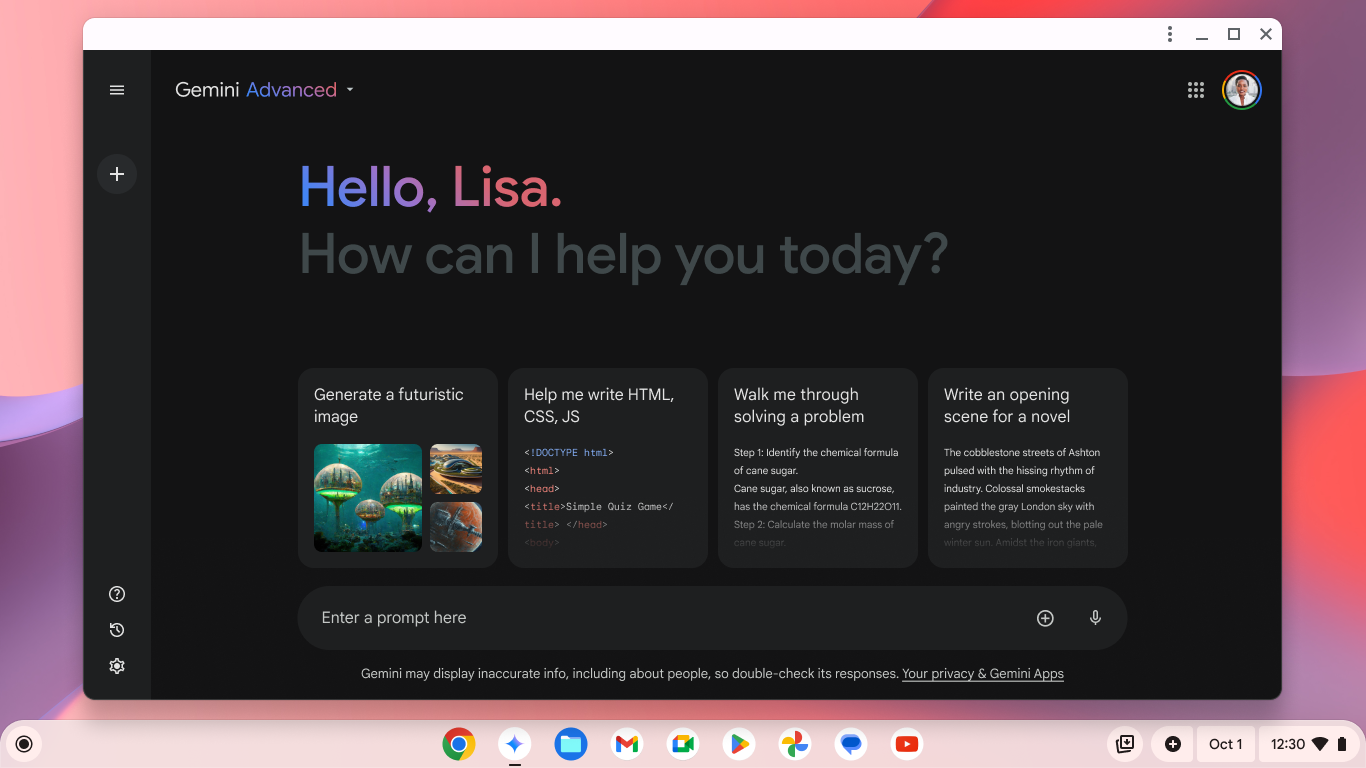
The headline feature of the Gemini Windows app is a keyboard shortcut. After you install it, press Alt + Space to open Gemini in a small window over what you’re working on.
You can type or paste prompts as usual, switch models, and use the same tools your subscription gets you on the web. It works much like Gemini in a browser, just easier to reach.
Instead of opening Chrome and finding my Gemini tab, I press Alt + Space, and it’s there. That alone is a nice productivity boost. The problem is what it fails to do.
Gemini on Windows has no additional features
It’s no different from Gemini in a browser

I quickly realized that, apart from the shortcut, the Gemini app doesn’t do anything different from the website.
As far as I can tell, it isn’t missing anything from the web version, but it doesn’t add anything either.
That wouldn’t have bothered me as much if Google hadn’t released a Mac version nearly five months earlier that works like an assistant for your whole computer.
Gemini on Mac has all the best features
Speak to window, screen sharing, Spark

My personal favorite is window sharing. On a Mac, you can share a window or your whole screen with Gemini, giving it context for whatever you’re asking about without copy-pasting text or taking screenshots.
If I’m stuck on a confusing settings page or a long PDF, that’s exactly when I want an assistant to pop up and understand what I need from a short prompt. Otherwise, I might as well use the web app.
Another one is Speak to Windows. On a Mac, you can hold the Fn key to dictate into any app without opening Gemini. It also acts on what you say if you turn on Use reasoning.
For example, if you ask it to draft a reply to an email you’re reading or summarize the document on your screen, it’ll deliver the result inside the respective app.
That’s different from the Dictate button, which only lets you speak prompts into Gemini’s text box, and it’s available everywhere, including Windows.
There’s also Gemini Spark, Google’s AI agent, that can access chosen folders on a Mac. It can edit documents, organize files, and email those files if you want.
However, Spark on Windows works the same way it does in your browser. It can’t access your local files.
I couldn’t try it myself, since Spark isn’t available in my country, even on my Google AI Pro plan. You’ll need to be in a supported country and have a Pro or Ultra subscription to use it.
The missing features will come, but when?

Google launched the Gemini Windows app on Sept. 10, five months after it arrived on macOS. After all that time, all we got was a direct port of the web app, rather than an actual assistant.
Google said those features will eventually come, but we don’t know when. It’s been over three weeks since launch, and none of the Mac features have arrived.
You can still install the app, but you’re probably better off sticking to the Google app for desktop.
It launches with the same Alt + Space shortcut, searches the web with AI, uses the Fast and Pro Gemini models to answer queries, supports full-screen sharing, and includes a Lens shortcut to share screen snippets or text.
And if you spend most of your day in Chrome as I do, use Gemini’s Chrome sidebar. It can read your page, which is more than the Gemini Windows app can do.