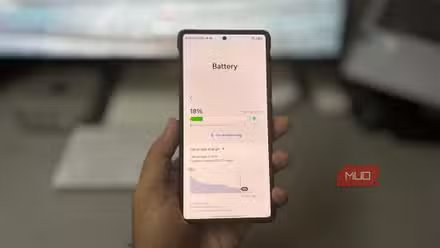
You might have noticed your phone losing battery on standby overnight. The battery stats don’t point to anything unusual, and the usual suspects don’t fit either. It happens too consistently for an old battery and too predictably for a rogue app. As it turns out, a default Android setting keeps waking your phone in the background throughout the night, draining battery on tasks you never asked for.
Account sync and your battery
Why your phone never truly sleeps

Every Android phone linked to a Google account has auto-sync turned on by default. During working hours, that makes complete sense. You want incoming emails to land immediately, calendar invites appear on time, and photos to back up on their own. But Android doesn’t run this as a single sync. Instead of helping you stop background apps from draining power, it sets up separate background checks for Gmail, Calendar, and Contacts, but also for services like Drive, Keep, Play Books, and Google TV. Each one runs on its own schedule, whether you’ve opened the app recently.
The trouble starts when you put the phone down for the night. Auto-sync keeps running even after the screen turns off. Android’s Doze mode does delay some of these checks during long idle periods, but it doesn’t stop them. Each cycle still wakes the processor, activates your Wi-Fi or cellular radio, checks for new data, and then releases the phone back to sleep. Minutes later, the next service repeats the cycle. Over eight hours, that adds up to dozens of wake-ups for apps you might open once a month.
If you carry two Google accounts, every one of those services syncs twice. Google Play Services coordinates the sync schedule, and when a check fails because of a brief network hiccup, it retries until the connection stabilizes. Those retries keep the processor awake longer per cycle.
Spotting sync drain in your battery stats
Play Services and the missing screen time
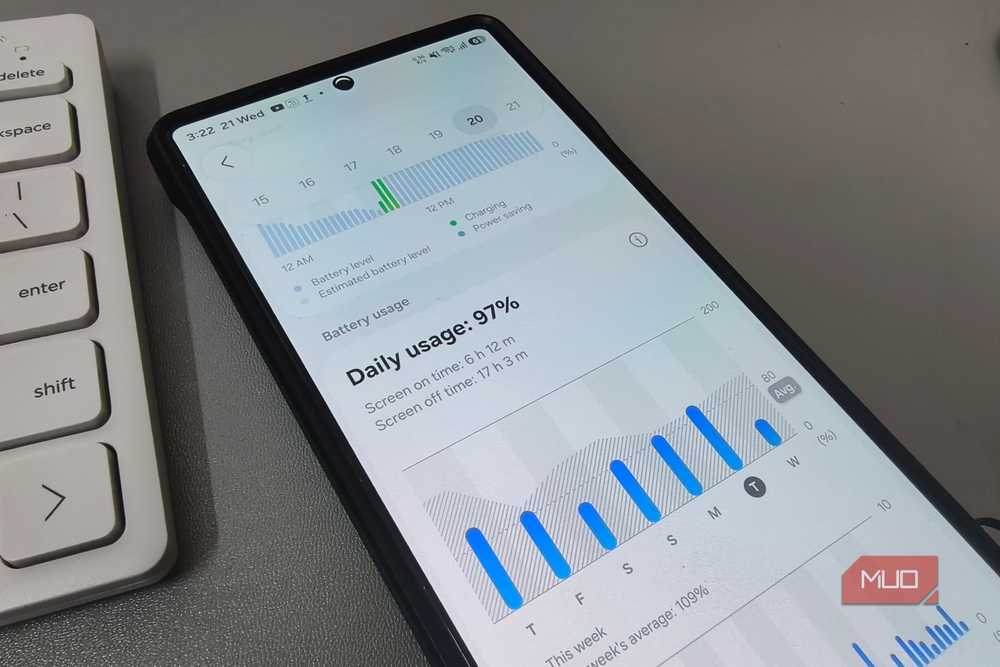
All of those sync cycles running overnight do show up in your battery stats. Open Settings and tap Battery, and check which apps consume the most power the next morning. You’ll notice the screen was off all night, but the battery still dropped several percent. The battery graph shows it clearly, with steady drain during the early morning hours when your phone should have been idle.
The entry carrying most of that usage is Google Play Services. It handles sync for every Google service on your phone, so all that overnight activity shows up under its name. On a healthy phone, Play Services stays in single digits. If yours shows eight or ten percent with no screen time, background sync is probably driving it. Android doesn’t break out sync activity for Gmail, Drive, Calendar, and Keep separately, so it all gets bundled under Play Services.
How to disable unnecessary sync settings
Turn it off, keep what matters
Turning off sync doesn’t remove your data or sign you out of anything. Your files stay in the cloud, and every app still pulls the latest content the moment you open it. The only thing that stops is the automatic background check, the same one showing up under Play Services in your battery stats.
On Samsung, go to Settings, tap Accounts and backup, then Manage accounts. At the bottom of the accounts list, there’s a toggle for Auto sync personal data. Once it’s off, background sync stops for every account on the phone. Android will warn you that you’ll need to sync manually and won’t receive notifications about updates, but that’s fine overnight. Turn it back on in the morning and everything picks up where it left off.
If you’d rather keep Gmail and Calendar syncing around the clock, tap your Google account from that same list and open Sync account. You’ll see individual toggles for each service tied to that account. The exact list varies by device, but it typically includes Gmail, Calendar, Contacts, and Docs. Turn off anything you don’t need updating overnight and leave the essentials on.
On other Android phones, the same auto-sync toggle lives under Settings and Users & accounts. If you’re on Samsung and use Secure Folder, head back to the Manage accounts page and check Auto sync Secure Folder data. If Secure Folder runs its own Google account, those are extra sync cycles adding to the overnight drain.
Make it automatic on Samsung
Samsung makes this even easier with Modes and Routines. Set up a routine that turns off auto sync at bedtime and brings it back in the morning, and the whole process runs on its own every night. If you like using built-in phone automation features, check whether your device can toggle auto sync on a schedule. Otherwise, one toggle before bed, one toggle in the morning, and your battery finally makes it through the night intact.