One of my favorite things about owning a Google TV is that you can change almost anything you dislike about it. You just need the right app to do it. I’d already swapped out the default launcher a while back, and this time I had to do something about those streaming shortcuts on my remote because some of them were completely useless to me.
Remapping wasn’t nearly as difficult as I thought, and it gave my remote new superpowers I didn’t know it had.
My remote had buttons I didn’t need
Not everyone uses the same streaming apps

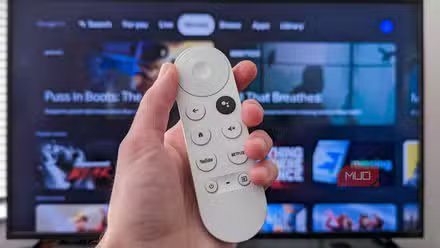
Google TV remotes from different manufacturers look slightly different, but one thing is consistent — you’ll find dedicated buttons for various streaming services like Netflix, Prime Video, YouTube, and Disney+. If you have a TCL Google TV like me, you’ll also find shortcuts for the browser and live channels. These are typically at the bottom of the remote, so you can jump to your favorite streaming service with a tap.
There’s just one problem with this, which is that not everyone uses the same streaming services. You might use YouTube and Netflix but not subscribe to Prime Video. In that case, that shortcut does nothing for you. If anything, you might open the app accidentally, which is another annoyance.
That’s the thing about sponsored remote buttons. They might not be built around how you watch your TV, and what’s worse is that Google TV doesn’t give you a native way to remap those buttons. But that doesn’t mean you’re stuck with them. You can use an app like Button Mapper to remap almost any button on your TV remote.
Button Mapper makes remapping simple
It works on your Android phone too
There are plenty of good button remapping apps on the Play Store. tvQuickActions and Button Mapper are right up that list. I went with the latter because it was more popular and had better reviews too. It’s a simple app that lets you remap buttons on your TV remote to do other things. You can use those buttons to open different apps, jump to quick settings, toggle brightness levels, mute the microphone, and a lot more.
Once you install it from the Play Store, you’ll need to allow it the accessibility permission. Choose OK and then head to Settings > System > Accessibility > Button Mapper and turn on the toggle. After that, go back to the Button Mapper app to start remapping buttons.
By default, the app shows Volume Up and Volume Down, but since we want to tackle the sponsored shortcuts, choose Add Buttons and then press the shortcut you want to remap. After adding it to the list, select it again, and choose Single tap. Here, you’ll see a list of actions you can assign. Some of these do require the Pro version of the app, which is a one-time purchase for around $2.99.
To set the button to launch a different app, use the drop-down menu to choose Application and pick from the installed apps. The best thing about Button Mapper is that you can also double tap or long press the same shortcut to do something else. You can repeat these steps for other buttons you want to remap.
For my remote, I remapped the Web button to open TVBro, which is my go-to TV browser. I set the long press on the same button to mute the microphone. I also remapped the TCL Channel button to increase the brightness and the Prime Video to decrease it since it’s something I need often.
Every button is fair game

I installed Button Mapper for remapping the sponsored buttons but ended up remapping a lot more. My TCL remote had a bunch of buttons I never touched, so remapping those made just as much sense. I ended up remapping TCL Home, Channel, Information, and a couple of other buttons. I reassigned those to play/pause, skip tracks, and similar playback controls I actually use.
That’s just how I configured the remote, but you can try other functions, like voice typing or opening the Quick Settings panel. More importantly, each button supports up to three actions: single tap, double tap, and long press.
It honestly took a while to get used to those remapped buttons, but it’s now become a muscle memory. Although it’s still funny when someone else uses that remote — I have to walk them through what each button actually does, because most of it doesn’t match what’s printed on it.
I did leave the D-pad and volume buttons shortcut alone. These are crucial to how Google TV actually functions, and reassigning any of them can break basic navigation, so I’d advise you to skip them too. If you do end up breaking the remote because of this, you can always connect an external keyboard or mouse to fix things.