The Play Store is full of apps that exist to patch the holes stock Android leaves open. You’ll find apps for automating stuff, storage cleanup, document scanning, app locking, and even bulk image editing. And while I get the popularity, you don’t need most of these apps on a Samsung phone because One UI already has these things covered.
I don’t blame you for not knowing about them, though, because Samsung doesn’t make it obvious, and keeps some of these tools hidden by default.
Tasker or MacroDroid
Modes and Routines are way easier to use
Apps like Tasker and MacroDroid are popular because most phones don’t offer anything similar out of the box. That’s not the case with Galaxy phones, though. One UI has powerful Modes and Routines that let you automate almost anything you want on your phone.
Modes can do stuff depending on whether you’re driving, working, exercising, or going to bed. You set these up to trigger specific actions the moment you switch to them. You can have a Bedtime mode, for instance, that enables grayscale, puts your phone in silent mode, turns off Always On Display, and disables fast charging.
Routines work on “if this, then that” rules. You set conditions like time, location, app, or connected devices, then decide what your phone should do once those conditions are met. A battery saver routine, for example, can kick in at 40% and disable location services, cut brightness, turn off performance mode, and switch on dark mode automatically. It’s all about how creative you can get.
SD Maid
Device Care already takes care of it

SD Maid is popular because it makes cleaning your phone’s storage easy. It can dig into app caches, orphaned files, system junk, duplicates, and more. But Samsung phones already show most of these suggestions inside the Storage menu.
Head to Settings > Device care > Storage, and you’ll see options to delete APKs, pre-edit backups, unused apps, and other app data. These suggestions are usually enough to free up 10-15% of storage.
One UI 9.5 is going to make this even better. My Files app is getting its own storage-cleanup menu, and it can help you delete pre-edit backups, empty the recycle bin, and even clear all app caches at once. All of this means you don’t need apps like SD Maid on Galaxy phones anymore.
Adobe Scan
Samsung Camera already doubles as a scanner

A document scanner app is something you probably don’t need every day, but still keep on your phone. Apps like Adobe Scan are undoubtedly handy for scanning any physical document and saving it as a PDF.
But installing a separate app is unnecessary on Samsung phones because the Camera app already does this. Head to Camera settings > Scanning and turn on Document scan.
Now point your phone’s camera towards any piece of paper, and you should see the Scan option pop up. You can scan multiple pages and save them as a single file. And yes, the Samsung Camera also includes handy filters and editing options that let you fix accidental fingers and corner folds in a scan.
Good Lock has a bulk image editor of its own

Image Toolbox is one of the best photo-editing apps for Android. It’s mainly for editing images in bulk, and it works great for compressing images, converting them, resizing, and even stripping their EXIF metadata.
The Samsung Gallery app has something similar that you can unlock using Good Lock’s Gallery Assistant module. Once you install it, head to Gallery Settings > Gallery Assistant, and you’ll see options to rotate, compress, watermark, clip, and print images in bulk. Yes, the options you get here are nowhere near as many as Image Toolbox, but it does cover almost everything necessary.
WiFi Analyzer
Connectivity Labs already handles this

WiFi Analyzer is a super useful app that lets you see what’s happening on your network. It shows channel congestion, signal strength across rooms, which bands devices are using, and more. The idea is to give you all this data so you know what’s happening and can fix your network easily.
Samsung phones, however, have something similar built in. Head to Settings > Connections > Wi-Fi. Tap the three-dot menu in the top-right corner and choose Intelligent Wi-Fi. Scroll down to the bottom and tap Intelligent Wi-Fi multiple times.
This will unlock an option called Connectivity labs. Tap it, and you’ll see stats about your Wi-Fi usage, some advanced settings, and even an option to scan your home Wi-Fi. That last one is my favorite because it lets you map signal strength around the house. It’s great for finding those dead Wi-Fi zones or figuring out a good place for the router.
App Lock
One UI already gives you a couple of ways to do this
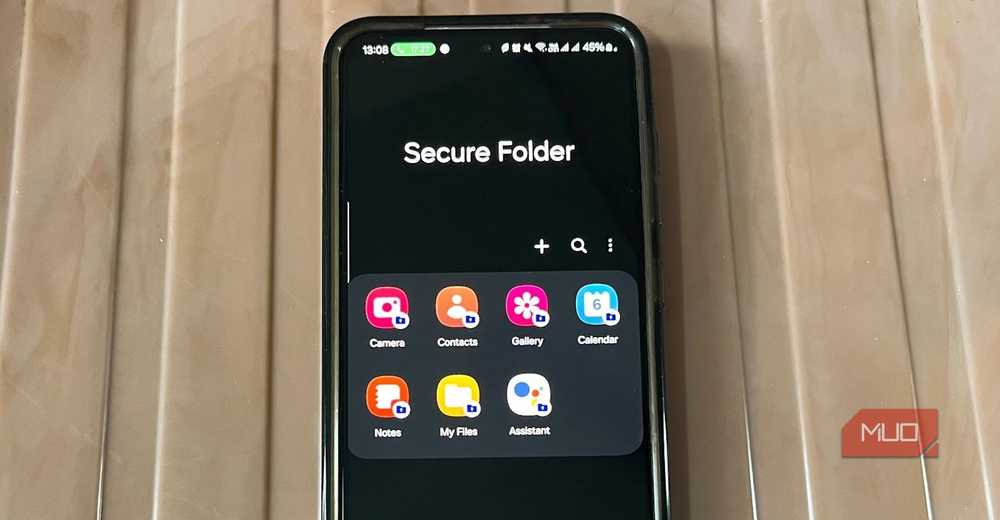
For the longest time, Android phones haven’t offered an easy way to lock an app with your PIN or biometric. So it’s no surprise that a tool like App Lock has over 50M downloads. But Samsung phones offer a slightly different way to lock apps.
Moving apps to Secure Folder is a great way to keep your private apps out of sight and locked behind a PIN that’s separate from the one on your lock screen. Secure Folder is an encrypted space that’s completely separate from your main phone, so you don’t have to worry about your data from those apps showing up anywhere.
If setting up Secure Folder feels like too much, One UI 9.5 is also bringing native app locking to Galaxy phones, so dedicated apps like App Lock are no longer necessary either way.

