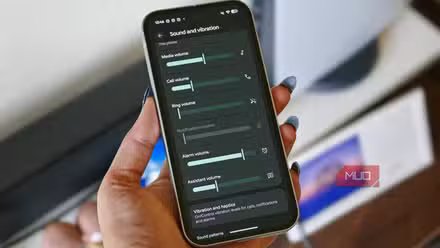
I’ve been using Samsung phones for quite some time now, and while I’ve grown to appreciate how much control One UI gives me, there’s one little annoyance that has occasionally left me scratching my head. My phone would randomly vibrate, and when I’d pick it up to check what was happening, there wouldn’t be a notification waiting for me.
At first, I didn’t think much of it. After all, I have quite a few apps installed, and it’s easy to assume one of them is doing something in the background. But when it kept happening, I wanted to figure out what was actually triggering those vibrations instead of randomly disabling notifications and hoping for the best.
That’s when I came across Nice Catch, a lesser-known Samsung app that does something I wish Android offered more prominently. It keeps a record of certain activities happening on your phone, including those mysterious vibrations, so you can figure out which app or system service might be responsible.
My notification history wasn’t giving me the answers
There’s more happening than your notifications suggest
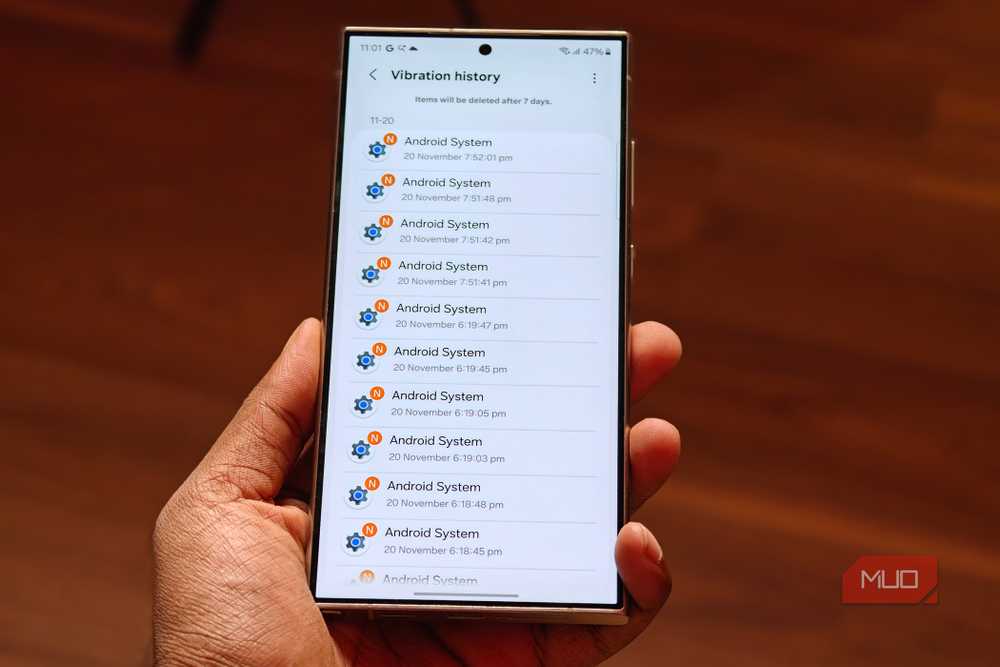
Whenever my phone vibrates, my first instinct is to pull down the notification shade. And if there’s nothing there, I usually check the notification history to see whether I’ve missed or accidentally dismissed something.
However, that doesn’t necessarily help when the vibration isn’t associated with a regular notification. Apps can trigger haptic feedback for different reasons, and certain system interactions can also make your phone vibrate without leaving anything obvious in the notification panel.
The problem is that you don’t always know where to start looking. I could go through every app’s notification settings, but that would be unnecessarily tedious, especially when I wasn’t even sure whether an app was responsible. What I really wanted was a way to see which application or system process had triggered the vibration in the first place. Fortunately, Samsung already has something for exactly that.
This overlooked Good Lock module keeps track of those vibrations
Nice Catch is surprisingly easy to set up
If you’ve used Samsung’s Good Lock app before, you’re probably familiar with modules that let you customize everything from the home screen to the volume panel. However, Nice Catch is a little different.
Instead of helping you customize your phone, it records certain activities so you can investigate why something happened. And the feature I was particularly interested in was vibration history.
Getting it running is fairly simple:
- Open the Galaxy Store and install Good Lock if you haven’t already.
- Launch Good Lock, find Nice Catch under the available modules, and install it.
- Open Nice Catch and enable its main switch, if prompted.
- Turn on Vibration history to start recording supported vibration events.
- Tap Vibration history to view the recorded activity.
Once you’ve enabled it, you can go about using your phone normally. You don’t need to keep the app open or constantly monitor it. The next time your phone vibrates unexpectedly, open Nice Catch and check the latest entries. The history can show which app or system component triggered a vibration, along with information that helps you match it to the event you noticed.
One thing worth mentioning is that Nice Catch doesn’t work retroactively. It needs to be enabled before the vibration occurs, so don’t expect to install it and immediately find an explanation for something that happened yesterday.
Finding the source is only half the job
The activity history helps narrow things down
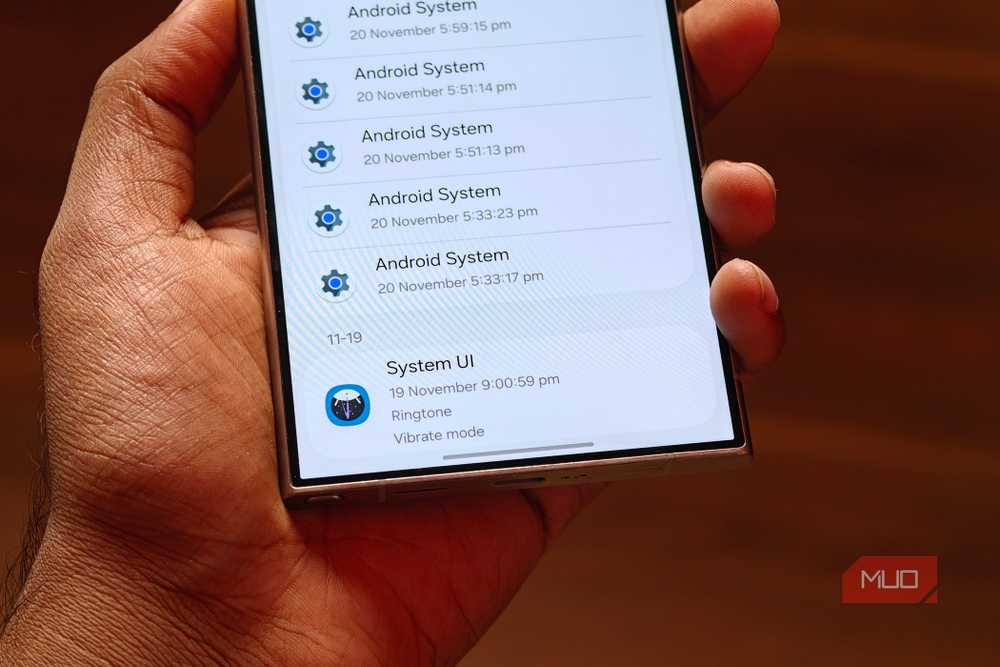
What makes Nice Catch particularly helpful is that it gives you somewhere to start rather than leaving you to guess which of your installed apps might be misbehaving. When you notice an unexpected vibration, check its approximate time and compare it with the entries in Vibration history. If a particular app keeps appearing around the same time, that’s a good reason to investigate its settings.
For example, if a messaging app is responsible, you could open Settings > Apps, select that app, and review its notification options. You might find that a particular notification category has vibration enabled, even though you don’t necessarily want an alert for it. I’d recommend adjusting the relevant notification or vibration setting rather than immediately uninstalling the app or turning off all its notifications. That way, you can address the annoyance without accidentally missing something important.
Of course, Nice Catch won’t always give you a perfectly straightforward answer. Sometimes an entry might identify a general Android system process rather than a specific app, and not every vibration will necessarily appear in its history. Still, having a record to investigate is considerably better than going through dozens of settings without knowing what you’re looking for.
It can catch more than just random vibrations
There’s a lot more happening behind the scenes
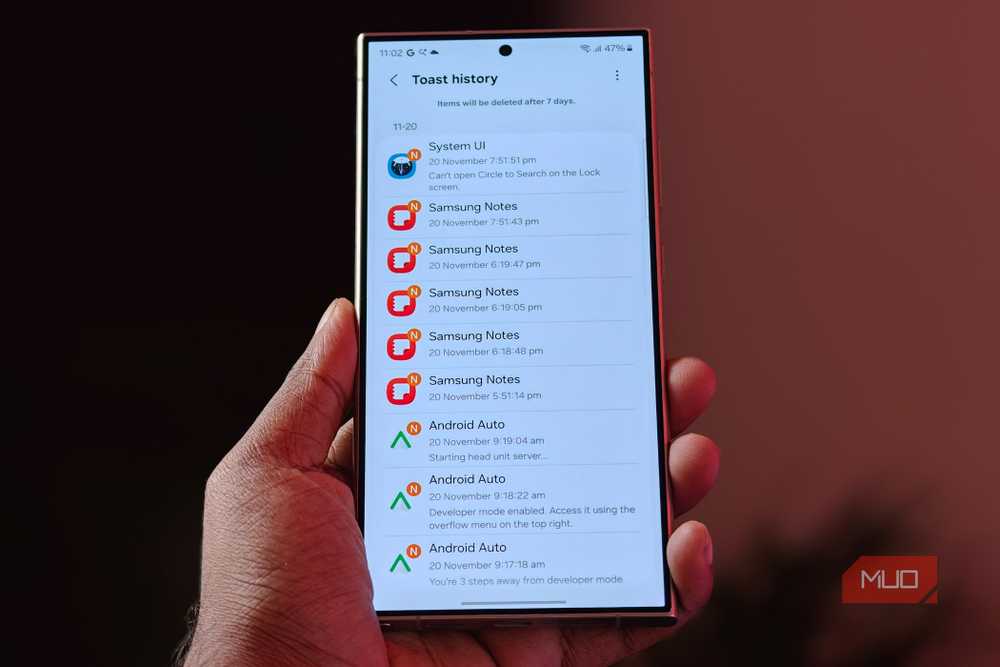
Although I started looking into Nice Catch because of the vibration issue, I found its other tracking options interesting, too. For instance, Screen wake-up history can help identify what caused your display to turn on unexpectedly. This is particularly handy if your phone keeps lighting up while it’s sitting on your desk, and you can’t figure out why.
There’s also Toast history, which records supported toast messages. These are the little messages that briefly appear on your screen and disappear before you really get a chance to read them.
Nice Catch can also track certain changes to your phone’s settings, ringer mode, and media volume. The available options depend on your Samsung device and One UI version, but I like that you can enable the categories you’re interested in rather than having to monitor everything.


8.5/10
- SoC
-
Snapdragon 8 Elite Gen 5
- Display
-
6.9-inch Dynamic Super AMOLED 2X
- RAM
-
12 or 16 GB
- Storage
-
256GB, 512GB, or 1TB
This is one Samsung app I’d keep around
I don’t necessarily need Nice Catch running all the time, and it’s certainly not an app I’d open every day. But knowing that I have a way to investigate these little annoyances makes it worth keeping installed.
It’s also a good reminder that some of Samsung’s most interesting features aren’t necessarily the ones you’ll find advertised on a product page. Sometimes, they’re tucked away inside an app most people probably haven’t explored. And the next time my phone vibrates without an obvious reason, at least I won’t have to go through every installed app wondering which one is responsible.