It’ll likely come as no surprise to anyone well-versed in PC hardware that a GPU spends most of its life doing almost nothing. It only springs into action when you launch a game, render a scene in Blender, or fire up a simulator. When your job revolves around juggling documents and Excel spreadsheets like mine, that means most of the time the GPU just sits in its PCIe slot, waiting for the weekend.
With the hardware that I have in my rig, I already knew that I could turn my RTX 4070 Ti Super-equipped PC into a dedicated AI server for my home and bring Qwen3.6-35B-A3B to every other device that I have under the roof, none of which could hope to run it natively. What I didn’t know, though, was just how easy llama.cpp would make it. Here’s how I’m serving the best model I can run on my 16GB GPU to the whole house, and how little it takes to do so.
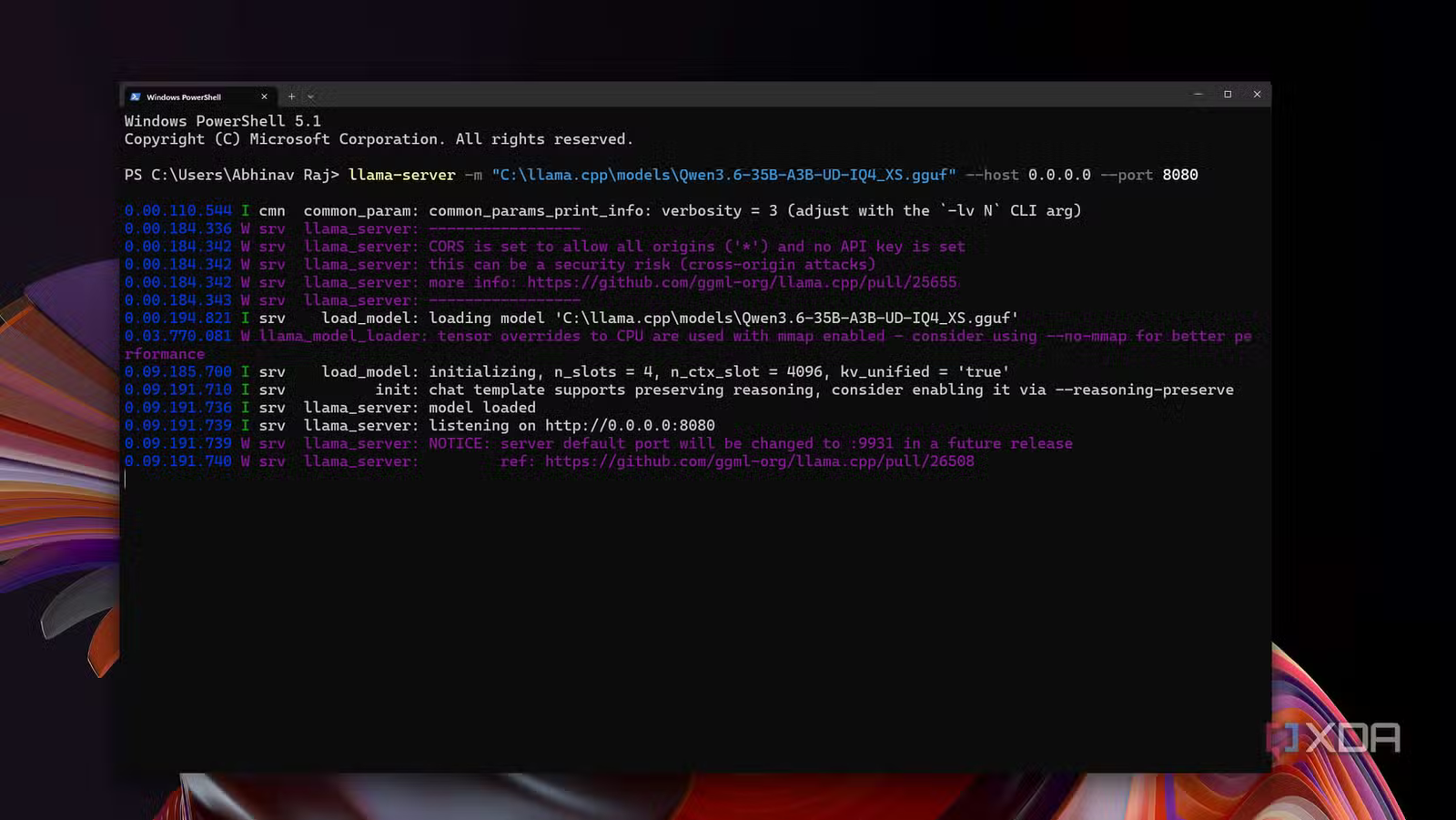
The entire setup took one command
Llama.cpp’s built-in web UI turned every device in the house into a client

If you’ve been following my work, you’d know that I prefer llama.cpp over any other runtime for local AI inference because of the customizability and performance it offers. I’ve already got a recent build (b11927) set up, along with the model file for my model of choice, which is Qwen3.6-35B-A3B (which is a UD-IQ4_XS quant from Unsloth) which I use for various purposes on my PC.
The two are the only prerequisites for serving local AI from your PC, and if you’ve already got a similar build and a model you’d like to serve, the only thing to do is run one command in PowerShell:
llama-server -m "C:\path\to\your-model.gguf" --host 0.0.0.0 --port 8080Now, naturally, you’d have to replace the path with the path to your own model, which is wherever you have saved the model’s GGUF file. For example, for me, serving Qwen3.6-35B-A3B would mean running the following script:
llama-server - m "C:\llama.cpp\models\Qwen3.6-35B-A3B-UD-IQ4_XS.gguf" --host 0.0.0.0 --port 8080The specific flag here that makes it a server is –host 0.0.0.0, which instructs llama-server to listen on your home network instead of only on your PC as you would normally do. On the other hand, –port 8080 pins the port, since llama.cpp plans to move its default to 9931 in a future release (which is a point it makes every time you load a model). Everything else can stay at llama.cpp’s defaults which, conveniently enough, already split the context into slots, so several users can chat at once and fit the model into your free VRAM on their own.
But how “fast” do the models run on the client?
About as “fast” and as well as they run on the host
The reason why llama.cpp is perfect for setting up a home AI server is because you barely lose anything in terms of performance against the baseline measured on your host. This is because the model never really leaves your PC. Llama-server does the inference on the GPU and streams the reply back as plain text, one token at a time.
Even at 90 tokens per second, that’s only a fraction of a megabit per second, which any home Wi-Fi network is equipped to handle easily. This is slightly different from a game streaming server like those reliant on Sunshine and Moonlight since game streaming has to send every frame as video, while this server only sends words. As a result, whatever speed the host generates at is the speed the client gets, after a few milliseconds of delay before the first word shows up on the browser.
The reason why I can claim this is because I brought the numbers with me. For my own testing, I tuned the command for my RTX 4070 Ti Super, Ryzen 5 7600X and 32GB of DDR5 using specific flags to optimize the performance. Have a look at this command:
llama-server -m "C:\llama.cpp\models\Qwen3.6-35B-A3B-UD-IQ4_XS.gguf" --host 0.0.0.0 --port 8080 -ngl 99 --n-cpu-moe 8 -c 32768 -np 2 -kvu -fa on --load-mode noneAs Qwen3.6-35B-A3B is about 17.7GB against my 16GB of VRAM, I use –n-cpu-moe 8 to offload the expert weights of the model’s first eight layers to system RAM, whereas -ngl 99 keeps everything else resident on the VRAM itself.
During inference with the specific MoE model, only about 3 billion of its 35 billion params are active, which is why splitting the experts between VRAM and RAM keeps it fast. For my use, I keep the context window set to 32K, and -np 2 gives the server two chat slots so two people can use it at once. The -kvu flag lets both slots share that context.
To test the speed, I sent the same prompt asking the model to write 5 paragraphs on how a CPU works from a fresh chat on each device, first one at a time, and then both simultaneously, and recorded the following numbers.
|
Device |
Test |
Speed (Tokens/second) |
|---|---|---|
|
PC (Host) |
llama-bench |
85.49 |
|
iPhone |
Alone |
88.43 |
|
M2 MacBook Air |
Alone |
89.56 |
|
iPhone |
Simultaneous |
59.91 |
|
M2 MacBook Air |
Simultaneous |
59.01 |
An idle AI server barely costs my GPU anything
But there’s a catch, and it’s worth knowing if you’re using the server

One of the best parts of turning my GPU into a home server for local AI is how little it costs me. Even with the model loaded and waiting, nvidia-smi logged my RTX 4070 Ti Super at about 14W, about a tenth of what it draws during active inference. It only climbs to 130-140W while it’s generating a reply, and drops straight back when the message has been sent.
The only catch that’s worth taking into consideration is the VRAM. With the server running, my GPU’s VRAM is about 96% occupied, taking up 15.4GB of 16GB, leaving roughly about 0.6GB to spare. Depending on the model that you use, that figure can vary. However, it’s also worth noting that it isn’t exactly a huge problem if you happen to be using lighter models like Gemma 4 E4B or are offloading more expert layers into system RAM when using a mixture-of-experts model.
Idle VRAM is wasted VRAM, and worth putting to work
I can’t help but think that the ideal setup for this is a dedicated, headless home server, especially one with multiple GPUs whose VRAM would otherwise sit unoccupied and unused. However, there is nothing stopping you from doing the same with your main PC if its GPU spends most of its days waiting to be used like mine.
It’s simple enough that it can be set up in one command, and depending on the VRAM you have, every device in your house can get a 35B model at a comfortable inference speed. Fair warning though, if you’re too happy with the setup, it may have you reconsidering your $20 a month cloud subscription.