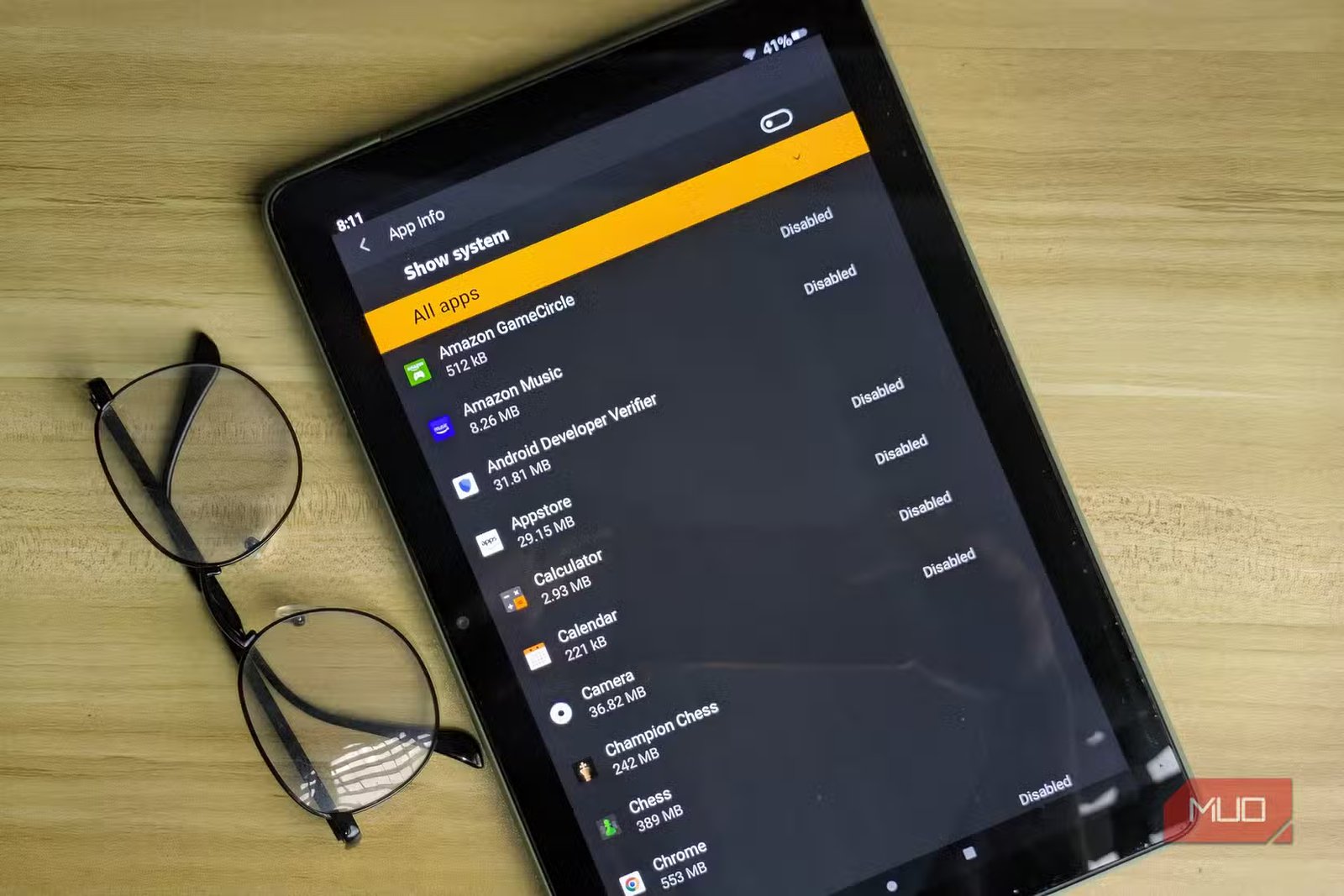
I gifted an Amazon Fire HD 10 tablet to a family member several years ago. On my last visit, I was surprised that it was still working fine. The only issue was that it wasn’t as responsive as I remembered. The 3GB RAM was the obvious bottleneck, and seeing how many pre-installed Amazon apps were on the tablet, I wondered if removing them would save enough memory to make it responsive again.
The problem is that removal isn’t exactly a straightforward process. Fire OS comes pre-baked with Amazon apps that can’t be uninstalled or disabled on the tablet. However, there is a quick and easy way to get around this.
Can’t uninstall an app? Just disable it
Quick, easy, and no root required
Replacing Fire OS is the only way to truly remove these services. That’s why I initially dreaded removing these apps, because I thought I would need to root the tablet and flash a custom ROM. But after a bit of research, I learned that disabling these apps with an ADB tool produces a similar effect and that it’s actually pretty common to remove these pre-installed Android apps by using an ADB tool. Luckily, there’s already a dedicated ADB tool specifically made to debloat Fire tablets.
Fire Toolbox is a free desktop application (Windows and Linux) that lets you customize the current Fire OS without having to root your device. This works on pretty much every Amazon Fire tablet released (though some will have limited tools), whether it’s a 2014 Amazon Fire HD 6 or the latest Fire HD 10.
Fire Toolbox has a one-click debloat feature that disables non-essential Amazon services for you. This comes with presets for a light standard debloat, a more aggressive debloat, and an option to customize which exact services you want to disable. Again, while this does not actually delete the apps, disabling them on the OS level is enough to cause a significant boost in performance.
How I stripped Amazon pre-installed apps
It only takes a few minutes
Fire Toolbox already comes with all the things needed to debloat Fire tablets. But since it’s a desktop application, you first need to enable developer mode on the tablet. To do so, I opened the tablet and went to Settings > Device Options > Enable Developer Mode. Then I continued scrolling down to enable USB debugging. This ensures that the tablet can connect to the PC via USB and run the ADB toolkit.
If you don’t see Developer Options, go to Settings > Device Options > About Fire Tablet and tap Serial Number seven times.
I then went to my PC and downloaded Fire Toolbox from XDA forums. After downloading, I extracted the contents from my desktop and double-clicked on the Fire Toolbox app. This opens a window where I skipped the tour, set the theme to default, and updated the toolbox by clicking Download and Install.
I was then prompted to connect my Fire tablet to the PC through USB. The tablet then asked me for permission, and I simply tapped OK on the tablet to allow the connection.
Going back to my desktop, I could see that the Fire Toolbox menu had changed. It provided me with several tools, but since I was only interested in removing pre-installed Amazon apps, I went ahead and clicked on Manage Amazon Apps. This gave me the option to either do a Standard Debloat, Complete Debloat, or Manual Debloat.
For the best performance gain, I went with Complete Debloat. However, I did have to backtrack and use the Restore Everything feature because Complete Debloat disabled the default Amazon keyboard, preventing me from installing its replacement. So, don’t make the same mistake. Make sure to install another keyboard app before running Complete Debloat. And since there is no Play Store to download Gboard (the default Android keyboard), you’ll have to try other open-source keyboard alternatives.
I then hit Execute to start the process. It only took a few seconds to complete!
I ran the full removal pass once and rebooted (you don’t have to). It worked! The home screen was noticeably snappier, with no lag in swiping between pages and no random “Updating” notifications in the status bar either. The tablet was significantly debloated and provided the same responsive feedback as when it was new.
You may have to do this again
Auto-updates can reactivate the pre-installed apps

Amazon can still reactivate these apps when it releases a new OTA (over-the-air) update. And for the same reasons phones can slow down after an update, your tablet can go back to having the same performance issues.
Complete Debloat only disables pre-installed Amazon apps and does not stop updates. While Fire Toolbox can disable OTA on Fire tablets, I don’t recommend doing it because updates also come bundled with security patches. This means you may have to debloat your tablet for every update that Amazon releases.
However, an update does not automatically reactivate the disabled apps. Before giving the tablet back to my parents, I made one last update and saw that the debloat was still in effect. So, it really just depends on whether Amazon decides to reactivate them or not.
You can do so much more!
What’s great is that while I used Fire Toolbox to remove Amazon apps, the app can actually do so much more. You can customize your launcher, remove ads, fix lock screen problems, install Google services to allow you to install Google Play apps, and so much more. And because the changes are reversible and don’t require rooting your tablet, the changes are less likely to affect your warranty (if it’s in effect). If your Fire tablet feels sluggish, it’s a quick, reversible way to give it a second life.