ZDNET’s key takeaways
- Linux has plenty of easy-to-use apps.
- Even installing apps has become simple.
- Use one of these app stores for a user-friendly experience.
I’ve been using Linux so long that I remember the only way to install applications was via source. Those were interesting times, when I cut my teeth with commands like configure, make, and make install.
Also: My top 5 Linux alternatives to Windows
It’s not that I’m against installing software from the command line; in fact, I do it quite often. But a good GUI package manager certainly makes Linux life a lot simpler, especially for those will little experience. But not every Linux package manager GUI is created equal; some are simply better than others.
What makes for a good Linux package manager? For me, it boils down to the following:
- A modern UI: Package managers like Synaptic are solid choices, but the old-school UI can easily turn off new users.
- Intuitive, familiar design: The package manager workflow needs to be instantly familiar and easy to use.
- Universal package manager integration: Without integration with Snap and/or Flatpak, a package manager is limited.
- Speed: Slow package managers are frustrating.
- Configurability: Package managers should allow users to customize the tool.
When all these aspects come together, a package manager can be successfully and easily used by anyone, regardless of how much Linux experience they have.
Also: My top 5 Linux server distros for your home network
To that end, I’ve come up with what I think are the best Linux GUI package managers available today. Are these the only ones I recommend? Not at all. These GUIs just happen to be the best of the best.
1. COSMIC Store
 Screenshot by Jack Wallen/ZDNET
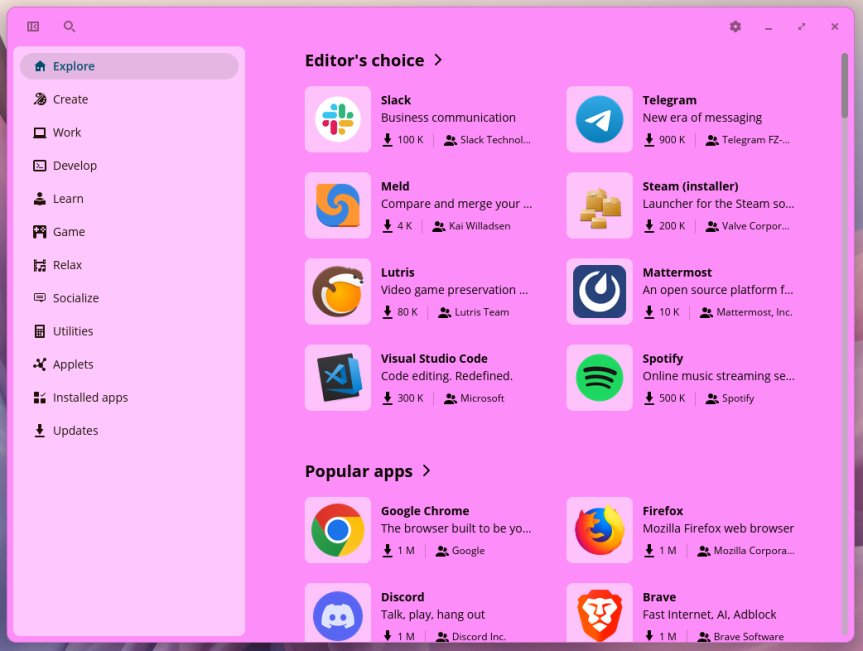
I’m a bit biased, because Pop!_OS (with COSMIC Desktop) is my distro of choice. I remember, prior to COSMIC Desktop, the Pop!_OS GUI package manager was always an exercise in frustration; it was slow and was prone to crashing. With the advent of COSMIC Desktop, that all changed, and COSMIC Store is now one of the fastest, most reliable package manager GUIs on the market.
COSMIC is not only blazingly fast, but also easy to use, so anyone can hop in and start installing the software they need, thanks to a modern UI. On top of that, COSMIC Store simplifies the addition of the universal package manager, Flatpak. You not only get access to the Flathub repositories, but also the COSMIC Flatpak repositories, as well as the ability to import custom Flatpak sources.
Also: The Framework 12 is the ultimate tinkerer’s PC
COSMIC Store integrates updates, so you don’t have to open a second app to take care of the task, and the categories are curated to make it even easier to find what you’re looking for.
COSMIC Store is the default package manager GUI for Pop!_OS running COSMIC Desktop.
2. Shelly
 Screenshot by Jack Wallen/ZDNET
Shelly is the newest package manager on the list, and it certainly belongs here. Do note that it’s currently only available for Arch-based distributions (and may never find its way outside of that ecosystem).
Shelly is the most modern-looking, well-designed package manager GUI for any Arch distro on the market. Shelly offers an all-in-one dashboard that consolidates the native Arch repositories, Arch User Repository (AUR), Flatpaks, and AppImages. You get native performance and direct interaction with libalpm (the engine behind pacman), so it doesn’t duplicate local databases, includes a built-in package builder, and has integrated troubleshooting tools.
Also: Installing apps on Linux? Mistakes to avoid
Shelly even has a distinct tab for Flatpak apps, so you know exactly how an app is being installed (instead of having to check a drop-down and select the source). As well, it can drag and drop a downloaded AppImage file from the file manager to install an app.
You can install Shelly on Arch-based distributions using the yay -S shelly command. If yay isn’t found on your distro, install it with sudo pacman -S yay.
3. KDE Discover
 Screenshot by Jack Wallen/ZDNET
KDE Discover is the package manager GUI for KDE Plasma, and (just like the desktop itself) it’s modern, easy to use, and fully integrated with universal package managers. KDE Discover is the ideal package manager for those who are new to Linux because it fits in perfectly with the KDE Plasma ethos: simple enough for those with little Linux experience, but flexible enough for those who’ve used Linux for years.
With KDE Discover, you can easily add Flatpak or Snap support, select from numerous distribution repositories, select from application add-ons, and upgrade user and system software — all from within a user-friendly, intuitive UI.
Also: I found a firewall GUI for KDE Plasma better than the default
KDE Discover is also very good at categorizing applications, so they are easier to find for installation, and the home page offers app categories such as Most Popular, Editor’s Choice, Highest-Rated Games, and Highest-Rated Developer Tools.
You can even install new fonts from within KDE Discover.
KDE Discover is the default package manager GUI for the KDE Plasma desktop.
4. Bazaar
 Jack Wallen/ZDNET
aK, I’ll say it up front: Bazaar is a GUI front-end for Flatpak packages and that’s it. However, Bazaar makes managing Flatpak apps very simple. With Bazaar, you can install, remove, and update Flatpak apps without ever touching the command line.
Bazaar is also one of the best-designed package manager GUIs on the market. Bazaar is even easier to use than the Flathub website (and you don’t have to worry about copying and pasting commands or downloading flatpak ref files for installation).
Also: Snap vs. Flatpak: Which Linux package manager is right for you?
I’ve used Bazaar for some time now, even on COSMIC Desktop, because I find it the superior method of managing all of my Flatpak apps. I would go so far as to say that anyone who uses Flatpak app should have Bazaar installed…it’s that good.
You can install Bazaar via Flatpak with the command:
flatpak install flathub io.github.kolunmi.Bazaar
5. Linux Mint Software Manager
 Screenshot by Jack Wallen/ZDNET
You want something simple? Linux Mint. The default Linux Mint Software Manager is as easy as it gets. You get apps that are categorized such that it’s very simple to locate what you want to install, and you can even enable search in package descriptions (although this does slow down the search a bit) for easier app discovery.
One feature unique to the Linux Mint Software Manager is the Maintenance tab within Software Sources. From this tab, you can take care of several things, such as fixing merge list problems, purging residual configurations, removing duplicate entries, adding missing keys, removing foreign packages, and downgrading foreign packages.
Also: My 10 favorite Linux distributions of all time, ranked
My favorite aspect of the Linux Mint Software app is how well laid out it is, thereby making the task of finding the apps you want an absolute no-brainer.
This package manager GUI is the perfect front end for a Linux distribution and ideal for those with little to no Linux experience.

See full bio