I’ve been using Android phones for years now, and for the most part, they generally play well with Microsoft’s ‘Link to Windows’ mobile app. That official setup gives me access to my phone from my desktop PC, and Samsung phones like my Galaxy Z Flip 7 have mostly worked without issue.
However, I still rarely use Phone Link on Windows 11 because when it does break, I find its random disconnection bugs so annoying that I don’t want to pair my phone over and over. Besides, I don’t need to access my smartphone from my PC all the time, so I looked for an alternative and found a great one.
What is scrcpy?

It’s pronounced “screen copy”, but shortened to scrcpy on its GitHub repo. If you’re unfamiliar, GitHub is a platform where coders and developers share and collaborate on software, often letting users view the source code of apps. That includes scrcpy, which is an open-source app (and that means it’s free).
As its name suggests, scrcpy can mirror my phone’s screen on my Windows desktop, like Phone Link. In that, it’s not particularly groundbreaking, but I was intrigued by its flexible customization and support for low-latency connections over USB. It also works wirelessly, so it’s nice to have that option.
You’ll need to enable ‘USB debugging’, but that’s easier (and less scary) than it sounds. On most devices, including my Samsung Galaxy, I tap the ‘Build number’ readout in my settings app seven times to enable a ‘Developer options’ menu and then toggle the new USB debugging option inside.
Now here’s what I’m actually using it for

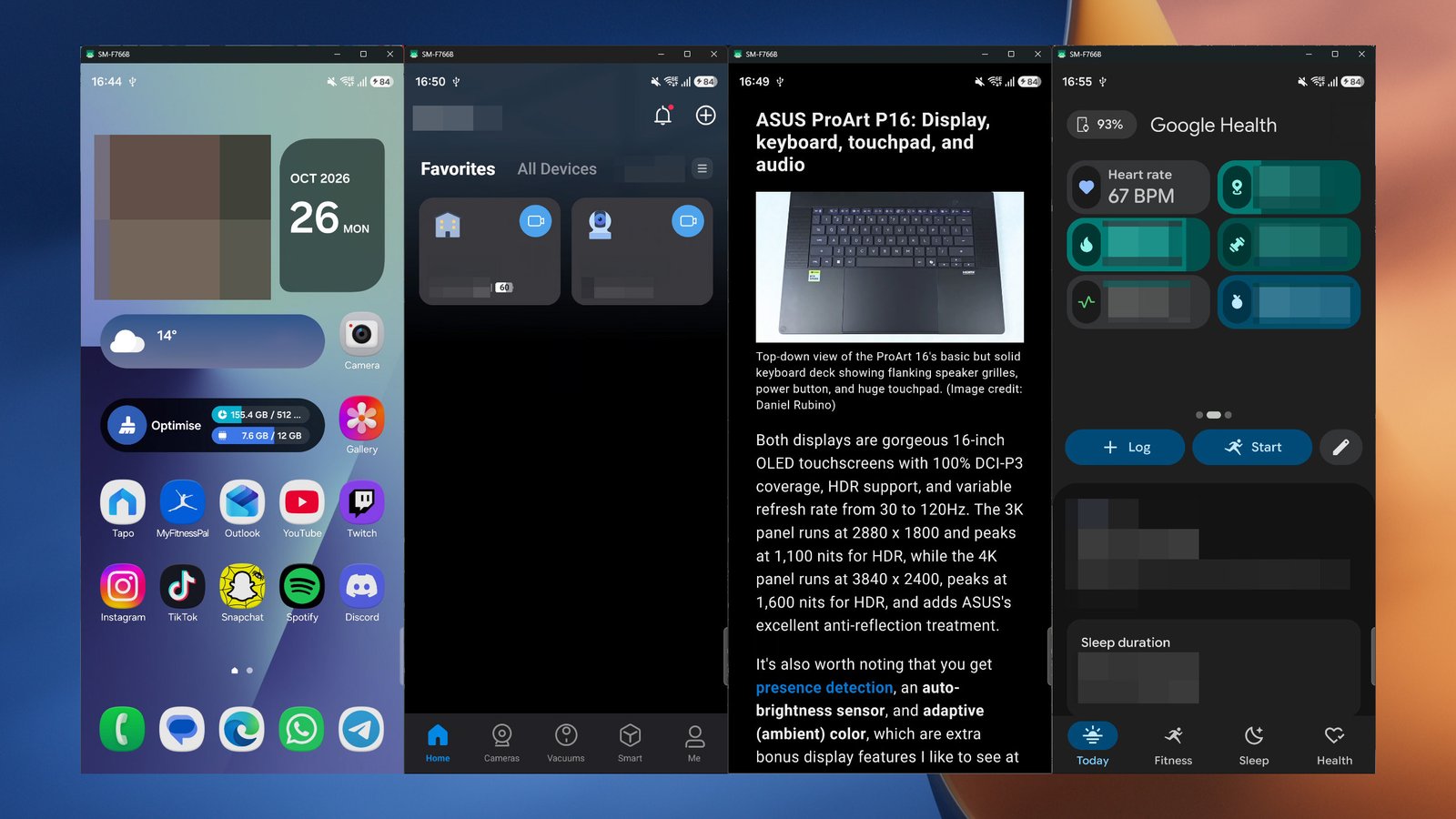
I had two main reasons to find a Phone Link alternative: to show my live heart rate from my Fitbit wearable connected to the Google Health app, and to view my Tapo security camera feeds, since TP-Link still doesn’t offer a desktop app. Naturally, I’ve since discovered more benefits to scrcpy beyond these.
I know that first reason sounds strange, but Fitbit devices can’t pair with Windows PCs, so it’s more of a workaround to capture my heart rate BPM readout while playing horror games over Halloween. That’s purely for fun, but the second is a real workaround.
Plus, command-line arguments like turn-screen-off disable my phone’s screen (though it still responds to touch), and stay-awake prevents devices from going to sleep after inactivity. Those, combined with crop let me capture small parts of my screen and use very little resources.
There are more options to find in scrcpy’s documentation, but these three alone mean I can watch my video doorbell for an expected delivery, or see which part of the latest Resident Evil game spiked my pulse the most. Niche, but easy to work with. I only need to connect my phone via USB-C and launch the app.
There’s more to play with

I’m getting into a habit of connecting my phone to scrcpy in the mid-afternoon to fire through a bunch of tasks that would otherwise make me stare at my phone, and having full mouse and keyboard control makes it much more convenient from my PC. Right-click takes me back a page, and a middle-click takes me home.
That cross-device clipboard feature also lets me copy text from a mobile app into a traditional Windows app without needing the Ctrl+C shortcut. Selecting a prompt to ‘copy’ on my phone just sends it to my Windows clipboard (and vice versa), which is a similar time-saver. Again, not unique, but still useful.
Still, as satisfied as I am, I’m eager to try other features. Direct camera capture, audio-only mode, and a collection of bitrate/quality tweaks are available for experiments; all exciting without a feeling that I’m getting lost in the Terminal. Definitely check out scrcpy for yourself if you’re interested.

Join us on Reddit at r/WindowsCentral to share your insights and discuss our latest news, reviews, and more.