When you want to connect your phone with your Windows PC, Phone Link is handy. But it’s still catching up, and some of its best tricks are locked to certain phones. I started searching online for an app that offers more, and I stumbled upon NectarLink. It is a free, open-source app that aims to fill the gap you might’ve experienced with Phone Link. NectarLink puts your Android notifications, messages, calls, clipboard, and files on your Windows 11 PC. The best part is that all this is done with no account and no cloud. Here’s why NectarLink could be a good replacement for Phone Link.
This app replaces Phone Link, KDE Connect, and LocalSend
I even let go of one of my favorite apps

I use LocalSend every day. It is one of the fastest ways to share files between devices. After installing NectarLink, I’ve almost stopped using it. Since NectarLink handles everything from your phone’s notifications, messages, calls, clipboard, file transfers, photos, screen mirroring, and phone apps on Windows, you’d rarely need a different app.
I used to bounce between different apps and had to keep multiple apps running just to feel connected. But not anymore. I know that NectarLink is new and there were a few bugs that I came across, but that is just a part of being a fairly new app. The feature list will win you over.
Your phone’s alerts show up on your PC, and you can reply or take actions right from there. For one-time passwords, there’s even a Copy code button, a small thing but nice to have since I deal with a lot of OTPs throughout the day. When you clear a notification on one device, it’s cleared on the other.
Messages go further than plain SMS. You get SMS and MMS plus chats from RCS, WhatsApp, Telegram, and Signal in one inbox. You get notified about who’s calling, and you can answer/decline from your PC, and call any number on your phone.

- OS
-
Windows
- Price model
-
Free
NectarLink is a free, open-source app that seamlessly connects your Android phone with your Windows or Linux PC, enabling notifications, messages, calls, file sharing, clipboard sync, screen mirroring, and remote control. It prioritizes privacy with local-first connectivity, end-to-end encryption, and no account or cloud dependency.
Your phone’s whole routine now lives on your PC
Clipboard and files move both ways

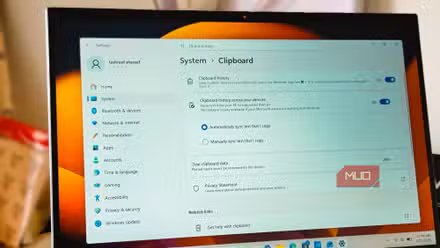
Whatever text or stuff you copy on your phone can be pasted on your PC, and vice versa. It works so flawlessly that it feels like one single motion. There’s an option to turn on encrypted clipboard history, too. NectarLink saves passwords from password managers outside the clipboard, and one-time codes never land in history.
Files move both ways at Wi-Fi speed. You can resume transfers if your connection drops midway, and you’ll get a Send to option in File Explorer. Also, you can choose your phone’s camera roll, and screenshots can show up on your PC as well.
Here’s where it gets fun. You can mirror your phone’s screen at up to 60 frames per second, with sound, screenshots, and recording. Alternatively, you can skip mirroring entirely and open a single phone app in its own window on your PC, with its own taskbar icon.
With NectarLink, you can also use your phone’s camera as a webcam in Zoom, Teams, Meet, and OBS. Plus, you can use your smartphone as a speaker for your PC’s sound. Flip it around, and your phone becomes a touchpad, keyboard, or presentation remote for your PC. There’s even a Stream Deck-style button grid for shortcuts, media, and apps.
Setting it up is super easy
Your devices talk directly, not through a server
NectarLink is a local-first app, so your devices talk directly over your network or a USB cable. Nothing goes through a server, and you don’t need to sign up for anything. Compare that with Phone Link, which asks you to sign in with a Microsoft account during setup. Some people don’t mind, but I do.
One of the highlights of NectarLink is that each feature has its own switch for each paired device. The sensitive ones, like remote control of your PC, shell commands, and phone storage access, stay off by default until you turn them on.
Here’s how you can set up NectarLink:
- Head over to GitHub and download the PC version of NectarLink and the APK for your smartphone.
- Install on both devices. Open it on your PC, and it will give you highlights of its main features.
- To pair, you need to scan a QR code shown in your PC app. Use the NectarLink Android app to scan the QR code.
- Then there are a bunch of permissions that you need to grant on your smartphone. Do that for a complete connection.
- That’s about it. You will get a lot of options on your PC app to control the phone, like turning on the camera to use as a webcam, playing the music from your PC to your phone’s speaker and vice versa, controlling Wi-Fi, Bluetooth, torch, etc.
Keep in mind that on Android, Play Protect will block the installation. To avoid this, you need to head over to Play Store > Profile icon > Play Protect > Settings > Turn off Scan apps with Play Protect.
Start small and add features one at a time
If you like tinkering, and you’re tired of juggling apps, NectarLink is worth a try. I’d recommend starting with notifications, the clipboard, and file transfers, then adding features one at a time. Since all features have their own toggle, you can toggle each feature, one by one, and make NectarLink personalized and allow access to stuff that you are good with.