My first try at local AI on a phone was a bare-bones chat app back in 2024. I loaded a tiny 1B model, asked it a handful of questions, and got slow, shaky answers. It lasted about a week before I deleted it. ChatGPT was always one tap away, and it was smarter.
A drive through Central Pennsylvania brought me back. Long stretches outside State College drop my signal to nothing, and I had a pile of voice notes I wanted cleaned up before attending an online meeting. No cloud model could help.
The small models are much better now. Qwen 3.5, Gemma 4, and Liquid AI’s LFM 2.5 all fit on a phone, and Apple’s own on-device model is open to third-party apps through the Foundation Models framework. The bigger shift for me is in the apps. A few developers have wired these models into Siri, Shortcuts, and the Action Button, so I can reach them without opening a chat window first.
I tested everything below on an iPhone 17 Pro Max running iOS 27. These five made the cut for my home screen. In the end, like other local LLMs, I found them each useful.
Locally
LM Studio’s iPhone app can borrow your Mac’s horsepower
Locally began as an indie app from developer Adrien Grondin. LM Studio, the desktop app many people use to run models on their computers, bought it in April 2026, and it now serves as LM Studio’s official iPhone app.
Locally runs models right on the phone using Apple’s MLX framework. No account is required, and the App Store listing says the developer doesn’t collect any data. Available models include Qwen 3.5, LFM 2.5, Gemma, Llama, and Apple’s own Foundation model. Qwen 3.5 can also handle images. You can open Voice mode from a Home Screen quick action, a Shortcut, or a button in Control Center. I mostly used Qwen 3.5 at the 2B size, and replies started almost immediately. When I gave it a photo of a receipt, it found the total without any trouble.
LM Link is what kept me using it. Released in June, it pairs the app with LM Studio running on a home computer and uses end-to-end encryption. My MacBook Air does the heavy lifting, so my phone gets a bigger model without the heat or battery drain of running it locally. Chats stay saved on the device. One caveat: in this mode, the phone is a remote, so the computer does the processing.
I loaded Qwen 3.5 9B on my 16GB MacBook Air and gave it the same prompt I’d just run on the phone’s 2B model: an outline comparing NFL cities with the teams that call them home. The LM Link version was a little slower to respond, though I had to watch for it. Both outlines were thorough, and they took the topic in different directions. I keep flipping between the two in the same app and comparing answers.
Private LLM
A $4.99 app that plugs local AI into Shortcuts and Siri
I reach for Private LLM when I want AI inside an automation. It costs $4.99 once, with no subscription, and Family Sharing covers up to six people.
Private LLM works with Siri and the Shortcuts app, so you can use a model as one step in an automation instead of opening the app and typing into a chat. It runs models through an MLC-LLM engine with OmniQuant quantization. According to the developer, that keeps answers sharper than the more basic compression other apps use. The model list includes Qwen 3, Phi 4, and Gemma, and newer Pro iPhones can also run Llama 3.1 8B. It only works with text, though. You can’t give it a photo.
I use dictation a lot on my iPhone, and I usually need to clean up the text before I can use it. My Shortcut sends whatever I dictate to Qwen 3 4B with instructions to fix the punctuation and add paragraph breaks, but leave my wording alone. I put it on the Action Button. In my testing, what came back was clean enough to paste straight into an email.
I half expected long pastes to trip it up. I dropped in a 750-word article and asked for a summary, and it handled it without stalling.
PocketPal AI
Any Hugging Face model, downloaded straight to your phone
The free PocketPal AI is open source, and it’s built on llama.cpp. Its appeal is range. You can search Hugging Face from inside the app, pick any GGUF model, and choose a quantization level that fits your phone’s memory. If a model is gated, paste in a Hugging Face access token, and you’re through.
That makes it the app I open when a new small model drops, and I want to try it the same afternoon. PocketPal also has “Pals”, saved assistants with their own system prompts, plus a community hub for finding others people-made. The listing says it collects no data, and the app supports iOS 15.1 and later, so it’s the friendliest option for an older iPhone.
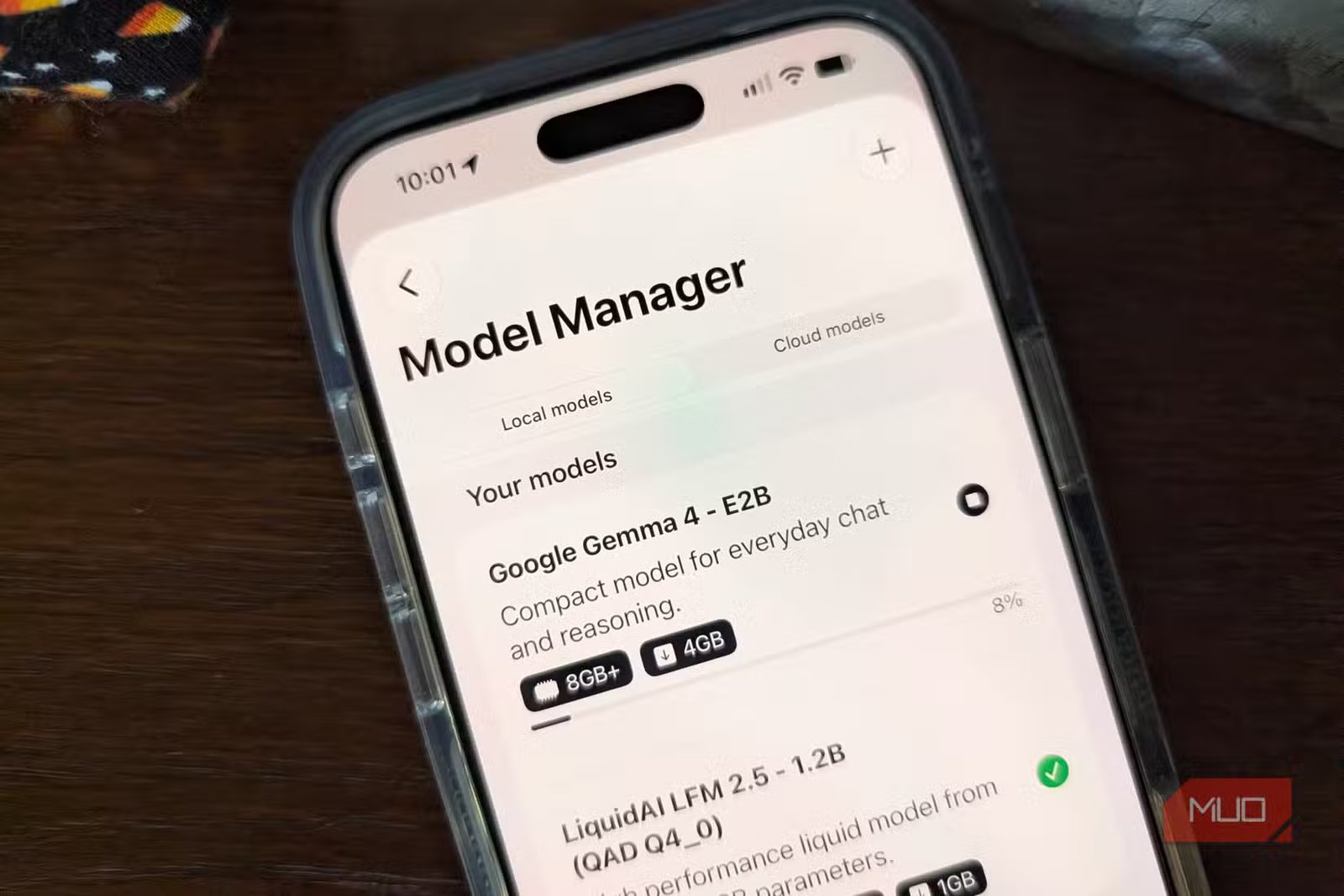
I pulled Gemma 4 E2B straight from Hugging Face, a roughly 4GB download. Once it loaded, I asked it to explain the difference between a 2-billion and a 9-billion-parameter model, and it gave a thorough answer on screen within a few seconds.
Google AI Edge Gallery
Google’s Gemma 4 playground comes with tools built in
Google’s entry is less of a daily assistant and more of a test bench for its Gemma models. It’s free, requires iOS 17 or later, and now supports Gemma 4, including a Thinking Mode that shows the model working through a problem.
Agent Skills is the part worth trying. A skill gives the model a tool, such as Wikipedia lookups for fact-checking, an interactive map, or a visual summary card. You can load more skills from a URL. Google labels the app as in active development, and it shows in the rough edges. Don’t confuse it with the Gemini app, which is a separate product.
I tried the Wikipedia skill (it needs a connection) on a few fact-check questions about “Friends.” Gemma 4 pulled the right page each time, and the summaries were accurate. With Thinking Mode, a model setting, switched on, I got roughly the same information in a different format, and the speed barely changed. This is a toggleable feature inside the AI Chat module that exposes the model’s internal reasoning process directly to the user.
Enclave AI
Chat with your PDFs, even in Airplane Mode
Enclave is free, with in-app purchases for larger models, and runs on llama.cpp. It handles two jobs I care about. Local voice chat works with no internet connection, and you can work with documents directly in the app. There’s also an “Ask Enclave” Shortcuts action and Siri support.
Enclave can also connect to cloud models such as Claude and Gemini. That’s handy, but check which model is selected before you paste in anything sensitive.
I loaded Google’s Gemma 4 E2B (an 8GB download) in Enclave and fed it a PDF. Answers came a bit slower than in the other apps, but they were accurate and pulled from the right parts of the document. Voice chat works too. I turned on Airplane Mode and talked to it with no connection, but replies lagged, and the voice sounded incredibly robotic.
How to pick your first model
Parameters, quantization, and RAM in plain English

Model lists in these apps are confusing at first. You get names like Gemma 4 E2B and Qwen 3.5 9B, and file names ending in things like Q4_K_M. I ignored all of it at first and tapped whatever was at the top of the list. That’s fine until you pick something too big for your phone.
Look at the number with a B after it first. It’s the parameter count in billions, and you can think of it loosely as how much the model learned during training. More parameters generally get you better writing and broader knowledge, but they need more memory and take longer to answer. I tried Qwen 3.5 at two sizes. The 2B version on my phone responded almost right away. The 9B version running on my Mac took a little longer and went in a different direction. Both were useful. If you’re new to this on an iPhone, stick with something between 2B and 4B.
Then there’s quantization, which is basically compression for AI models. Browse Hugging Face in PocketPal, and you’ll see file names ending in Q4_K_M, Q5_K_M, or Q8_0. The number after the Q is roughly how many bits each piece of the model keeps. Q8 is closest to the original and takes the most space. Q4 is about half the size and loses less than you’d expect. For a phone, Q4_K_M is usually the one to grab. It’s also why the same Gemma 4 E2B model was a 4GB download in PocketPal and an 8GB download in Enclave.
Last, check your memory. Apple doesn’t put RAM on its spec sheets, so look up your model before you download anything big. iOS and your other apps need room too, so pick a file a few gigabytes smaller than your phone’s total memory. The 8GB Gemma ran on my 12GB phone, but it was the slowest of everything I tested.
Keep an eye on storage, as well. Every iOS app keeps its files separate, so if you try three apps, you download the same model three times. I didn’t think about that until I checked my storage and found Gemma 4 sitting on my phone in four different places, eating up g
Local models also know less than ChatGPT or Claude, and they have no live web access unless an app adds a tool for it. I still use my paid subscriptions for research. Local now covers the quick stuff for me, like cleaning up notes and anything I’d rather not upload.