Pixel phones may look pretty simple, but they come packed with features that are easy to miss. For instance, its app drawer search bar looks like the one on any other Android phone, but it’s actually way more capable than simply opening apps. It can dig into your contacts, run web searches, find an app on the Play Store, find a setting buried several menus deep, and do a lot more.
I didn’t know about most of these things even after weeks of using a Pixel.
Search Google, YouTube, Google Maps and Play Store
Find almost anything

The app drawer search bar in Pixel can find anything across the web and Google apps. For instance, if you need to make a quick web search, there’s no need to open the Google app or go back to the home screen search bar. It can even open websites if you don’t mind typing the exact URL manually.
The search bar also works for YouTube, Maps, and Play Store. If you want to search for a video, you can skip opening the YouTube app and tapping the search icon. The same goes for getting directions to a place in Maps.
I use the search bar mostly for downloading new apps and games. If I’m searching for an app I’ve previously uninstalled, I can tap its result under Play Store, and go straight to the download page. All of this is a huge time saver, of course.
Text, call, or email contacts from search
Fastest way to reach someone

You might have noticed this one already. The Pixel search bar also shows your contacts any time you’re searching for something. And from there, you can call, text, or even email the contact directly. It even shows shortcuts for instant messaging apps like WhatsApp.
So if I need to call my partner, text her, or even WhatsApp an image, I can do it all without scrolling through contacts or hunting for a chat thread. The calling part is my favorite here, because it lets me skip opening the Phone app and then finding the contact in my call logs, contacts, or favorites. It may not sound like a huge deal, but trust me, I’ve missed it every time I use a non-Pixel device.
Set alarm, timer, or stopwatch
Skip opening the Clocks app

Setting an alarm or timer is something you always want done quickly, and the Pixel search bar has shortcuts for exactly that. Type “alarm,” and it’ll show you a Create alarm option. Tap it, and it’ll take you straight to the new alarm screen, where all you need to do is punch in the time.
This works the same way for timers and stopwatches. Type “timer” or “stopwatch,” and the search bar surfaces shortcuts for those too. It’s a solid alternative for anyone who isn’t a fan of voice commands, or who’d rather not open the Clock app and switch between tabs.
Manage system settings

Pixel’s Quick Settings panel is handy, but it doesn’t cover everything. That means a lot of the time, you still have to open the Settings app to find what you need, which gets especially annoying when the option you’re after is buried several menus deep.
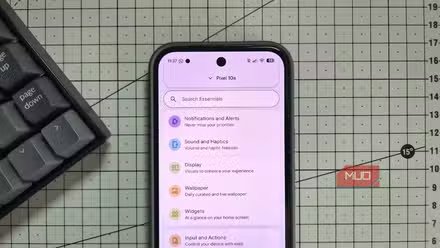
That’s not a problem if you use the app drawer search on your Pixel. It works similarly to the search tool inside the Settings app, but there are a few things it does better. For instance, if you search for location, dark mode, or data saver, it’ll give you a direct shortcut to enable or disable those right from the results. I’ve gotten so used to this that opening the Settings app now feels like an outdated way of doing things.
Create home screen shortcuts for anything you need often
No need to type
This is my personal favorite, and it’s also the one I regret learning too late. Pixel’s search bar lets you create home screen shortcuts for pretty much anything. So if there’s something you search for often, like a specific contact, a timer, a system setting, or even a web search like “when is GTA 6 coming to PC,” you can turn it into a shortcut.
All you have to do is type your query as usual, then instead of tapping the result, drag it to your home screen. Place it anywhere you like, and you’ve got one-tap access from then on. You can get as creative as you want with it.
Pixel search is also customizable. If you don’t want results from specific apps, like Pixel Tips, Wallet, YouTube, or Maps, you can turn those off. Just tap and hold anywhere on the home screen, choose Home settings, then go to Apps list settings > Pixel search settings > Control search results, and use the toggles to disable whatever you don’t want appearing. You can even stop Pixel search from showing your search history.