
When the beta reaches your Claude account, open the artifact in Claude Desktop, choose Share → Install as app, and confirm with Install. This works on Mac and Windows. The artifact gets its own window and icon. To open it, you still need an internet connection and a signed-in Claude Desktop session. Anthropic began rolling out the beta on November 24, 2026. Anthropic’s announcement.
How to install a Claude artifact on Mac or Windows
- Update Claude Desktop to version 6.28899.0 or later. On Mac, use Claude → Check for Updates. On Windows, open the ☰ menu and choose Help → Check for Updates. If you use Claude in a browser, get the desktop client from Anthropic’s download page and sign in.
- Open an eligible artifact in the main Claude Desktop window. Open the chat where you made it or find it in Artifacts in the sidebar. A small interactive tool built in a new chat is a good first candidate.
- Choose Install as app. Look under Share, in the artifact’s title menu, or in the menu you get by right-clicking the artifact. Select Install in Claude’s confirmation dialog.
- Launch it by name. Use the location for your operating system below, or select Open installed app on the original artifact. You can also open Claude Desktop’s File → Apps, select the app, and choose Open. On Windows, File sits under the ☰ menu.
- Mac. In Finder, go to
~/Applications/Claude Apps. The tilde means your home folder. You can also find the app with Spotlight. To pin it while it’s running, right-click its Dock icon and choose Options → Keep in Dock. - Windows. Open Start → Claude Apps or use the shortcut on your desktop.
A shortcut created with your browser’s Add to Dock or Add browser shortcut opens a web page. Use Claude Desktop’s own install command for the app’s desktop features. Anthropic’s installation and launch instructions.
Why “Install as app” is missing
- Check the client and the version. The install beta runs on Claude for Mac and Windows. Claude on the web, mobile, and Linux can’t install these desktop apps. Check the client version before rebuilding your artifact.
- Check the artifact type. Anthropic excludes template-based artifacts such as Docs, Slides, and Sheets, as well as legacy chat artifacts made before September 16, 2026 and Cowork live artifacts made before August 19, 2026. If you’re testing availability, make a fresh interactive artifact in a chat. If Claude won’t create an artifact, look for Create and edit files under Settings → Capabilities on an individual account or Organization settings → Capabilities at work. Some layouts call it Cloud code execution and file creation.
- Check the workspace and device. The beta is rolling out on Free, Pro, Max, Ultra, Team, and Enterprise. Team normally starts with installation and individual app permissions enabled, with full access off. Enterprise starts with all three settings off. An owner can check Organization settings → Artifacts. If the setting hasn’t appeared there, the beta hasn’t reached that workspace. A managed device can block installation even when the workspace allows it.
- If a new artifact on an updated client still has no option, the rollout may not have reached your account. A plan upgrade won’t make an unsupported client or artifact eligible.
HIPAA-ready and hybrid deployments are excluded. Claude for Teachers and K–12 organizations can’t grant full access, and installation may be off or unavailable. Organizations with organization-wide zero data retention or customer-managed encryption keys start with installation and both permission settings off. Neither organization-wide nor Claude Code zero data retention covers these apps. Install beta requirements · Artifact prerequisites · Artifacts admin guide.
What Kingy saw on Mac
On November 24, 2026, we used the focus timer prompt in this guide to create one artifact in Claude on the web with Claude Haiku 5.5 at medium effort. In Chrome, the 10-second preset reached zero and displayed its completion message. In a second run, we used Enter on Start, Pause, Resume, and Reset. The display held while paused, reached zero after Resume, and returned to 00:10 after Reset.
We opened the same artifact in Claude Desktop 6.28899.6 on a MacBook Pro with an Apple M4 Pro and macOS 26.3. That build was above Anthropic’s 6.28899.0 minimum. The artifact title menu appeared in both the desktop viewer and the original chat, but neither title menu nor the viewer’s Share panel showed Install as app. Pop out was visible. We did not complete a desktop installation. Anthropic describes availability as a beta rollout, and this check covered one account. Anthropic’s installation guide.
The Windows steps above follow Anthropic’s documentation. Kingy hasn’t tested them on a Windows machine.
Build a focus timer as your first app
A timer gives you something you can check with a stopwatch. Start with an in-window alert. Once that works, add a desktop notification so you can tell which permission the new behavior needs.
Build a focus timer as a new interactive Claude artifact. Give it a 25-minute focus preset, a 5-minute break preset, and a 10-second test mode. Include Start, Pause, Resume, and Reset. Show a clear message when the timer ends. Keep every control usable with the keyboard. Use no connectors, external scripts, Claude calls after setup, or computer permissions.
- Test the artifact before installing. Run the 10-second mode. Pause it, check that time stops, resume it, then confirm that the timer ends once. Use Tab and Enter to check the controls.
- Install and reopen it from your operating system. Repeat the short run in the app window. You now have a baseline for the same artifact outside the chat pane.
- Add one desktop feature. Ask Claude to send a notification when the timer ends, keep the in-window message, and leave all other computer permissions off. Review the notification request. Try once with the permission allowed and once with it turned off. The in-window finish message should work in both cases if Claude built the fallback correctly.
Use the same pattern for a unit converter or checklist: start with known inputs, try normal and awkward cases, then add desktop access only when it solves a specific problem. For any app that will eventually touch work files, test first with disposable copies and check the results before using originals.
What you’re allowing when an app asks for access
At its default level, an installed artifact has browser-level capabilities. Claude separately asks about desktop features such as notifications, global shortcuts, a menu bar or tray item, or floating above other windows. Floating can also let the app read your pointer’s location. Full access to this computer is much broader: the app can run programs and read, edit, or delete files without asking each time. It can also cover the other app permissions, subject to controls you or your organization have turned off. Anthropic’s permissions reference.
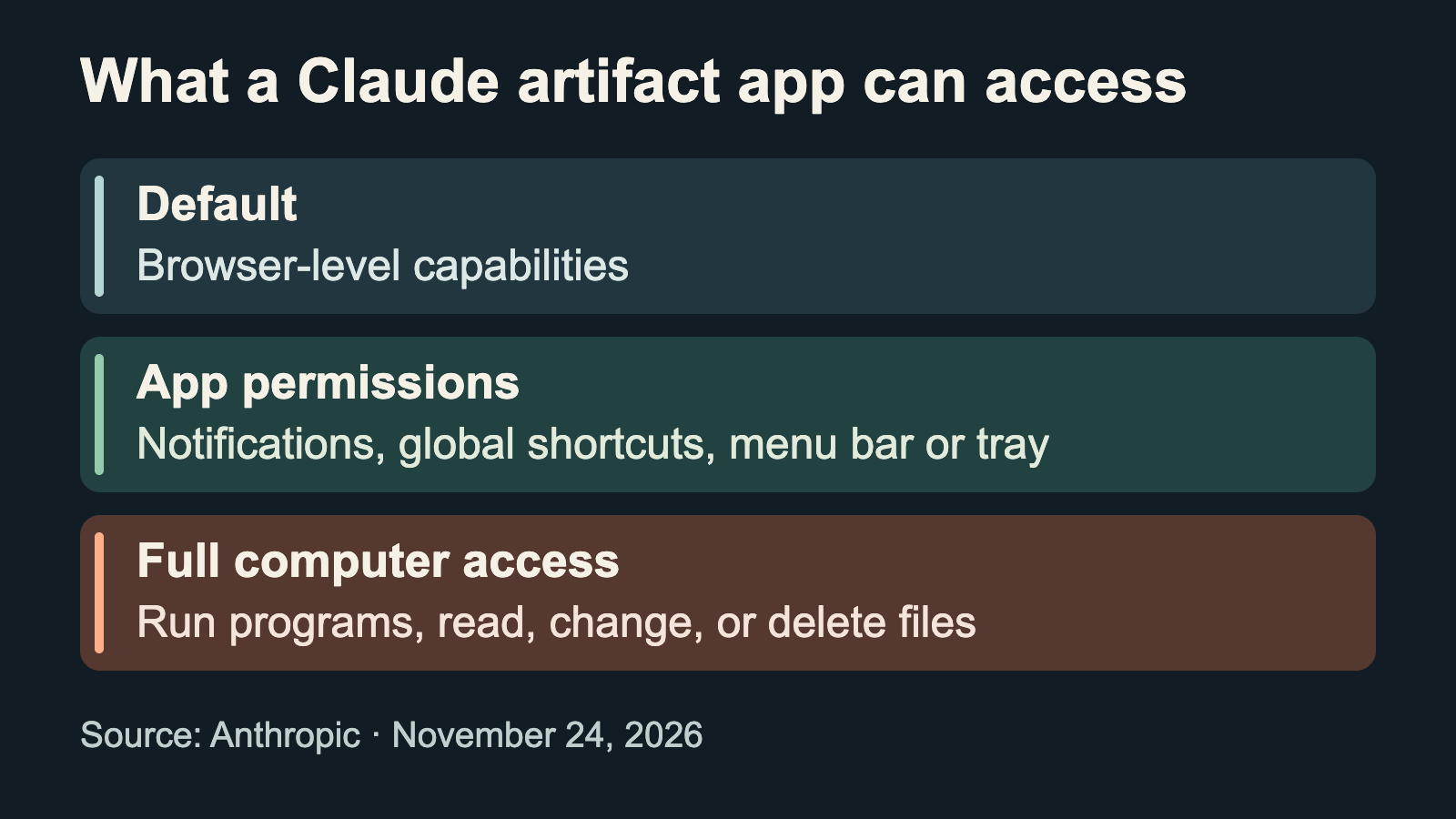
Source for the permission diagram. Anthropic’s Install as app announcement.
Anthropic says it doesn’t review apps before you install them. Full access is generally limited to apps you made or, on Team and Enterprise, apps built within your organization. Outside or unverified contributions can block it. Ask what the app needs to do. A timer notification needs notification access. A request to run programs or change files is a separate decision.
Approvals apply to one version. After a change, including one you make yourself, Claude asks again. A denial stays in place until you change it. Code an app loads from another website can change without a fresh prompt. If a shared app needs full access, review who can edit it and whether it loads external code before you grant access. Permission and update behavior.
How to change or revoke a permission
- Mac. Open the app, click its name in the macOS menu bar, and select Permissions.
- Windows. Right-click the open app’s title bar or press Alt + Space, then select Permissions.
- Either platform. While the app is open, go to File → Apps in Claude Desktop, select the app, then choose Permissions.
Save your work first. Turning off full access can reload or close the app and stops programs it launched, except those that detached from it. Revoking access leaves any file changes already made in place. Use Report Artifact in the same menu if that option is available. Anthropic’s instructions for revoking permissions.
Sharing, updates, and usage limits
Share the underlying artifact. In its Share menu, choose who can open it, then send the link or invite people where your plan permits. Each recipient needs access to the artifact, an eligible desktop client, and their own signed-in Claude session for the installed app. Free users can install eligible artifacts, but creating public links and sending email invitations for these artifacts requires an eligible paid plan. A public link can let someone view an artifact in a browser without signing in. Team and Enterprise owners can control external sharing, so test access with a recipient before rolling it out. Anthropic’s artifact sharing guide.
Editing the artifact updates installed copies. An install stays linked to the artifact, so a change by any editor flows through to the app. Give most recipients view access when your sharing controls offer it. After an edit, reopen the app, rerun your basic checks, and review any new permission prompt. If the owner stops sharing the artifact with someone, Claude usually offers to uninstall the app the next time that person opens it. Anthropic says programs launched by the app can take about 20 minutes to stop after access is removed, or longer when Claude can’t check access. How installed apps track the artifact.
Claude requests use the account’s plan limits. You don’t need an API key or a separate app login. Building the app and calls that it makes to Claude use the relevant account’s allowance. Installing is rolling out to Free, but artifact connectors and Anthropic’s built-in artifact storage require an eligible paid plan. Eligible viewers generally use their own connections. Anthropic restricts Claude and connector features when an outside recipient opens a public link or email invitation, or when a viewer opens a public link while signed out, even if they can open the link. If you build a tracker or journal, check whether the artifact uses personal or shared storage before entering real data. Anthropic’s connector, usage, and storage guidance.
How to quit or uninstall an artifact app
Closing the window can leave an app running if it has a menu bar or system tray item. On Mac, quit from the Dock or press Command + Q while the app is active. On Windows, choose Exit from its tray icon’s menu.
To remove the app, go to File → Apps in Claude Desktop, select it, then choose Uninstall. On Mac, Claude moves the installed app to the Trash. On Windows, it removes the app’s shortcuts. Remove any leftover Dock, Start, or taskbar pin. Uninstalling clears the permissions you granted and leaves the underlying artifact in Claude. Anthropic’s uninstall instructions.
Frequently asked questions
Can I open the app offline or send someone a standalone installer?
Opening it requires an internet connection and a signed-in Claude Desktop session. Share the artifact so the other person can install it from their own Claude Desktop client. Claude handles the packaging for this install flow. Anthropic’s launch details.
What should I check if my app installed but won’t open?
Check your internet connection and that Claude Desktop is signed in to the account and workspace with access to the artifact. Then try opening the source artifact in Claude. If you can’t open it there either, ask the owner to verify sharing or check whether your organization changed its app settings. If the artifact opens but the app doesn’t, try File → Apps → Open to rule out a stale shortcut. Anthropic’s launch and access requirements.
Receipt2026-11-24
- Tested
- Two Chrome runs of the 10-second Focus Timer preset and a Mac check for the install menu. The install command was absent from the menus checked.
- Machine
- MacBook Pro with Apple M4 Pro, macOS 26.3
- Runner
- Claude Desktop 6.28899.6 and Chrome
- Cloud side
- Claude Haiku 5.5 at medium effort created one artifact from the published prompt.
- Windows
- Documented steps only.
- Dates
- run 2026-11-24
Sources and verification
The installation paths, settings, and limits in this guide follow Anthropic’s launch documentation, checked November 24, 2026. Kingy ran the 10-second timer twice in Chrome and checked the Mac desktop menus on one account. See the Mac test and screenshot. The Windows instructions are based on Anthropic’s documentation.