
Shimul Sood / Android Authority
Add Android Authority on Google:
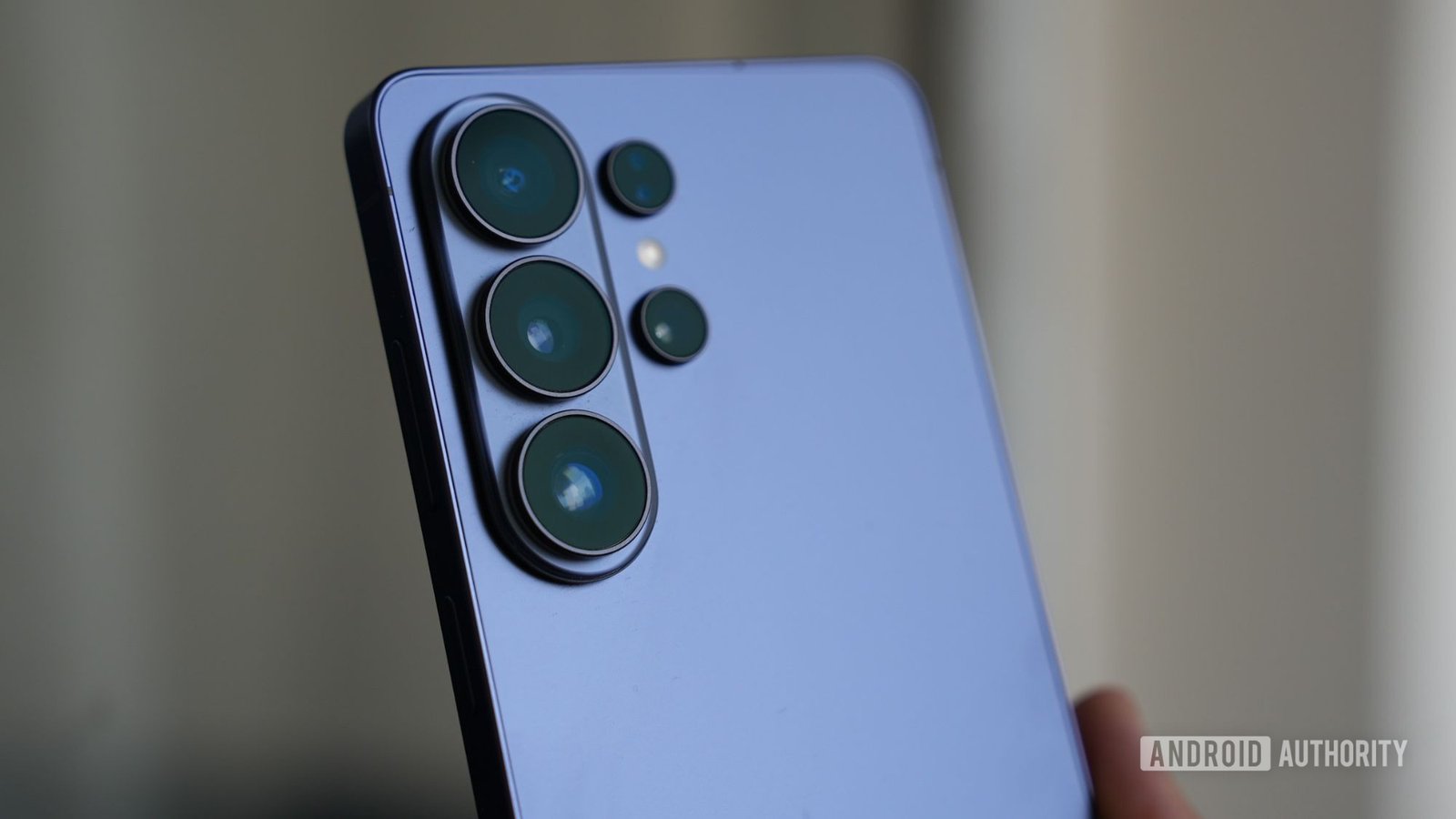
You really have to give it to Samsung. Its camera hardware is stellar and consistently tops the charts alongside Pixels and iPhones. Even Samsung’s midrange phones have class-leading shooters. As long as you pick one of Samsung’s top-rated Galaxy phones, you’re assured a good shooting time.
The story is a little different for the software. I’m not a fan of Samsung’s default camera app. Its current interface feels more bloated than ever, and I don’t like how the app prioritizes features I don’t care much about. While I can stomach the selection of filters and some AI features, I don’t like how the manual controls are buried in the settings or another mode.
On top of that, Samsung continues to favor excessive post-processing, with few ways to lessen it in the default camera app. I don’t have a beef against high contrast and vibrant colors, but some situations require a toned-down look. A lot of times, I prefer having more control over the output. That’s where Open Camera comes in. Whenever I use a Galaxy phone, I go straight to installing this third-party camera app.
Do you use a third-party camera app?
13 votes
Why switch to Open Camera?
Open Camera is a free open-source camera app available on Google Play. It’s lightweight at about 5MB with no ads or cloud integration whatsoever. The developer’s goal is to give more camera control back to the user. Both the output and the interface itself can be customized. Open Camera admittedly looks primitive at first glance, but once you place your most important functions on the main screen, it’s difficult to go back to any default camera app.
By giving Open Camera raw sensor access, I can achieve more natural color reproduction and finer exposure control. The app has been around for over a decade, but it’s more relevant than ever now that AI-powered photography is taking over. Aside from the usual scene modes and filters, I can adjust the white balance, exposure compensation, and focus mode from the main shooting screen. There’s no need to switch over to a Pro mode to access these basic settings.
It’s more relevant than ever now that AI-powered photography is taking over.
The Open Camera feature I keep going back to is Auto-level. It uses my phone’s gyroscope to automatically level and crop the frame no matter what angle or orientation I shoot from. It reduces the need to manually straighten photos using cropping tools. I use Auto-level only while I’m moving and unable to compose, since it reduces the resolution from the forced rotation.
How’s it better than Samsung’s camera app?
Open Camera’s manual controls are available on the standard photo mode. There’s no need to switch to a separate Pro mode like on Galaxy devices. This means owning the composition and exposure controls from the get-go. There’s a lot to take in when first opening Open Camera, but many of the UI elements are straightforward and adjustable. This is in stark contrast to Samsung’s shoot-and-forget approach, wherein most of the work is done for you and you can’t even tweak the UI.
My favorite feature is Dynamic Range Optimization, which can be turned on by tapping on DRO under Photo Modes. It maintains highlights and shadows in a single frame. DRO is a subtle alternative to Samsung’s aggressive HDR application, which combines multiple exposures into one shot. Open Camera also offers HDR and noise-reduction modes, but I consider DRO the most natural implementation.
Open Camera’s other strength is in its customization. Most of what you see on its composition screen can be modified. By default, you get exposure lock, exposure compensation, and basic functions like flash type, photo mode, and timer settings on the main screen. All of these can be replaced by functions such as face detection, location data toggle, and the abovementioned Auto-level. Open Camera also offers real-time stats on the viewfinder, such as ISO, shutter speed, and remaining storage.
There are some trade-offs
The obvious downside is the aesthetics. Open Camera looks like it was designed in the early 2010s, which it was. Since its initial launch, the developer barely made any changes to its user interface. The UI doesn’t follow design cues from any recent Android OS. This retro look adds to its simplicity, but it’s a bit disorienting to go from a One UI app to Open Camera. It feels like I’m stepping out of a time machine.
Depending on the Samsung model, some device-specific features might be missing on Open Camera. On the Galaxy S25 I tested, every feature that mattered to me worked, from all three of its lenses to RAW support. I also tried Open Camera on a Galaxy A16 and couldn’t use the ultrawide camera, which is a massive deal-breaker. Of course, none of Samsung’s AI features are present. You won’t see AI-optimized photos and videos no matter which mode you use.
It feels like I’m stepping out of a time machine.
The biggest sacrifice to me are the camera shortcuts. I can change the double-press of the power button and lock screen camera swipe gesture to Open Camera. However, using either of these shortcuts while the phone is locked requires a biometric login before continuing to Open Camera. In contrast, the Samsung camera app bypasses user authentication and goes straight to the viewfinder. This extra step holds Open Camera back from quicker access.
How to optimize Open Camera
The first thing to adjust on Open Camera is the Camera API. In the main settings, enter Camera API and select Camera2 API. This unlocks manual exposure modes, focus peaking, and RAW support. Enabling this is essential if you want to maximize Open Camera’s capabilities. I didn’t notice any performance drop by selecting this API.
For videos, I like to bump the video recording bitrate up to 100Mbps or 150Mbps. It can be set by entering Video Settings and picking from any of the options under Video Bitrate. This bypasses Samsung’s default video compression, allowing crisper motion and fewer compression artifacts. Although it increases each video’s file size based on the bitrate you pick, the quality gain is a worthwhile benefit.
If you’re into more granular controls, try enabling Focus Peaking inside Camera Preview in the main menu. This outlines the areas that are in-focus while composing. It’s ideal if you plan to use manual focusing. While you’re at it, choose what you want the volume buttons to do under More Camera Controls within the main menu. Besides the usual zooming and shutter shortcuts, the volume buttons can also be set to manual focus or exposure level adjustments.
Open Camera isn’t for everyone

Hadlee Simons / Android Authority
Open Camera serves a specific purpose, and that’s to allow users to regain control of the camera. It gets the job done in ways that the default Samsung camera app doesn’t permit. Open Camera’s interface admittedly looks primitive, which may instantly turn off long-time Galaxy users.
If you’re in search for another free open-source camera app, I recommend Fossify Camera. Available on Google Play, it’s ad-free and fully offline, as well, with a decent level of customization and manual controls. It’s not as complex as Open Camera, but nowhere near as bloated as Samsung’s default app, either. Fossify Camera is an ideal middle ground between the two aforementioned apps.
Even though Open Camera can be used like a point-and-shoot app, Samsung’s default app makes the shooting process simpler. Whenever I take a photo with the default camera app, I can share the shot or post it online without further post-processing. Open Camera’s process expects me to make adjustments before and after pressing the virtual shutter button.
I suggest keeping Samsung’s default camera in its One UI shortcuts and placing the Open Camera icon on the home screen. This allows you to access Samsung’s app from the lock screen’s swipe gesture or the power button’s double-press shortcut. When you need more control, fire up Open Camera and compose away.