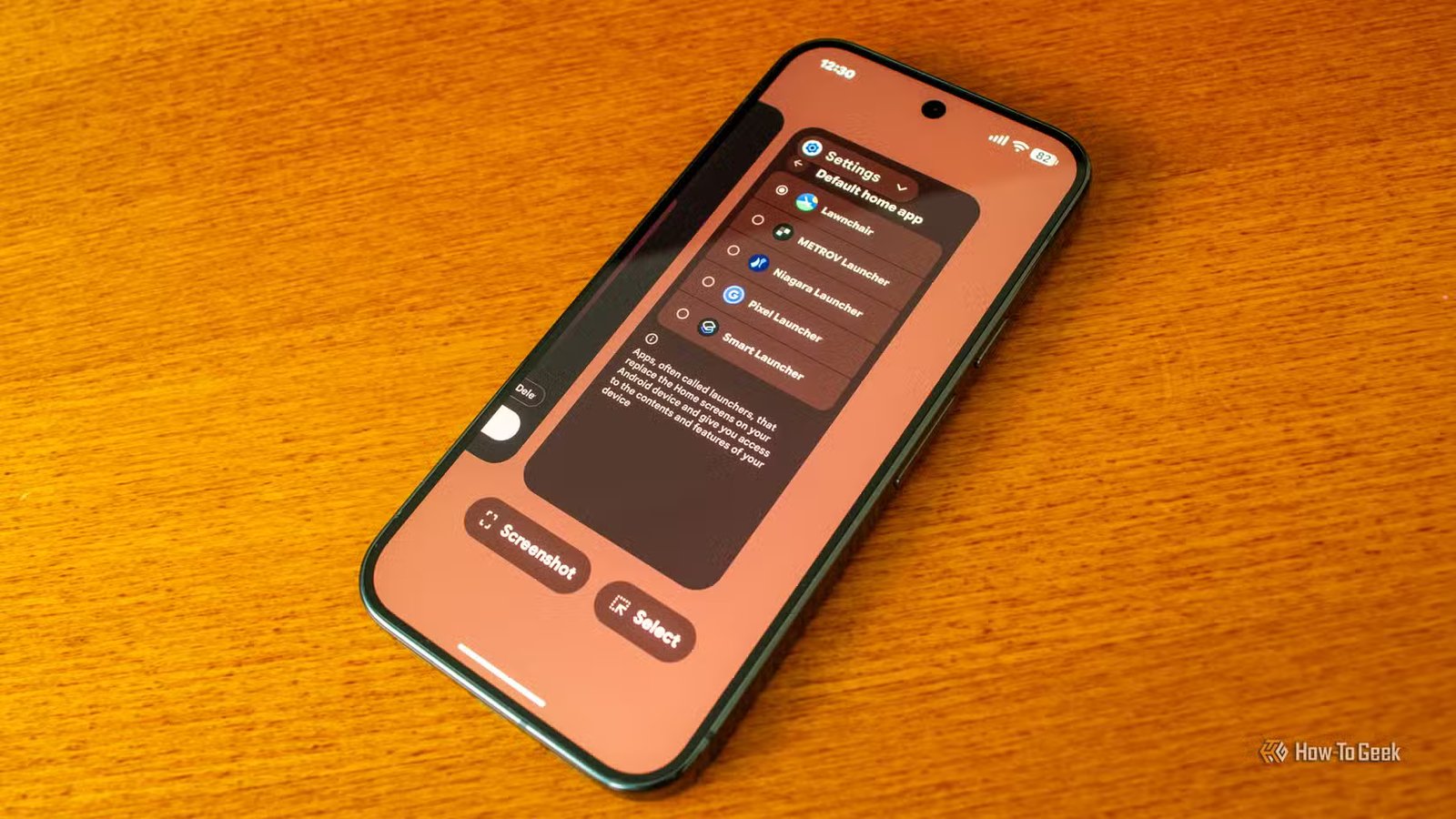
Even the most open and trusting person in the world would tell you they aren’t comfortable with people snooping through their phone. There is nothing wrong with wanting a little bit of privacy. With our phones becoming more integrated into our personal lives, they tend to contain more sensitive information that you wouldn’t just want anyone seeing. Sometimes, this can make things a bit awkward when someone asks to use your phone for something.
Android understands this problem and actually came up with a solution over ten years ago. There is an incredibly underrated feature on every Android device that locks users to a single app, requiring them to enter your PIN to switch out of it. It makes handing over your phone a much less awkward experience, and keeps all your private information private.
App pinning stops people from snooping through my phone
Keep them on task

When passing your phone over to a friend or family member, you don’t necessarily want them going through everything. Showing them a picture, letting them play a game, or having them pick the music shouldn’t mean they have free rein to go dig through your phone. Sometimes, it doesn’t even come from a malicious place. Older folks often accidentally hit buttons that they shouldn’t or accidentally swipe off of whatever you’re trying to show them.
Android devices actually come with a pretty simple built-in feature to help you combat this problem. Essentially, app pinning locks your phone to a single screen, stopping whoever has your phone from accessing your home screen, notifications, or any other apps without your permission. This means no snooping and no accidental swipes out of the app in front of them. It’s a feature that surprisingly few people know about, despite it being on devices since the introduction of Android 5 (Lollipop) back in 2014.
It is a very easy feature to use
I keep it permanently active
App pinning is one of those features that you should toggle on, leaving it active until you need it. I may not use it often, but on the rare occasion when I do, the last thing I want to have to do is navigate through my settings again to toggle it on.
Toggling the feature on is pretty straightforward. The specific names of each menu differ depending on your Android device, but the feature is usually in the same general spot. From the Settings menu on your device, you’re going to want to find Security or Security and Privacy. From here, you’ll want to go to More Security Settings or Advanced. In this menu, you should see an option to toggle app pinning on. Finally, depending on your device, you also want to turn on Ask for PIN before unpinning or Lock phone after unpinning.
Once you’ve followed all the steps above, you should be good to go. When an app is open, swipe into your recent apps screen, and tap the icon above the app’s preview. You will see an option to pin the app to your screen. Afterward, when you hand your phone over to someone else, they will need your PIN, fingerprint, or other biometric measure to unpin and leave the app.
There are more uses for app pinning than just privacy
More versatile than you think

The most obvious use for app pinning is privacy. Being able to make sure that other people don’t have full access to your phone when you hand it over is really useful. However, there are a lot of other ways that app pinning can be useful that a lot of people don’t really think about.
One of the most useful ways to use app pinning is when you’re turning an old device or a tablet into a dedicated, single-purpose machine. Another writer on How-To Geek, Dibakar Ghosh, has a list of ways you can repurpose your old Android tablet. When you give a tablet one of these jobs, having it locked into a single application most of the time makes a lot of sense. It means that no one can mess with your set-up without knowing your PIN.
Parents will also find app pinning super useful. Sometimes your kids want to play a game or watch a video on your phone or tablet, but you might be (rightfully) worried about them messing with other applications. Pinning an app, like YouTube or a game, means that they are stuck with that one application and need you to manually change it for them.
An old feature that still finds a ton of ways to be useful
All in all, app pinning is a fantastically useful tool. You might not use it all the time, but there are a ton of use cases where being able to lock your screen to a single app comes in handy. It’s a feature that everyone should keep toggled on, because you never know when it might come in handy. It isn’t intrusive or easy to accidentally activate, and when you do need it, it comes in clutch.