I’ve been very critical of Google’s automation tools on Pixel phones. It’s one area where Samsung Galaxy devices blow them out of the water. Thankfully, an incredible suite of tools called “Essentials” is the cure I’ve been looking for.
Previously, I wrote about how the Essentials app is the Good Lock equivalent that Pixel phones have been missing. Well, it’s also an answer to Samsung’s excellent “Modes & Routines” app. While there are plenty of Android automation apps, it’s nice to have all of my tweaks and tools in one place.
A three-pronged approach with no cross-talk

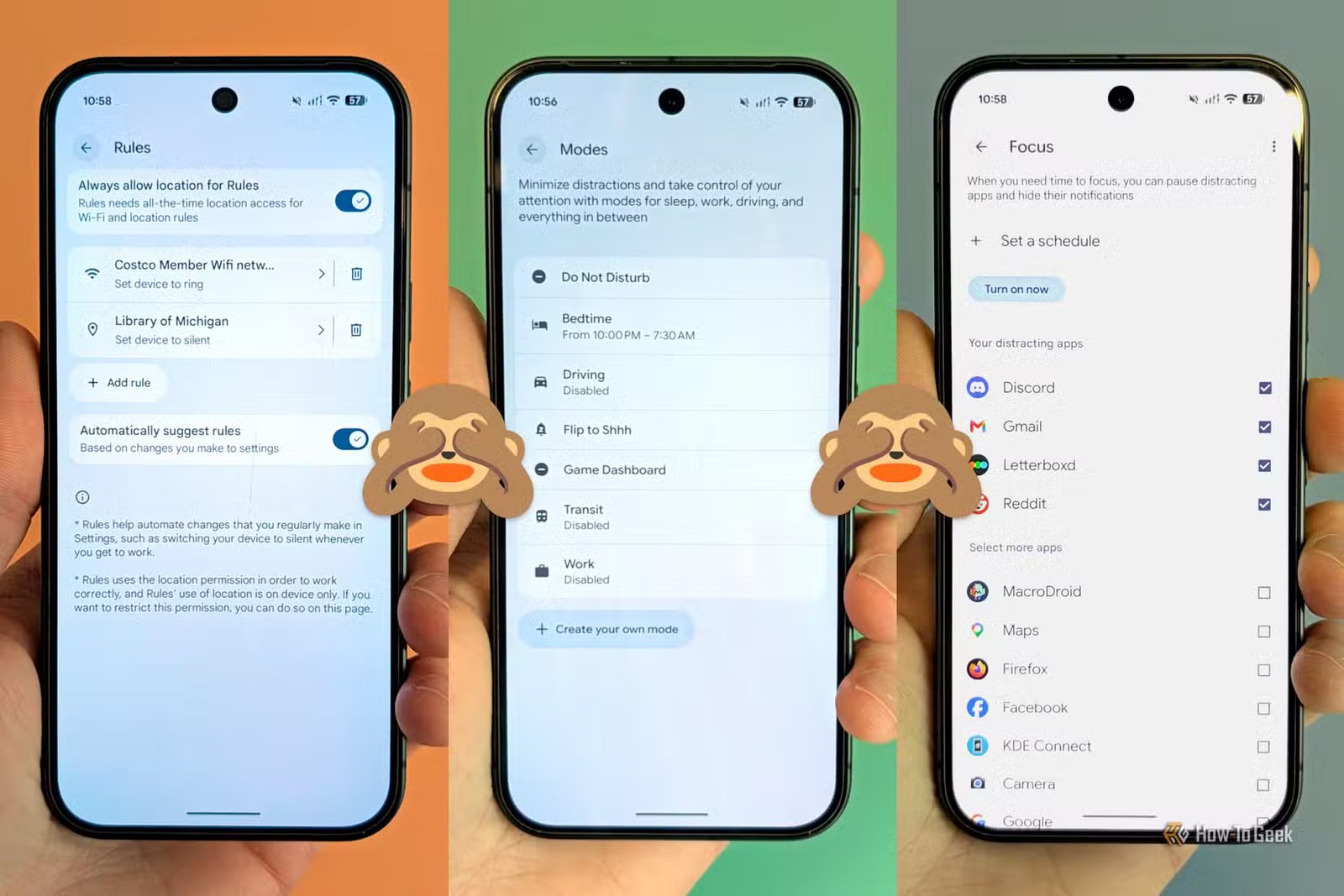
I don’t want to make this another rant about Google’s lackluster automation features, but it’s important to understand why Essentials is such an improvement. On a Pixel phone, you have three separate features that fall under the “modes and routines” umbrella: Rules, Modes, and Focus.
- Rules: Extremely basic “if this, then that” automation builder. Can only use location and Wi-Fi network to trigger Do Not Disturb and sound modes.
- Modes: Custom Do Not Disturb settings for specific situations such as “Work” or “Driving.” Allows you to select people and apps that can break through, as well as adjust other system settings.
- Focus: A Digital Wellbeing mode that asks you to choose distracting apps to block, rather than which apps to allow.
Now, none of these features are especially powerful on their own, but what makes it worse is that they don’t work together. You can’t enable “Work” mode with a Rule, start a Focus session when you get to a specific location, or enable a Mode when you connect to a Wi-Fi network. It’s very frustrating.
Essentials to the rescue (again)
Doing the work that Google won’t

Check out my previous article for a more in-depth look and installation instructions for Essentials. I’ll be focusing on the “DIY” automation tab for now — it’s the science flask icon.
The first part of creating an automation is choosing a trigger, and there are quite a few. The triggers are categorized into five sections:
- Trigger Automation: Schedule an action to trigger on an observation
- State Automation: Schedule an action to execute based on the state of a condition in and out
- App: Automate based on open app
- Action Shortcut: Launch shortcut to trigger action
- Accessibility Shortcut: Trigger action via volume keys or screen gesture
The category names are a bit confusing, but you’ll quickly figure out what’s what after tapping around a bit. After you select a trigger, tap the right side of the screen to move on to the next step.
Now we can select an action (or multiple actions). Certain actions also let you set different actions for the “in” and “out” side of the trigger. For example, if the trigger is an app, the “in action” will fire when it opens, and the “out action” will fire when it closes.
Anyway, there are even more actions to choose from. Like the Essentials app itself, some rely on more advanced permissions. You’ll be asked to grant them if you select an action that requires it.
How I’m using Essentials automations
A few ideas to get you started
Alright, let me share a few of the automations I’ve made with Essentials so far. You’ll notice that these are not super complicated, and yet I couldn’t do them with the stock Pixel software.
First up is an automation for my vehicle. I drive an old truck that doesn’t have Bluetooth built in. When I use my phone as an Android Auto display, it starts playing media where I left off automatically. However, for trips when I don’t need Android Auto, I still would like media to start playing when I connect to my Bluetooth dongle. So, I created an automation for the Bluetooth device with the “Media Play/Pause” action.
Next, I like to listen to podcasts while I shower. My phone sits on a little shelf outside of the shower, but within reach. I created an automation that enables the always-on display, with media information, whenever Pocket Casts is open. It also disables the always-on display when Pocket Casts is closed.
The last automation I’ll mention is actually not found in the automation section, and this is another cool thing about Essentials. You’ll find automations scattered throughout the different sections. Under “Display,” there’s a setting called “Dynamic night light.” It allows you to enable night light when specific apps are open — I use it to turn on night light when I open my reading app.


So much more to explore
If you’ve been following my writing, you may have noticed this is my third recent article about Essentials. It’s an exciting app with tons of cool stuff to play around with. I’ve been really liking the Island feature, and automations are a close second. Check it out if you haven’t already.