Say you only need to highlight a few lines in a PDF for a meeting. You might be inclined to open a PDF editor without thinking much about it. And why wouldn’t you? That’s what those apps are for. But Chrome can do that job too, and much more.
I started looking into what else Chrome could handle and found a few reasons to stop using some of my usual apps. I’m not going to uninstall them, but why open another program when Chrome can do the job?
PDF annotations
You don’t need Adobe Acrobat Reader for basic tasks
If you only need to highlight a few passages in a PDF for a work meeting or class, why open Adobe Acrobat Reader? Chrome can handle those basic tasks without installing another app or extension. If it’s already open, that’s one less program to load on a slower PC.
Google says you can add notes, highlight text, draw, fill out forms, and even sign documents.
Before getting started, paste chrome://settings/content/pdfDocuments into Chrome’s address bar and make sure Open PDFs in Chrome is selected. Then press Ctrl+O, choose your PDF, and make sure it loads.
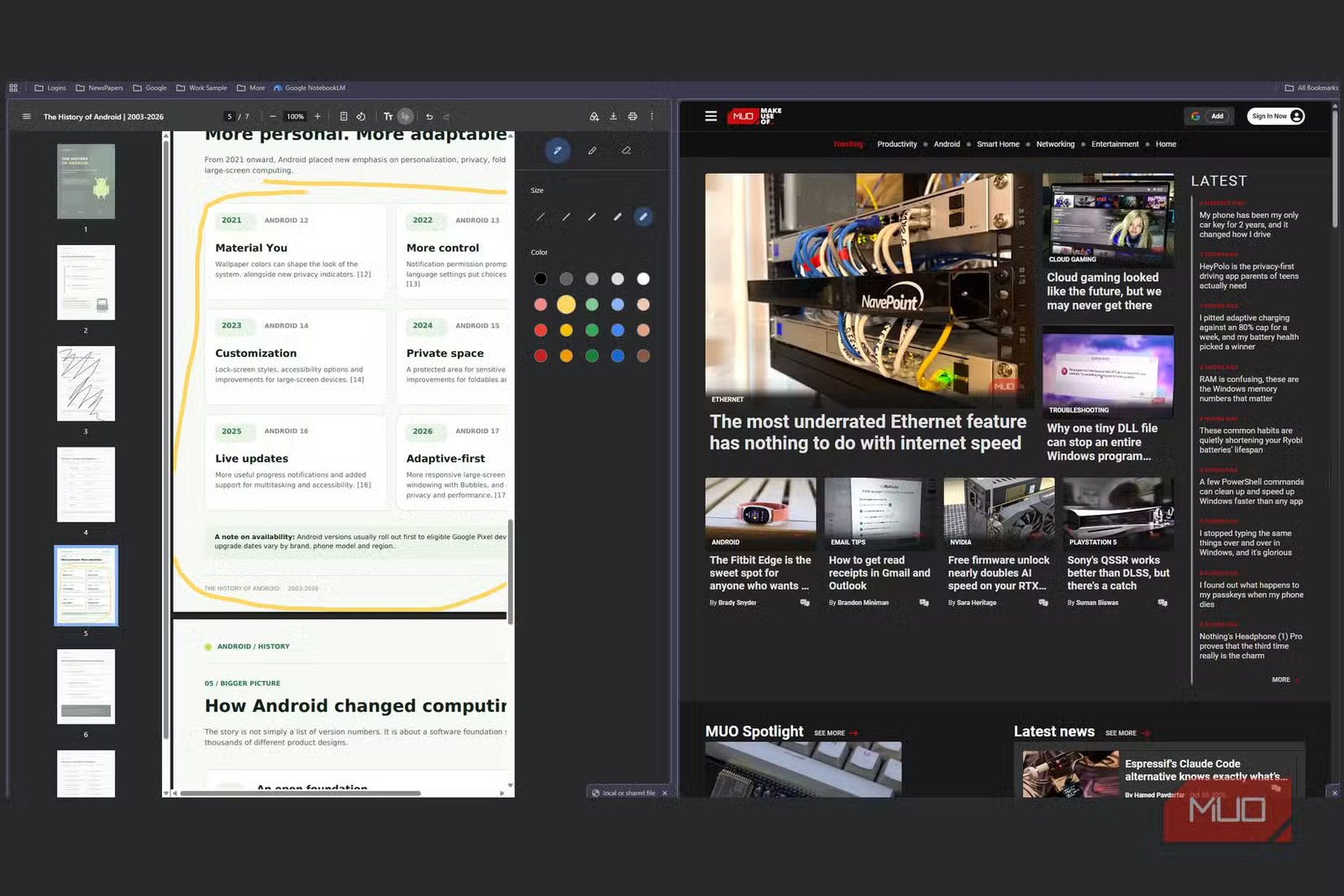
Select Draw to access the pen and highlighter and change their thickness. Choose from ten highlighter colors to mark different parts of your PDF. The pen also works for signatures. To type instead, select Add text, choose a font and color, and click where you want it.
When you’re finished, select Download, then With your changes to keep your notes, or save it directly to Google Drive without downloading and uploading it again.
If you’re using Windows Snap, try Fit to page with Two-page view to see more of the document at once.
Split view
Why juggle two Chrome windows when one will do?

The biggest convenience of Chrome’s split view is how easy it is to compare two websites side by side in the same window without installing a window-manager app. That’s great when you’re following a tutorial in an online app, or checking what information you need to fill out a form.
I like using it when Chrome is already snapped to half my screen. Split view divides that space again, so I can keep two websites on one side and another app on the other.
It’s useful for people who aren’t very tech-savvy, too, since they can keep the instructions in view and scroll through them without switching tabs or arranging two windows.
Getting started is actually very easy. Right-click the active tab and choose Add tab to new split view. It puts that tab on one side and shows your other tabs so you can choose the second one.
Press Shift + Alt + N to turn on Chrome’s split view.
And let’s just say you’re already using split view and want to replace one of those tabs. Right-click a different tab, choose Move tab into split view, and select Swap with left view or Swap with right view. That way, you don’t have to undo split view and start over just because you need another website. If side-by-side feels too cramped, you can switch to a stacked view instead.
Google Lens
You don’t even need to know what it’s called to find it

Google Lens can save you from downloading a picture or trying to describe something you can’t name. You can identify an object you come across, find similar products, and even copy or translate text from images without having to reach for another app.
If you right-click the image in Chrome and choose Search with Google Lens, you can see similar images and information in the side panel. You can also ask follow-up questions if the first results aren’t enough.
Let’s say you’re shopping on Amazon and find shoes you like, but they’re pricey. Lens can show the exact pair or similar shoes from other stores, along with their prices. Not every thumbnail shows the price, but you can click it to see more details. That saves time and frustration by keeping you from going down a rabbit hole of options.
And if you find text in an image, you can’t highlight and copy the text like you’re used to. Lens can extract it so you can paste it elsewhere or translate it into another language. Maybe it’s a funny meme or a poem you want to understand. I used it to identify a tree with pink flowers that I liked. Turns out it was a Japanese cherry tree.
Gemini in Chrome
The other AI app can wait

You don’t have to keep switching between Chrome and AI apps like ChatGPT or Claude when you need help. If you have access, you can use Gemini directly in the browser and have it work with pages you already have open. Just click Ask Gemini at the top of Chrome.
Gemini can see the tab you’re on as soon as you open it. To turn it off, go to Settings -> AI innovations -> Gemini in Chrome and turn off Share current tab by default.
For example, if you’re shopping for a laptop, Gemini can compare reviews across up to 10 open tabs and pinpoint overlapping complaints or what reviewers praise most. That saves you from reading every review and trying to remember all the pros and cons.
But Gemini can do much more than compare information. You can get answers to your questions, dig deeper into a topic, or use Nano Banana to create and edit images for a project without opening your PC’s image editor. And if you have started watching a long YouTube video, you can ask Gemini questions about it too.
Of course, Gemini may not completely replace your favorite AI assistant. But since you’re already using Chrome for everything else on this list, why not use it for one more?
You don’t have to abandon your favorite apps
Your Windows apps have earned their place, especially when you need to do more than basic editing. A dedicated PDF editor, for example, still makes sense when Chrome’s basic tools aren’t enough.
But not every job needs a dedicated app. If Chrome already handles what you need, why not use what you already have?