I’ve always admired Microsoft’s Phone Link for what it does, but it’s not the only option around. PlainApp is a free, open-source app that pairs your Android phone to your PC straight from a browser. It lets you browse your phone’s files, check notifications, reply to messages, mirror the screen, and a lot more — all without the usual Phone Link baggage.
PlainApp is the Android-Windows integration I wanted
Phone Link has real competition
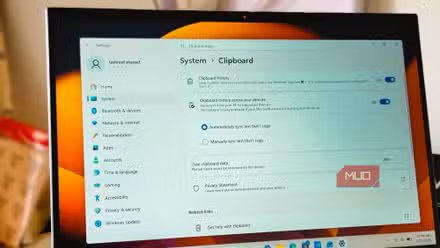
Windows 11 comes with Phone Link pre-installed, and feature-wise, it covers almost everything you’d want. Still, I wouldn’t call it perfect. For one, it requires you to keep Bluetooth active on both your PC and phone at all times. I also don’t like how it needs a Microsoft account and locks away features like clipboard sync to only Galaxy phones.
PlainApp fixes every one of these complaints. It doesn’t require any account, a Bluetooth connection, or a specific Android phone to unlock all of its features. And yes, it’s also completely free with no ads, much like Phone Link.
The main difference is how it connects your Android phone to your PC. It turns your phone into a self-hosted hub that you can manage from your PC’s browser. You simply need to set up the PlainApp on your phone and connect it to the same network as your PC. After that, you can access your phone’s files, messages, contacts, call logs, notifications, clipboard, and more, directly from a browser window.
The obvious advantage here is that you aren’t limited to a single PC. PlainApp integration works with every computer on the same network, and the entire setup is local and end-to-end encrypted, so you don’t have to worry about security either. Connecting a PC to your phone for the first time does require your approval, so it’s not like anyone on the network can access your phone.
PlainApp is available on the Play Store, but that version doesn’t include features like call logs and SMS due to Google’s policy. I initially tried the Play Store version, but then sideloaded the app directly from F-Droid to get all the features.
Accessing my phone’s files and features has never felt this easy
Bring your phone inside a browser tab
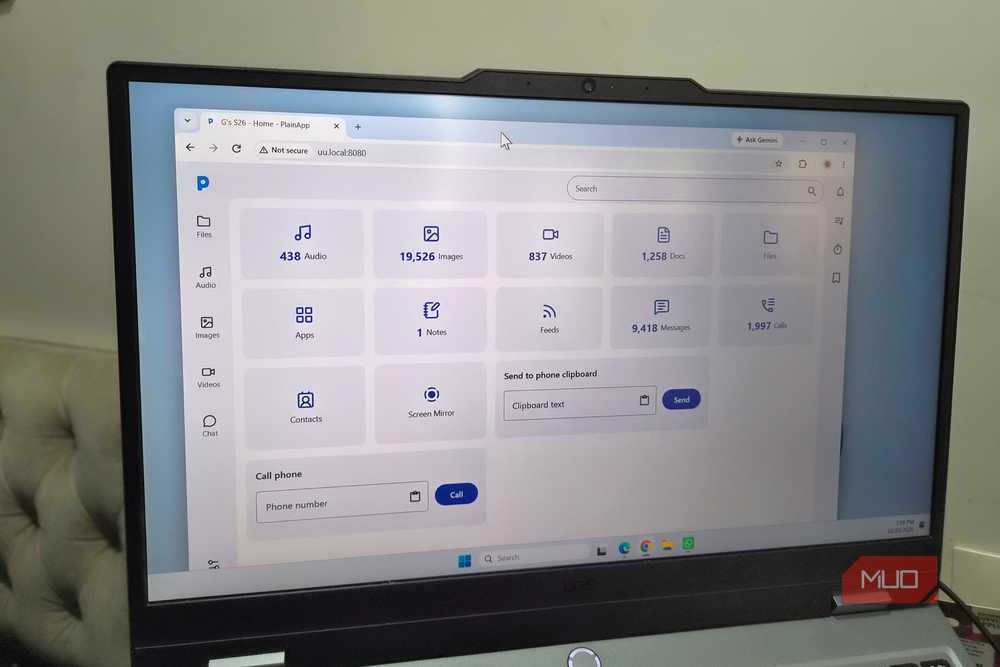
Once you’ve connected to the PlainApp on your Android through a browser, you’ll see a clean interface with options like Audio, Videos, Images, Docs, and Files. With these, you can browse your phone’s local storage, preview files, download them to your PC, or go the other way and upload files from your PC to your phone. Since all of this works through your local network, there’s almost no lag here.
You’ll also see Calls and Contacts shortcuts for viewing your call logs and making phone calls directly. The Messages tab lets you read and reply to text messages. PlainApp doesn’t let you run your mobile apps like Phone Link does, but it does have screen mirroring to make up for that.
There’s even an option to send text directly to your phone’s clipboard, which is great for sharing links or specific texts quickly. PlainApp also brings your phone notifications to your PC and you can respond to messages directly from there.
And my favorite thing about all of this is control. PlainApp offers dedicated toggles for every feature I talked about. So if I don’t want to sync the clipboard, view call logs, or use screen mirroring, I can simply turn those features off. Heck, I can even stop alerts from specific apps from showing up on the PC.
It’s the small stuff that won me over
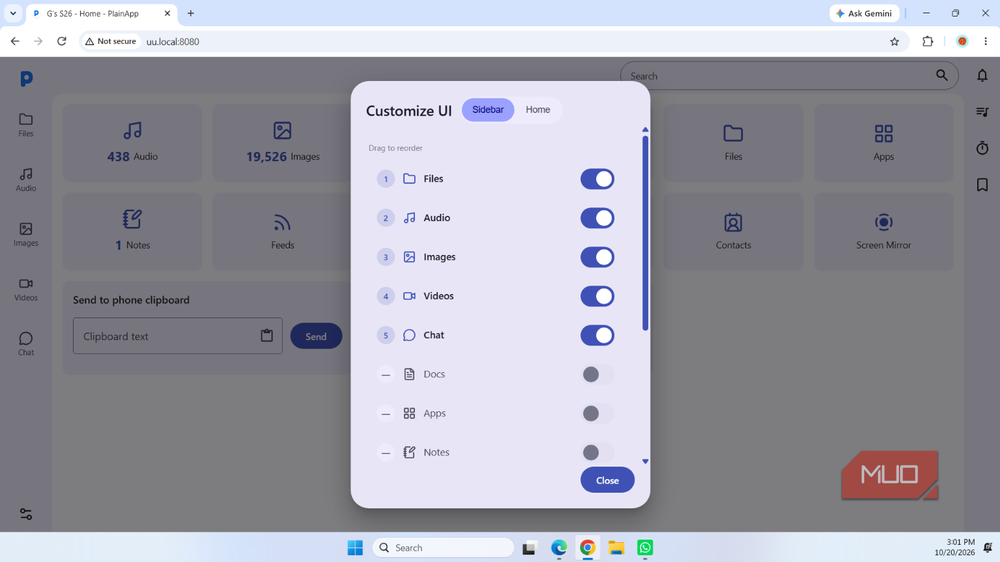
PlainApp also has a few extras that make it worth using over Phone Link. There’s a Notes section where you can create notes that sync between your phone and PC. It’s all stored locally, so you don’t need a separate app or an account. There’s also the Chat feature, which lets you send texts, images, and videos between the two devices with a chat-like interface.
The toolbar on the far right offers extras like bookmarks, a Pomodoro timer, and a playlist. Bookmarks is the one I actually use the most because it lets me jump straight to my most important files.
And then there’s the customization. Head into PlainApp’s Customize UI menu on your desktop, and you can pick exactly what shows up in the sidebar and home screen and rearrange it however makes sense.
So yes, PlainApp is a great alternative to Phone Link. It’s also free, open-source, and doesn’t require any account, which makes it even more appealing. Phone Link obviously has a few unique features, like cross-device resume, Start menu integration, and iOS support. Still, for anyone who can live without those extras and wants a lightweight way to access your phone from your PC, PlainApp is definitely worth a shot.