A lot of the apps I use aren’t available on the Microsoft Store, where I can just click Install and voila, I’m done. Instead, I have to open my browser, search for the app, dodge fake download buttons, find the right installer, and click Next through a dozen installer screens just to get it on my PC. And a couple of weeks later, the app will be asking me to update, and I’m going through a similar process all over again. Just imagine doing that for multiple apps.
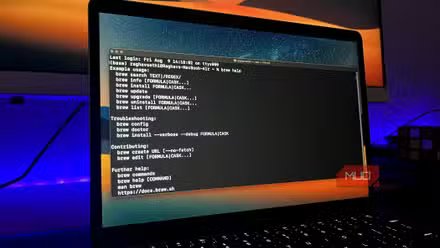
I know using Winget via Windows Terminal is a thing, and it makes installing and updating software a whole lot easier. But not everyone is comfortable running commands or dealing with the terminal. If you’re part of that demographic, boy, have I got good news for you. UniGetUI does the same thing, but with a graphical user interface.
UniGetUI brings multiple package managers under one roof
Install, update, and uninstall apps without opening the terminal

UniGetUI, formerly known as WingetUI, is an open-source graphical interface that brings several package managers into a single dashboard. It supports tools such as WinGet, Scoop, Chocolatey, PowerShell Gallery, pip, npm, and .NET Tool, so you don’t have to jump between different sources or use the command line to manage your apps.
Instead of hunting down software on different websites, UniGetUI lets you search, install, update, and uninstall apps from one dashboard. It retrieves packages from supported repositories and package managers, making software management a lot more straightforward and helping you avoid questionable download sites and misleading download buttons.
The project was originally created by Martí Climent, but is now maintained by Devolutions. You can get UniGetUI for free from the Microsoft Store, its official GitHub repository, or from Devolution’s official website.
You can also install it using WinGet itself by running winget install --exact --id Devolutions.UniGetUI in Windows Terminal or Command Prompt.
There’s bulk management
Manage multiple apps at once and decide which updates you want
The major selling point for UniGetUI is its unified search and, most especially, its bulk management. You can browse software across supported sources, check details such as version numbers, publishers, and licenses, and select the apps you want to install.
Rather than installing them one at a time, just check the boxes for everything you need and let UniGetUI handle them together. The same goes for updates. When several apps have new versions available, you can select them and update everything in one go.
Speaking of updates, UniGetUI gives you more control over how you manage them. It lets you skip specific versions or ignore updates for individual packages. That way, you don’t have to update everything blindly or worry about a particular app updating to a version you don’t want.
You can also receive background notifications from the system tray, so you don’t have to keep opening the app to check whether something needs updating. And if you’re setting up another PC, UniGetUI can export a list or bundle of your installed applications, allowing you to import them onto another machine or generate an installation script. That’s a lot less tedious than trying to remember every app you installed over the years.
It isn’t limited to Windows
Manage packages on macOS and Linux, and discover AI agent skills

Although UniGetUI is mainly known as a Windows app, it’s also available on macOS and Linux. The package managers it supports vary depending on the operating system, but you can access tools like Homebrew on macOS and APT, DNF, Pacman, Flatpak, and Snap on Linux, alongside several cross-platform package managers.
That means you can use the same general interface to manage software on different operating systems rather than having to learn each package manager’s commands separately.
UniGetUI has also expanded beyond traditional software management with its Agent Skills extension. It lets you discover, install, and manage skills and plugins for AI coding tools, including Claude Code, Codex, Cursor, and GitHub Copilot. You can browse available skills, install them for supported tools, and manage updates from within UniGetUI.
The extension is optional, so you can enable it from the settings if you use AI coding assistants. It’s a nice addition that makes UniGetUI more than just a graphical frontend for package managers.
One less chore every time I reinstall or update my PC
I don’t mind installing an app manually every once in a while, but doing it over and over again gets tedious, especially when I have to keep track of updates for dozens of apps. UniGetUI solves that problem by bringing software installation and updates into one interface without requiring me to touch the terminal.
It’s not perfect, and not every app is available through its supported package sources. But for the apps that are, UniGetUI makes installing, updating, and managing software considerably easier.