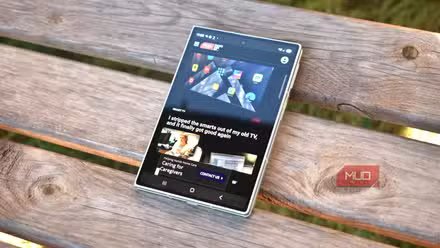
I got my Z Fold 8 weeks before Apple’s keynote, and the one iPhone Duo feature I envied turned out to be software. I figured it might be fun to try and recreate it on my Samsung phone, so I went out looking for a solution.
The animation effect on the iPhone Duo demos went pretty viral, and Reddit user moomanjohnny got something like it on the Fold 8 by mapping hinge readings to animation frames. Developers have since created installable versions.
The only Google Play version I found, DuoFold, is still pre-registration only, so I couldn’t give that a shot. Everything else required side loading and lots of trips into the Settings and Developer options.
I tried four of these options on my Galaxy Z Fold 9, and only one worked. The other three’s failures were interesting, too.
Of course, it goes both ways, as several of Apple’s new features are already on Android.
Apple’s best foldable trick is software anyone could copy
What the fold actually does

Apple’s implementation looks like magic, and it relies on the fact that the two displays share a single aspect ratio. A new display engine drives both at once, too, so content can stay continuous as you open the Duo. That means that the picture stays in one place while the moving half frosts over, making it look like the content passed through the panel. The Galaxy Z Fold 8 beats the Duo in five other ways, but this animation isn’t one of them.
Samsung already knows the angle of the hinge, so the effect needs no special hardware, which makes it much easier to reverse-engineer via software. My live wallpaper, which comes standard on the Z Fold 8, moves as I open or close the phone, which means the software knows the state of the hinge. The difference with Apple’s implementation is the blurring of the left side (or small screen, if closed) and making it look as if you’re looking through the panel to the inside.
Making it work on the Samsung Galaxy Z Fold 8
Some setup is required
Before any sideloads, I had to set up a couple of things. First, I had to turn off Settings > Security and privacy > Auto Blocker before I could enable any sort of debugging (which was required for one app and the Shizuku system for another. Then I had to make sure the apps could connect to Accessibility systems, which denied me access at first. I hopped into Settings > Apps > [app] > three dot menu > Allow restricted settings.
Yes, this is risky if you don’t know the developer, but sometimes testing requires a bit of risk.
First, I tried Duo Fold Wallpaper, which didn’t quite make things happen. There’s an option to set both the lock screen and home screen which never quite worked, even after a reboot. There wasn’t much of an animation at all, maybe a little dissolve-like transition, but the cover screen just went black whenever I closed the phone. Really not a great option.
Next, I gave Duo Open’s Fold 8 fork a try. It has a built-in test to see if it will work on your specific device, but ultimately, the folding would just jump between states instead of gradually animating the blurring and folding. Both phases showed, though it was easier to see it when closing my phone, but Chrome didn’t blur when opening or closing, and it really only worked if the phone was unlocked from the cover screen; otherwise, I just got the pattern unlock cue from the OS.
The third app I tried, ZfoldDuo, looked real good on paper, since it’s supposed to render live frames. Unfortunately, getting it running needed me to read Japanese. The Wi-Fi pairing that requires a pairing code never seemed to work for me, even with some translation software helping me figure out what all the text said. Ultimately, pairing never happened, so this one didn’t even get to the “how it looks” phase.
Duo Fold Live is the one that actually worked
It was smooth, fast, and worked with an app up

The developer of this app said it was build only for the Z Fold 8 and was teasted on one running Android 17. It works voer OneUI and regular apps without replacing your launcher. I had to enable Shizuku (a free app that passes Android’s developer-level permissions to other apps without rooting) from Google Play and then pair it via Developer options > Wireless debugging > Pair device with pairing code. The code you get goes into Shizuku’s notification, which then lets the Duo Fold app know what the hinge state is so it can apply the blur effect. The whole affair took about 5 minutes, so it’s not too tough.
Once set up, I installed the Duo Fold Live APK from the releases page, swapped both home screens to Samsung’s default wallpaper, and then (after I gave it Accessibility and Shizuku overlay access) ended up working pretty well.
A brief black flash happens partway through opening, which the developer says is a known issue. The inner screen always opens to the main home page, not the one I have up on the cover screen (which keeps it from Apple-level of polish), and the locked phone still shows the lock screen when opening the Z Fold 8. Also, if you reboot the phone, you have to restart Shizuku and go through the whole pairing process again.
Close enough to Apple, but not the real thing
If you really want the blur for the wow factor, give Duo Fold Live a shot. Still, Apple has more going on than just a blurred transition; it’s content stays put, reorients, and lands where it should. It also seems like it shows the other screen through it, and that’s not something this app can do on Android.
Of course, Samsung’s own wallpaper already reads the hinge, so it’s only a matter of time before Samsung implements the feature on its own.