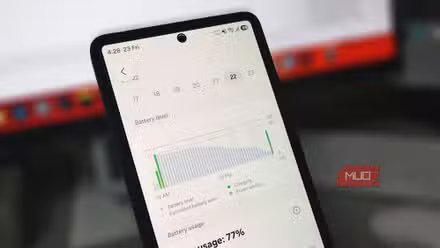
I checked my data usage last month and found nearly two gigabytes I couldn’t explain. My phone had been on Wi-Fi the entire day, connected to my home router, and yet the usage log showed cellular activity during hours I never left the house. I went through my apps one by one, restricted background data on the usual suspects, and the numbers barely changed. The leak wasn’t coming from an app. It was coming from Android itself, through a setting buried in a menu my phone never told me existed.
Android keeps mobile data running on Wi-Fi
Unexplained gigabytes during Wi-Fi hours

That cellular activity traces back to how Android manages your modem. Even when your status bar shows full Wi-Fi strength, the modem stays active in the background, holding a live data session with your carrier’s tower. Google builds this behavior into Android at the source level using an internal settings key named mobile_data_always_on, and most manufacturers leave it enabled by default.
Keeping the cellular radio primed is what makes the switch between Wi-Fi and mobile data feel instant. If you step outside or briefly lose your router’s signal, your video streams and GPS navigation won’t skip a beat. You never notice a gap in coverage because your mobile data session was already up and running in the background.
The modem doesn’t just idle while you’re home, though. It continuously exchanges keep-alive packets and network signaling with nearby towers to keep its session alive. Whenever your home Wi-Fi hits a brief speed dip or drops a few packets, Android quietly reroutes pending background requests through the cellular connection instead. Over a few weeks, those silent reroutes stack up into gigabytes of mobile data you assumed Wi-Fi was handling.
Put the background cellular modem to sleep
Stop the modem from staying awake
Stopping that passive drain means changing how Android manages the cellular radio, but the toggle lives inside a hidden menu. To reveal it, open your phone’s Settings, head to About Phone, and look for Build number. On Samsung devices, you will need to tap Software Information first to see it. Tap Build number seven times in rapid succession, confirm with your PIN or fingerprint, and your Developer Options will unlock.
From there, go back to Settings and look for Developer Options. Samsung shows it at the bottom of the main Settings page, while Pixel tuck it inside Settings > System. Scroll down to the Networking section, find the toggle labeled Mobile Data Always Active, and flip it off.
Once disabled, Android tears down the standby data session and lets the cellular modem drop into a deep sleep while Wi-Fi is active. Your notifications, messaging apps, and background sync all keep working over Wi-Fi exactly as before. Cellular voice calls and standard text messages still arrive instantly because voice signaling runs on a separate channel. The one tradeoff is a pause of a few seconds when your phone reconnects to cellular after Wi-Fi drops, but for anything other than a live video call, you won’t feel it.
Shut down automatic network handoffs
Disabling one setting isn’t always enough

Putting the modem to sleep stops passive background leaks, but that sleeping modem can still be woken up. Most Android manufacturers build their own network switching feature into their Wi-Fi settings, working independently of the developer toggle you just disabled. These features monitor your Wi-Fi signal quality in real time. When it weakens or drops packets, they wake the cellular modem, re-establish a data session, and start redirecting your active traffic onto your carrier plan.
Samsung Galaxy phones tuck this under Settings > Connections, then Wi-Fi. Tap the three-dot menu, open Intelligent Wi-Fi, and turn off Switch to Mobile Data. For Pixel devices, head to Settings, then Network and Internet, and open Adaptive Connectivity. Toggle it off entirely, or if your Android version shows individual toggles, disable Auto-switch to Mobile Network.
Leave those settings turned on, and a brief Wi-Fi slowdown—like when your router lags or someone else hops onto the network—can push a heavy video stream or file download straight onto cellular. The modem wakes, the traffic shifts onto cellular, and your data is spent before Wi-Fi even recovers. Turn them off, and Android loses the ability to wake the modem during Wi-Fi dips. Your phone stays strictly on Wi-Fi until you leave your network’s range or choose to switch manually.
Stop leaking mobile data on home Wi-Fi
That one developer toggle was responsible for most of the unexplained data on my monthly bill. With the modem finally asleep on Wi-Fi, my cellular data stopped draining while I was home. If you want to track the real-world difference, set a data usage warning in your network settings today and check back in a week.