
Der Artikel kann nur mit aktiviertem JavaScript dargestellt werden. Bitte aktiviere JavaScript in deinem Browser und lade die Seite neu.
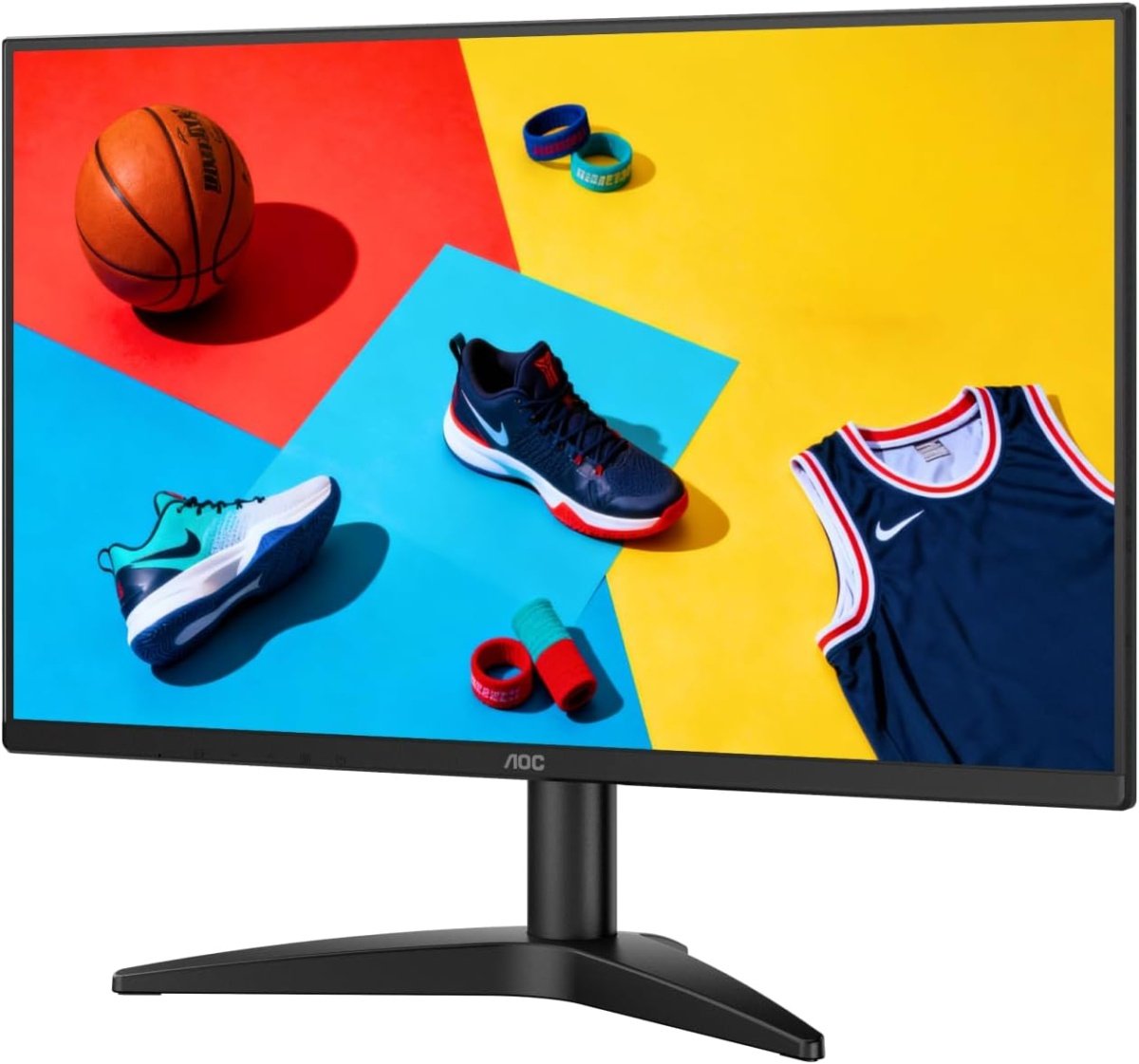
AOC’s 27-inch G27B36N gaming monitor is $94.99 on Amazon in the US. The Full HD display has a native 144Hz refresh rate and can reach 180Hz through overclocking, putting a large, fast-refresh screen below $100.
The new monitor is sold by Amazon.com and was in stock when checked. Amazon lists a typical price of $108.75, making this offer $13.76 cheaper. The comparison uses Amazon’s typical price, not a launch price.
AOC’s specifications confirm that 180Hz is an overclock and advise returning to 144Hz if the display encounters errors at the higher setting.

The rear connections and VESA mounting holes. Image: AOC
180Hz comes with an HDMI HDR limitation
AOC also says HDMI does not support HDR when overclocking is enabled. If you plan to use HDR over HDMI, the screen’s fastest overclocked mode will therefore be unavailable.
The monitor uses a VA panel with a 1920 × 1080 resolution. AOC specifies a typical 4,000:1 contrast ratio and 300-nit brightness, plus Adaptive Sync. Its advertised 0.5ms figure is a minimum MPRT measurement; the manufacturer separately lists a typical 4ms grey-to-grey response time. These laboratory ratings measure different aspects of the panel’s response.
At 27 inches, 1080p works out to roughly 82 pixels per inch. A same-sized 2560 × 1440 screen has about 109 pixels per inch, so this deal favours price and screen size over finer detail. The higher-resolution option also has about 78% more pixels to render at native resolution.

The supplied stand supports tilt adjustment. Image: AOC
Check the stand and your display settings
Connections include HDMI 2.1 TMDS, DisplayPort 1.4 and an audio output. The supplied stand tilts but has no height adjustment, swivel or portrait rotation, according to AOC. A 100 × 100mm VESA mount provides an alternative if your desk setup needs a different position.
Once connected, check the selected refresh rate in Windows to see which display mode the computer is actually using. Microsoft’s instructions put that setting under Settings → System → Display → Advanced display. Select the correct screen if you use more than one monitor.
A higher refresh rate lets a display update more frequently, but it does not make a PC generate more game frames. The games, graphics hardware and chosen settings still determine whether you can make full use of that faster refresh.
Note: Links to online stores in articles can be so-called affiliate links. If you buy through this link, MIXED receives a commission from the provider. For you the price does not change.
As an Amazon Associate we earn from qualifying purchases.