There’s nothing scarier than seeing your PC restart in the middle of your gaming session due to thermal throttling. I have had my fair share of losses simply due to carelessness and not keeping an eye on my PC’s thermals. While modern PCs are well-equipped to handle any overheating-related issues, it still never hurts to be cautious, especially in today’s economy.
In the past, I’ve lost more than a dozen CPUs to thermal throttling issues. As such, with my most recent build (which is also fairly old at this point), I was very careful about the temps.
In fact, I adopted a few handy gaming habits, which have kept my AM4 CPU, the Ryzen 5 5600, running like a new one since 2022. And I can’t be happier about it. And you know what? I don’t want to keep it a secret. So, here are the 5 gaming habits that helped me keep my old AMD CPU running like a new one.
Limit the frame rate
The most CPU-friendly setting, but also the most divisive
Playing your games on PC and limiting the frame rate sounds very contradictory. After all, one of the biggest advantages PC games have over console ports is, well, unlocked frame rates. However, I’ve learned it the hard way that, unless you’re using a top-of-the-line CPU, it’s always best to keep the frame rate capped. Trust me, your CPU will thank you.
In my case, I always cap the frame rate based on the 1% lows. However, if you don’t want to limit the frame rate that low, you can simply cap it to the average value based on a session.
For example, if you’re getting an average of 54fps, but the game is also hitting 60fps or higher occasionally, you can just cap the frame rate to 55fps. Alternatively, you can use tools like the Nvidia App or AMD Adrenalin to get suggestions on the optimal frame rate, and cap it based on that.
Limiting the frame rate also helps with frame pacing, which is a boon on displays without VRR capability.
Also, I highly recommend capping your frame rate at the driver level, instead of using in-game settings. Often, the in-game frame rate limiter in games is tied to cutscenes or only affects specific parts of the game.
For instance, in Phantom Blade Zero, the in-game frame rate limiter only affects cutscenes and doesn’t work as intended during gameplay. Similarly, in Monster Hunter Wilds, the limiter only helps stabilize the frame-pacing issues, leaving the frame rate completely unlocked if you’re using Frame Generation.
So for these games, I cap the frame rate using the Nvidia App. You can also use tools like RivaTuner Statistics Server (RTSS) to do the same.
Upscalers are your friends
Especially in open-world games

Love them or hate them, upscalers are here to stay. While I’ve never been a fan of relying on upscaling to get my games to a “playable” state, I have somewhat softened up on them since the last half-decade of using both DLSS and FSR. While nothing can beat the clarity of a game rendered at native 4K, modern upscalers certainly come close.
In fact, at 1440p, I can hardly tell the difference between DLAA and DLSS Quality. As such, nowadays, I just end up defaulting to DLSS Quality over DLAA.
It not only improves performance by rendering the game at roughly 900p instead of 1440p, but it also helps keep my CPU usage and thermals in check. Enabling DLSS Quality in open-world games like Forza Horizon 6 saw my CPU usage drop by more than 5% compared to native 1440p (DLAA).
And this drop also came with a 1–2 degree difference in CPU thermals.
You don’t need the overlays
Unless you’re playing multiplayer games

Although it’s not necessary, disabling any form of overlay, be it driver apps like Nvidia App or that of Steam, helps keep CPU usage in check. While this won’t give you “extra frames,” it does help keep your CPU healthy in the long run. As a habit, I just tend to disable Nvidia App’s overlay after every update. And for Steam, I do that selectively for games that don’t need it all that much.
For instance, in games like Phantom Blade Zero, Dragon’s Dogma 2, and Cyberpunk 2077, there’s hardly any reason to use the Steam overlay.
However, in the case of multiplayer-centric games like Elden Ring: Nightreign or Monster Hunter Wilds, the overlay does help with friend invites and notifications. You can also disable the Steam Overlay globally by heading to Settings > In-Game > The Steam Overlay > (Disable) Enable the Steam Overlay while in-game.
Let your CPU breathe
Proper ventilation and cooling can significantly improve CPU performance

Your CPU is as healthy as the ventilation and airflow it gets. This is an obvious point, but it shouldn’t be understated. Modern ATX and even micro ATX cases allow for up to 6 fans to be installed around the motherboard. While you don’t necessarily need all 6 fans, it certainly helps maintain a healthy airflow.
Furthermore, you also want to make sure that the case itself is kept in a ventilated space with at least 3 inches of space between the back and your wall.
The intake fans within the chassis are supposed to pull fresh air from the front and exhaust hot air from the back. As such, you want to keep ample space for the hot air to go out. In my case, I’ve kept the case on the floor, right next to my workspace table.
I’ve also removed the dust mesh that came with the case, which opens up extra space for cooler air to enter the chassis. Also, remember, don’t go overboard with AC either.
While keeping the AC on while you’re using your PC can certainly help, it also increases the chances of corrosion due to humidity.
No need to go overboard with CPU maintenance
Go easy with the thermal paste

Lastly, make sure that your CPU is getting proper maintenance. Dusting the chassis, the connectors on the motherboard and the CPU cooler fan (if you’re using an air cooler), and the intake fans installed in the chassis goes a long way toward ensuring proper health of your PC components. However, you don’t want to go overboard with all the maintenance either.
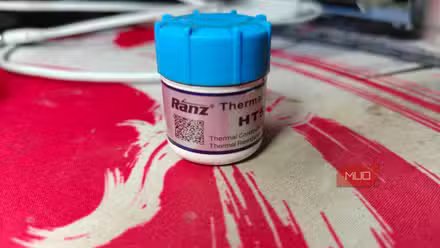
There’s a misconception among PC enthusiasts regarding cleaning and reapplying the thermal paste annually, or whenever you decide to do a thorough cleaning of your PC.
You don’t want to do that. Once applied, the thermal paste for most CPU coolers can easily last more than 7 years. Unless you’re planning to install a new cooler or switch to a liquid cooling system, you don’t need to reapply the thermal paste every time. I also don’t recommend removing the cooler from its socket during maintenance.
Instead, I just remove the fan from its housing and clean it with a can of compressed air. Also, make sure you’re monitoring your CPU and GPU temperatures before and after maintenance via the BIOS.
This will help you troubleshoot any issues that might’ve popped up during maintenance and disassembly.