Pixel phones are known for their minimal Android experience, excellent cameras, and useful Google features. When I considered switching from Samsung, the Pixel was actually my first choice. I like having Android the way Google intended, without too many customizations or unnecessary additions.
There’s a but. I don’t enjoy the number of Google apps that come preinstalled. Of course, I use plenty of Google apps, but having an app preinstalled doesn’t automatically make it useful to me. I feel Google is forcing me into its ecosystem. Thankfully, Pixel phones let me uninstall or disable several of these apps. Here are four Google apps I get rid of within minutes of unboxing a new Pixel.
My Pixel
I don’t need Google to teach me how to use my phone
The first app I uninstalled was My Pixel. Google includes it to help users discover Pixel features, read tips and tricks, and find support. But honestly, how often do you open an app just to read tips about a phone you already know how to use? I never do. When I get a new phone, I prefer exploring its features and digging into the settings myself. I don’t need an app to keep suggesting things I can try.
My Pixel also offers feature guides, recommendations, and other resources to help you get more out of your phone. But I rarely have a reason to open it after the initial setup. If I want to learn about a feature, I can simply look it up online or browse through Reddit comments. I’d rather use that app space for something I actually need. That’s why My Pixel is one of the first apps I remove.
My Pixel is the only app on this list that can’t be uninstalled the traditional way. However, it can be disabled by going to Settings > Apps > See all apps > My Pixel.
Journal
I already have Google Keep for jotting things down

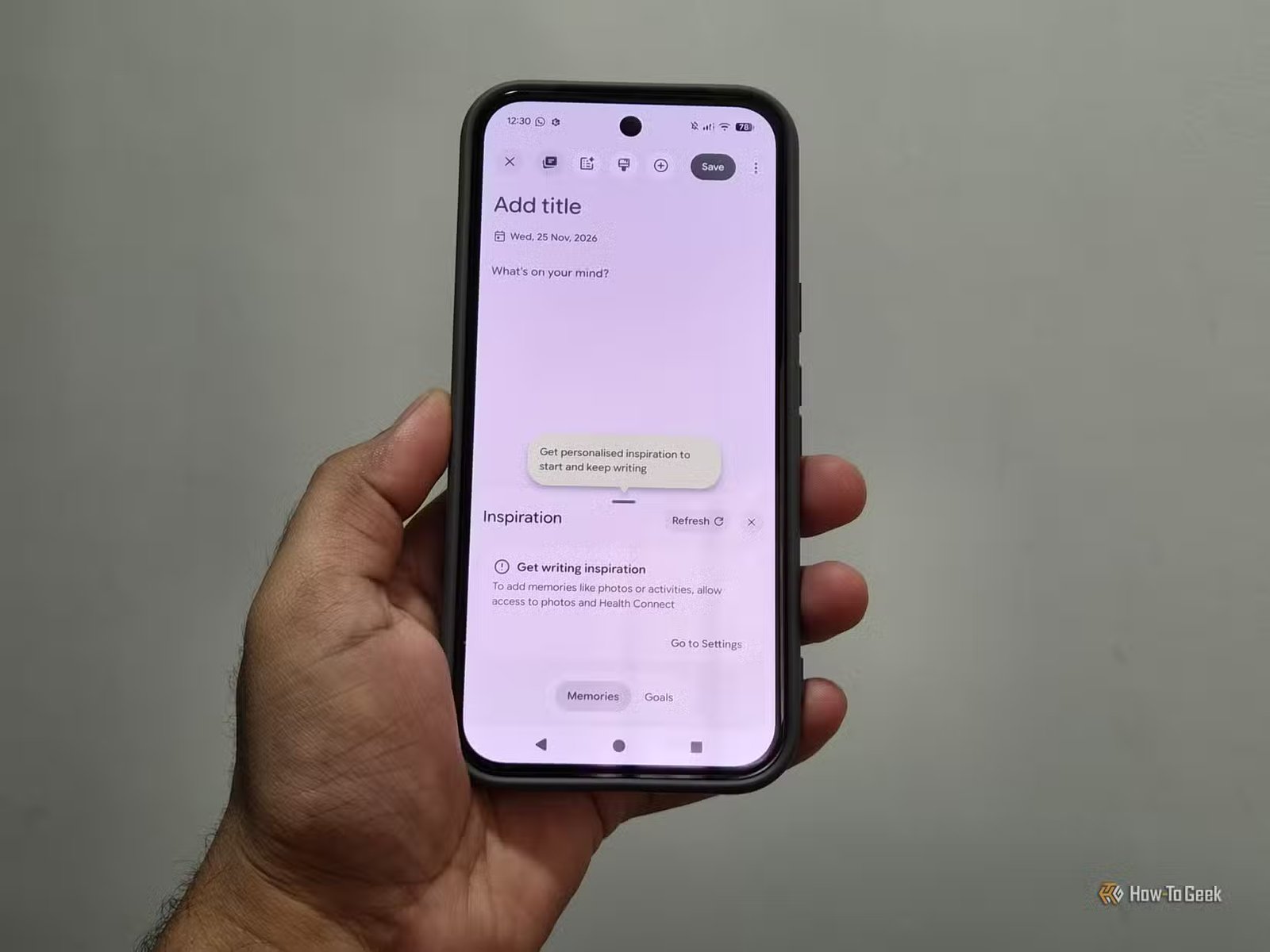
I don’t need two apps for the same activity when I’m already happy with Google Keep. The Journal is designed for personal entries, mood tracking, writing prompts, and reflections. That’s fine, but I need something more reliable. I use Keep for everything from grocery lists to itineraries and article notes. I can organize my notes, pin important ones, and access them across my devices. I can also use it offline, which makes it even better.
I love connecting Google Keep with Gemini. I can ask Gemini to find my saved notes, use them as context, and help me develop an idea. I already love Keep, and Journal doesn’t fit into my routine. Uninstalling it was my best decision. It not only saved space but also made my phone a little less cluttered.
Google News
Google Discover already keeps me up to date

I’m not someone who used to read the news every morning. But after becoming a tech writer, keeping up with the latest news became part of my daily routine. It’s now one of the first things I do after waking up. I use Google Discover to catch up on the latest tech stories, trending topics, and updates from publications I follow. It shows me articles based on my interests, so I don’t have to open a separate app to find something worth reading.
Google News offers a dedicated space for headlines, different categories, and stories from multiple publications. But I don’t really need another app for that. Discover already gives me the news I want, and I’m used to checking it every morning. I’d rather stick with something that’s already part of my routine than keep another news app on my phone.
Google Pixel Watch
No watch, no use

I don’t own a Pixel Watch, so I don’t see much reason to keep the Google Pixel Watch on my phone. The app is mainly useful for setting up and managing a Pixel Watch, changing watch faces, installing apps, and adjusting its settings. Without the watch, I have little reason to open it.
I already have everything I need on my phone for checking the time, setting alarms, and managing timers. I don’t need a separate app sitting in my app drawer for a device I don’t own. If I ever buy a Pixel Watch, I can always install it again. Until then, I’d rather get rid of it and keep my phone free of apps I don’t use.
A new Pixel deserves a clean start
Unboxing a new Pixel is a good time to decide how you want your phone to work for you. Apart from removing unnecessary apps, I recommend turning on Adaptive Charging to help protect battery health and Theft Detection Lock to protect your phone if someone snatches it. Both take only a minute to set up. A little cleanup and a few smart changes can make your new Pixel feel much more like your phone.