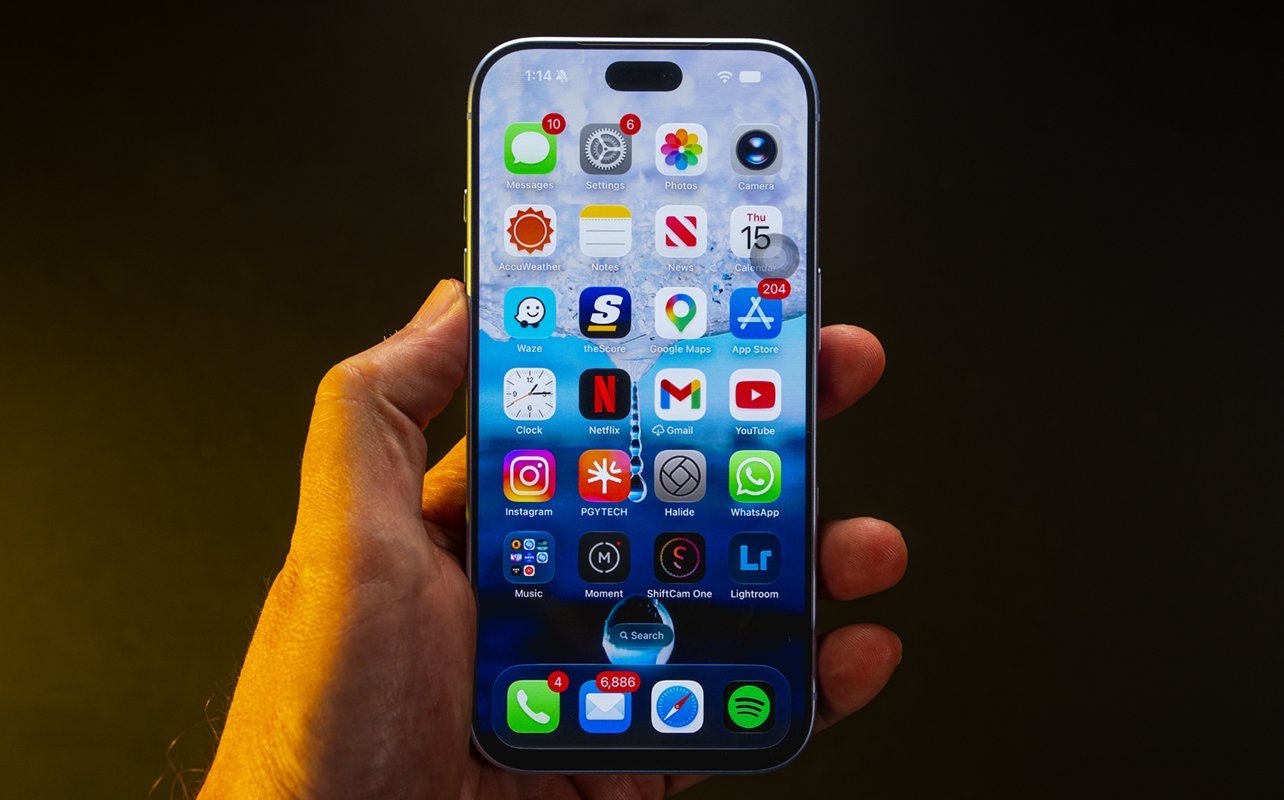
The iPhone 18 Pro looks and feels familiar until you start talking to Siri and composing photos and video your own way. Apple doesn’t roll the dice a whole lot here, choosing iterative improvements and still-to-be-seen updates that may come down the line.
It makes for a solid phone, even if it’s not an industry leader in either AI or camera performance. It presents more as an upgrade option for those using older iPhones. The camera direction is a good one because it hands over more control to you, the user. The full Siri AI rollout remains to be seen. The rest of iOS 27 fills in some gaps but the user experience for this particular phone has more to do with what actually feels new.

iPhone 18 Pro design
iPhone 18 Pro (as tested):
|
The most important point to start off is that the iPhone 18 Pro shares the exact same size and dimensions as the 17 Pro. That means cases, screen protectors, attachments, and other gear that’s specific to the phone’s dimensions will fit exactly the same way here. This is great news as it keeps the existing pool of compatible accessories intact while it expands further with new designs and concepts. Note that the iPhone 18 Pro Max is also the same story compared to its predecessor.
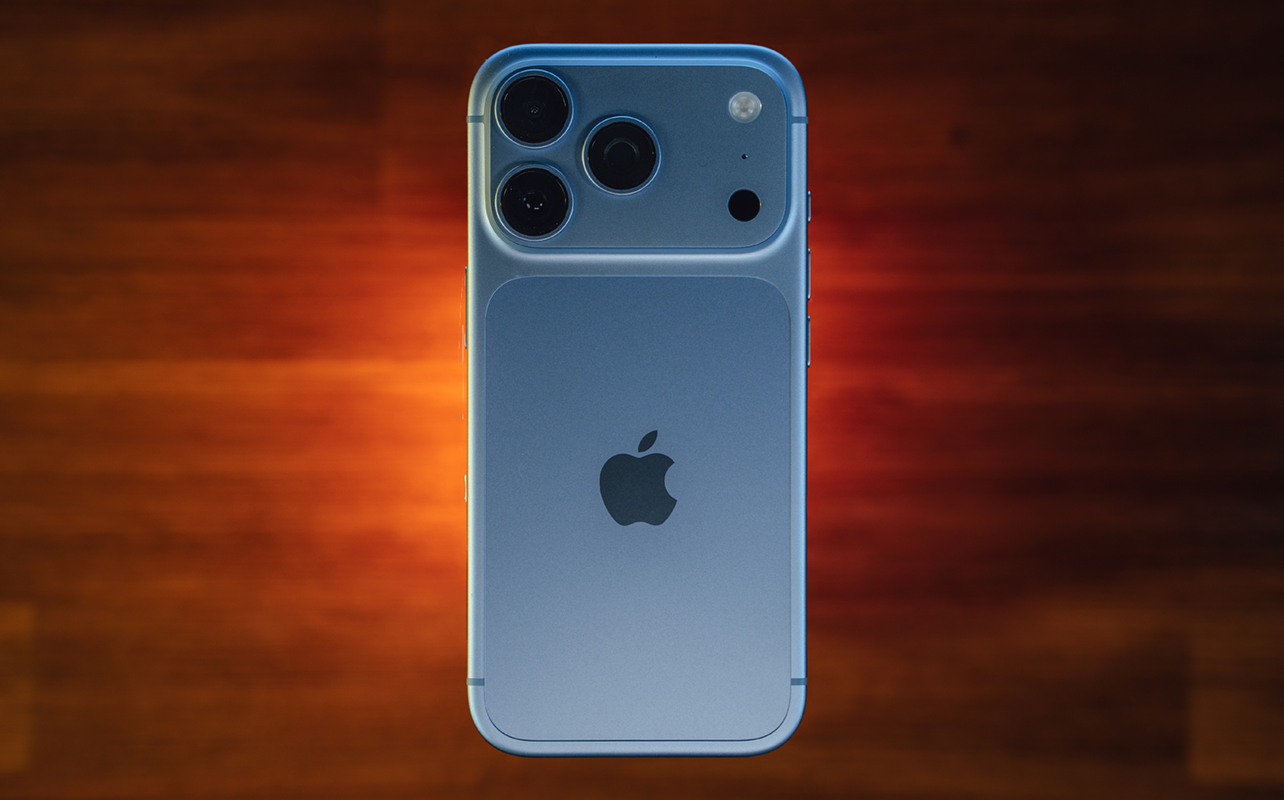
It’s just that the colour options differ, with burgundy being the most visible and prominent, while glacier (pictured here), black, and silver round out this generation’s variants. Kind of a shame as I really liked the cosmic orange variant from the 17 Pro series.
Under the hood, the phone runs on Apple’s A20 chipset, which delivers more efficient performance that you may notice under certain conditions. The iPhone’s appeal has long been that it simply works. You’re more likely to feel that way if you tend to value mixed usage, but also if you find your current iPhone runs hot a little too often. Apple changed the vapour chamber in this device, affecting heat dissipation in a way that helps it cool off faster than previous models could.
I’ll need more time with the device to gauge how it does over time as iOS demands more from the system. But we are off to a good start. The other key hardware changes centre on the camera, which I’ll cover in that section further down.
Performance and usability
My personal challenge with iOS in recent years is what I perceive as increasing bugs and inexplicable issues that pop up. More RAM and a more efficient processor certainly help the cause but only time will tell how the iPhone 18 Pro will stand up over time. My sense, though, is most users won’t notice much if the standard daily usage revolves around messaging, social media, streaming, calls, and syncing data with wearables or other devices. Additionally, iOS 27 seems to be more stable than iOS 26 was.
Android devices still offer advantages in some gaming scenarios, though the iPhone 18 Pro has more than enough power for most mobile games Creating content, on the other hand, should be more robust for the same reason, be it editing photos, video, or any other pursuit you have in mind.
By now, iOS doesn’t usually come with big surprises year over year, especially given the fundamentals still largely work the same. Liquid Glass remains a matter of personal preference. I still find the increased tint settings easier on the eyes
Dynamic Island, the bar that covers the selfie camera and Face ID sensors, actually gets cut down for size. Despite that, it can now display three live notifications at the same time, so it could be a song you’re streaming, along with an incoming ride-hailing pickup or food order. Mapping shortcuts also route this way, making it an integral part of the onscreen experience.
What about Siri AI?
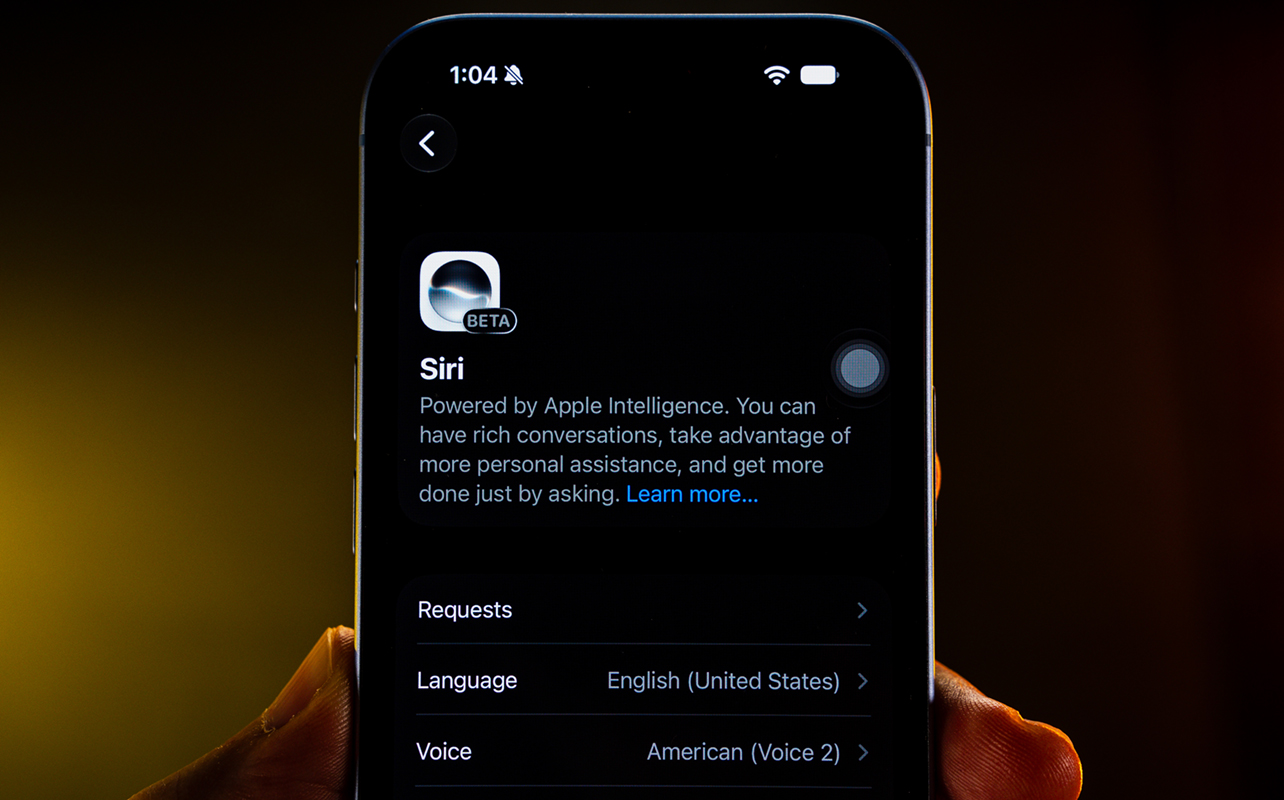
Siri AI is not the same as the Siri you’ve always known. Yes, it’s the same concept, but it can do more than it used to by tapping into data stored on your phone. For example, you can tell it to bring up all photos with the same general theme—“show me my photos of cars”—and it will present both relevant photos and video to you regardless of whether you took them or they were sent to you through messaging, email, or transfer. It takes some liberties with the request, as in throwing in a car in the background of an irrelevant photo or video, but it’s a far cry from what Apple’s assistant could do before.
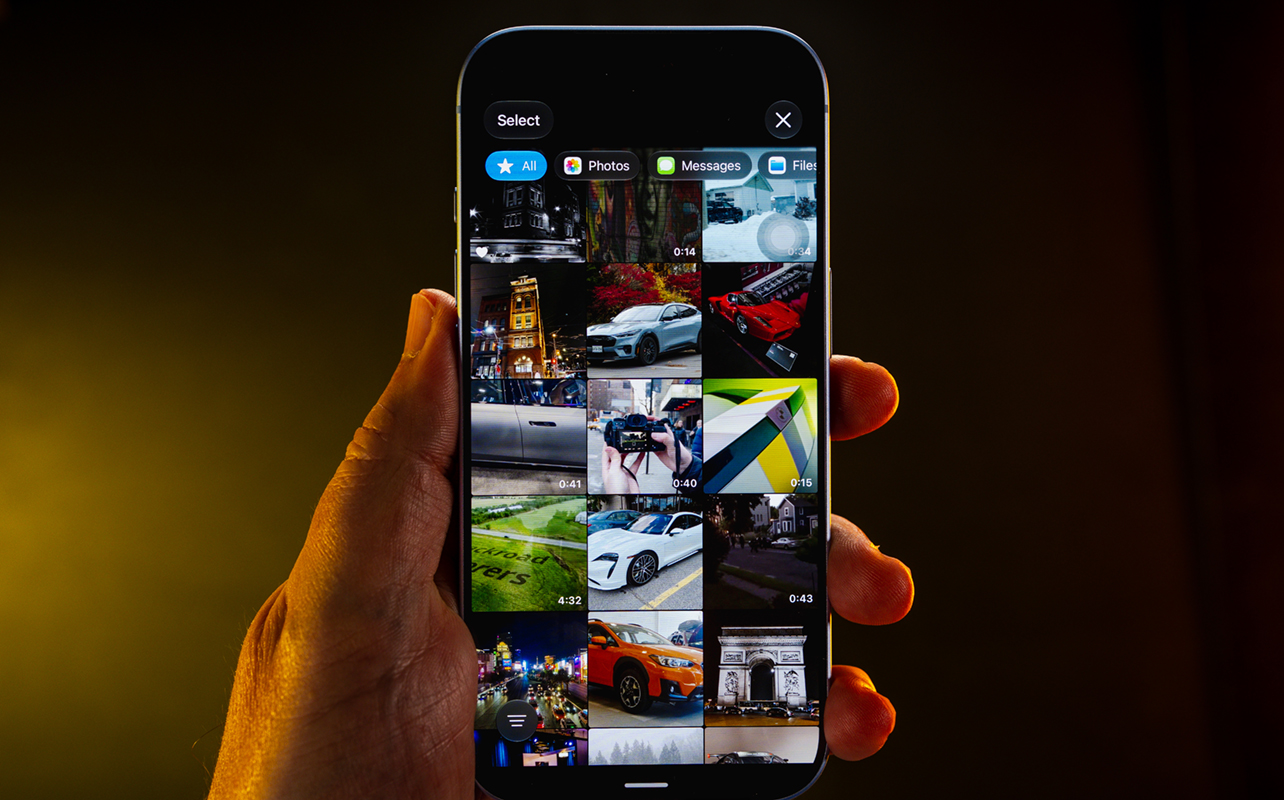
It can also get a little more granular than that, like saying, “Can you bring up that photo of me from that trip to Paris in 2019 where I’m posing in front of the Louvre?”. Rather than just a voice assistant that does a few things, it can now do something based on what you’re looking at. For instance, point at a dish or something on the menu and ask for more information on it. Translating foreign text through the Camera app’s Live Text feature also gets a boost because of the smarter AI behind it.
It’s all still in beta except you may not even see it right away if you’re in Canada. The workaround is to go to the Settings app, then Siri->Language->English (United States) to bring up the Siri AI beta option in the Siri menu. Tap that and join the beta to enter a waitlist, where you’ll then be cleared within an hour or so to start using it.
How to understand the AI situation
Apple Intelligence combines Apple’s own AI models with integrations from third-party platforms such as ChatGPT. Reports have also suggested Google Gemini integration may come later, though Apple’s long-term plans remain unclear. You can also use ChatGPT through its own app, and download Gemini as a standalone app too. What you can’t do, at least for now, is make either one replace Siri: holding down the side button still wakes Siri, not ChatGPT or Gemini.
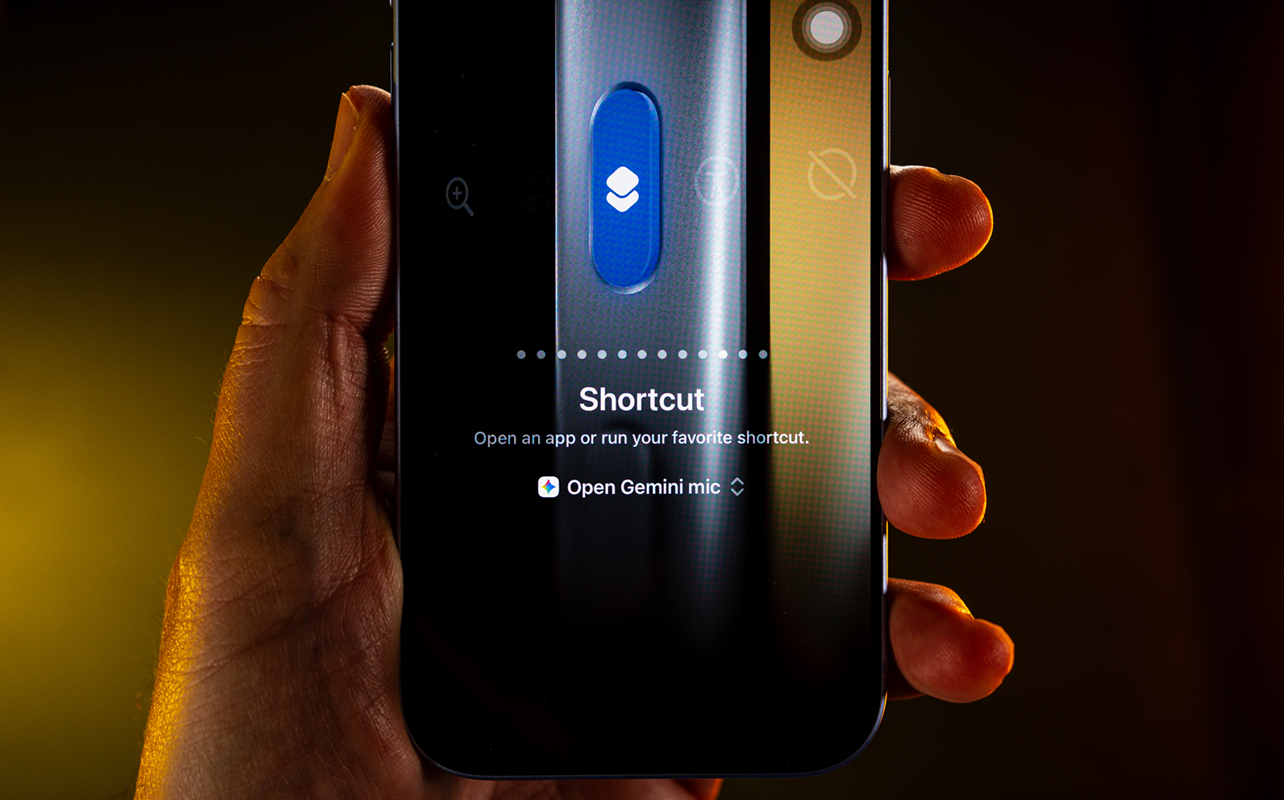
The closest workaround is mapping the Action button to the Gemini app but that’s a shortcut, not a swap. You can map the Action button to another AI platform you prefer, so if it’s Claude, Perplexity, Grok, or something else that’s an actual app, it should work just fine. From my own experience, screen sharing doesn’t work in the Gemini app, where it can see what you’re looking at and provide help or context for you, like it does on Android devices.
In other words, these third-party AI apps can’t see what’s on your screen in real time and provide contextual info. For example, Gemini, Claude, ChatGPT, and others can’t act on something you ask about on your screen while simply looking at it. You’d have to take a screenshot and then upload it to the app to get an assessment.
All told, Siri AI isn’t as detailed or robust as Gemini is on an Android phone but at least it’s a long overdue step in the right direction. The more you play around with it and understand how it’s different from the old Siri, the more you learn how to integrate it in what you’re doing.
New manual camera controls
There are two major shifts on the camera side—one hardware, one software. The hardware one is the variable mechanical aperture for the main camera, coupled with a larger image sensor. Together, these help deliver more precision and better low-light capability when using that main lens. The software side is new manual controls, like shutter speed, manual focus, white balance, and a histogram. Using these together with the variable aperture gives you the most control Apple’s Camera app has ever offered.
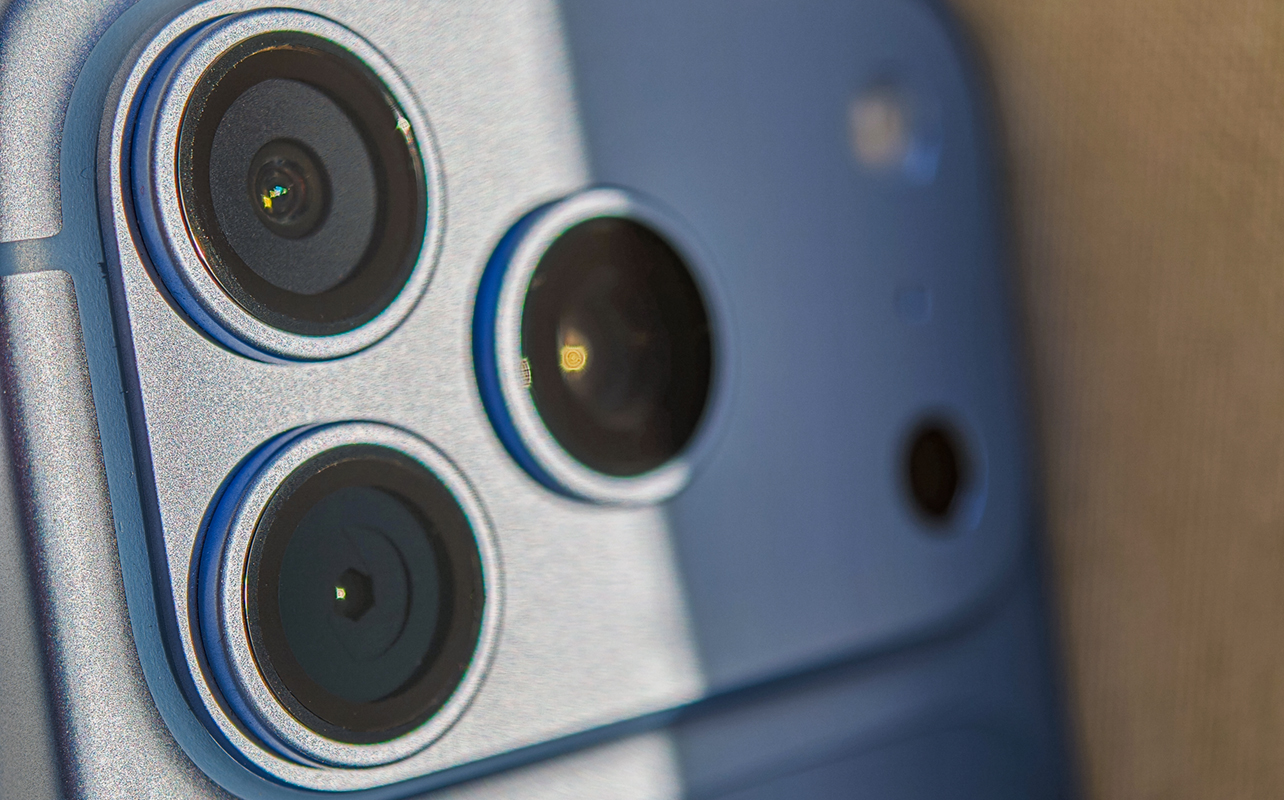
The aperture is essentially the physical opening, or hole, that opens and closes based on the f-stop. Here, the range is a modest f/1.48, f/1.8, f/2.8, and f/4.0. The lower the number, the more light can pass through. That’s why “stopping down” means moving up to f/2.8 or f/4.0, and “stepping up” means moving down to f/1.48 or f/1.8. Smartphones almost always have fixed apertures, just like the telephoto and ultra-wide cameras do on the iPhone 18 Pro.
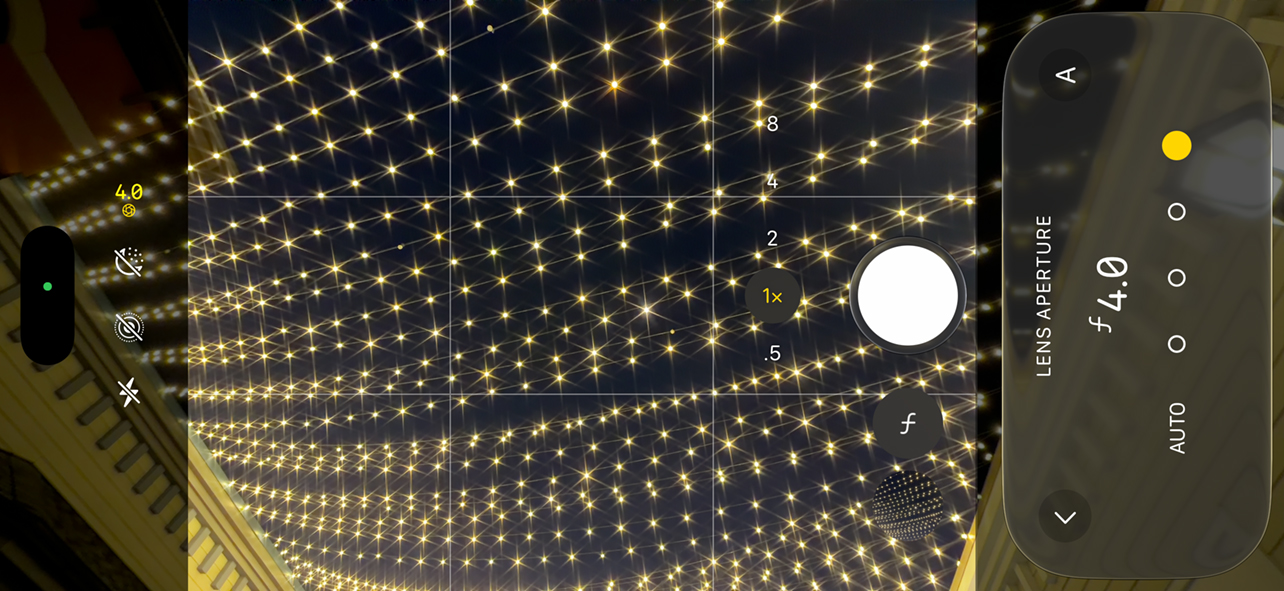
Apart from affecting light, f-stops also affect optical bokeh, or blur. The focal plane tends to be smaller and narrower the wider you go, whereas you notice more focal depth on the subject. Learning how this works is actually far more valuable than using the Portrait mode because the differences are optical, not virtual. Until you switch it yourself, Apple defaults to f/2.2 at all times.
You can shift that by manually selecting the f-stop you want and then preserving that so the Camera app doesn’t reset settings. Go to the Settings app, then Camera->Preserve Settings->Lens Aperture and toggle it on. After that, the app will always default to whatever you last left it on. This settings page actually has a range of options for preserving other settings but not for the other manual controls, like shutter speed or white balance.
Image quality
Third-party apps have long enabled you to adjust shutter speed, ISO, and manual focus among others. Apple controls ISO, but having the others baked into the Camera app is welcome, especially for a photographer like me.
With the main camera, shooting in lower-light or night conditions at f/4.0, you can turn exposed light sources into starbursts. Keep the phone really steady, with a moving subject in frame, lower the shutter speed to capture a long exposure shot. The subject creates a cool blur effect while you get the starbursts in the lights. These results were simply not possible with past iPhones unless you used a third-party app with a proper filter placed in front of the rear lenses. Mind you, you still need a neutral density (ND) filter if you want to do long exposure shots in brighter light or daytime.









If manual controls scare you, don’t be. You will get the hang of it once you understand the keys. Remember, the lower the number, the slower the shutter. The higher the shutter, the better chance you get at freezing action. It’s just that the increased shutter speed also means the sensor is exposed to less light and that’s why you’ll see the frame get darker as you increase it. But again, action shots were very difficult to pull off with previous iPhones because Apple controlled the shutter speed at all times.
While the telephoto and ultra-wide cameras can both utilize the manual controls (except the aperture), results will vary for the simple fact image sensors are too small. There’s less physical area to gather light and you’ll notice that the more you zoom and the darker the scene gets. Good results are certainly possible but more optimal conditions are necessary to get there.
Photography Styles and more
Apple adds on its existing Photography Styles with another handful to the mix. On top of that, you get Texture additions like Film and Grain. Film doesn’t visually change as much as I’d like but Grain certainly does in adding a more retro texture to a photo, especially if it already has a bit of a fade or is in black and white.
When you swipe up in the Camera app to see all the options, you can tap Edit and park the ones you want on the top toolbar so that you’re not always swiping to get to what you want.
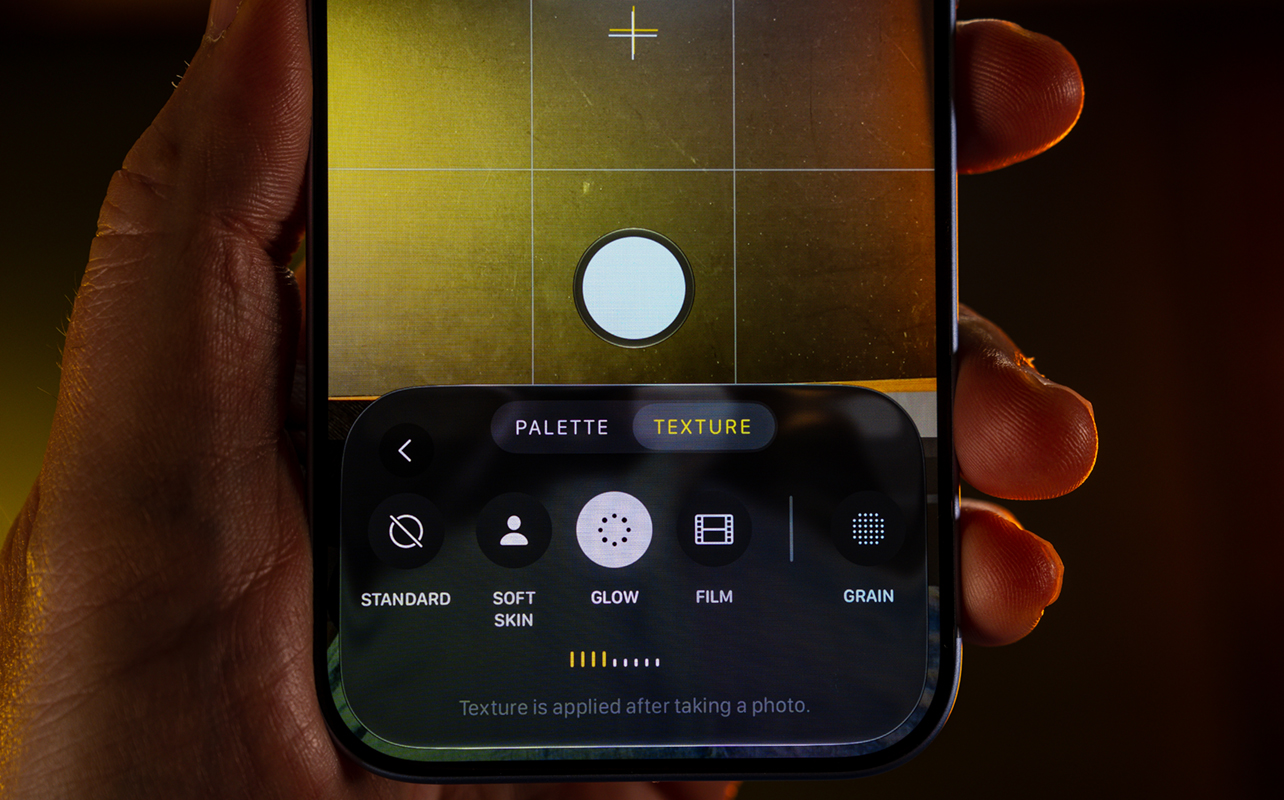
The editing tools are also pretty good. One cool thing you can do is copy the edits you made to the photo you’re working on and then paste them onto another one. It remembers the edits from the last photo you worked on but there’s a workaround if you want to access edits from a previously edited photo. Just go back to it, make a slight change, like moving one of the sliders a single step in either direction, and it then becomes the current photo edit. Copy the edits and paste them where you want.
As for video, not a whole lot changes there, except for one addition. You can now convert a regular video into a cinematic video. There’s a caveat, though, and that is that you need to have shot the original video with the iPhone 18 Pro. Clips from previous iPhones aren’t eligible for this feature.
Battery life
Battery life shows a very modest improvement but not to a significant extent. I say this referring more to mixed use and heavier camera usage. You’ll get through a full day well enough, though the longevity per charge has more to do with the A20 chip than the battery itself.
I’m more impressed with charging speed. iPhones have never been all that quick in that department compared to Android phones, yet I was flirting with 80% charge in 30 minutes. That’s pretty good, all things considered.
Final thoughts
The iPhone 18 Pro isn’t a big upgrade. It’s an iterative update, but one that makes some meaningful changes in the right places. The manual camera controls and variable aperture are easily the standout features because they finally give users more say in how photos turn out instead of leaving everything up to Apple’s software. Siri AI is better than what came before it, though it still has ground to make up compared to the competition.
I wouldn’t rush out to replace an iPhone 17 Pro for this alone unless the camera tools really appeal to you. For anyone using an older iPhone, however, the upgrades add up in a more noticeable way. Apple may not be pushing boundaries here, but the iPhone 18 Pro is still a solid step forward.
The iPhone 18 Pro and iPhone 18 Pro Max are available now.