I used to press the power button on my Windows PC, walk off to make my vanilla iced latte, and return to a desktop that looked ready but wasn’t. I could see the desktop, but opening File Explorer or switching between apps felt sluggish. Initially, I assumed my three-year-old machine was finally showing its age. However, after looking through Task Manager, I realized several applications were launching automatically every time I signed in. There were some apps I used every day, while others were programs I hadn’t opened in months. Most of them did not need to run in the background from the moment Windows started.
How startup apps affect performance
Windows gets busy even before you start your first task

When you sign in, Windows is still loading drivers, services, and background processes. If you’ve added a lot of startup apps, they all join the queue and demand CPU time, memory, and disk access at the same moment. As a result, the desktop appears quickly but stays sluggish while everything finishes behind the scenes.
Many apps can sneak in without your knowledge, some of them add themselves during installation. There’s no harm in having antivirus and lightweight utilities, but when you add dozens of apps like cloud syncing and media tools in startup apps, it impacts the boot time and overall performance of your PC.
How I found the apps slowing down my Windows startup
Task Manager revealed them

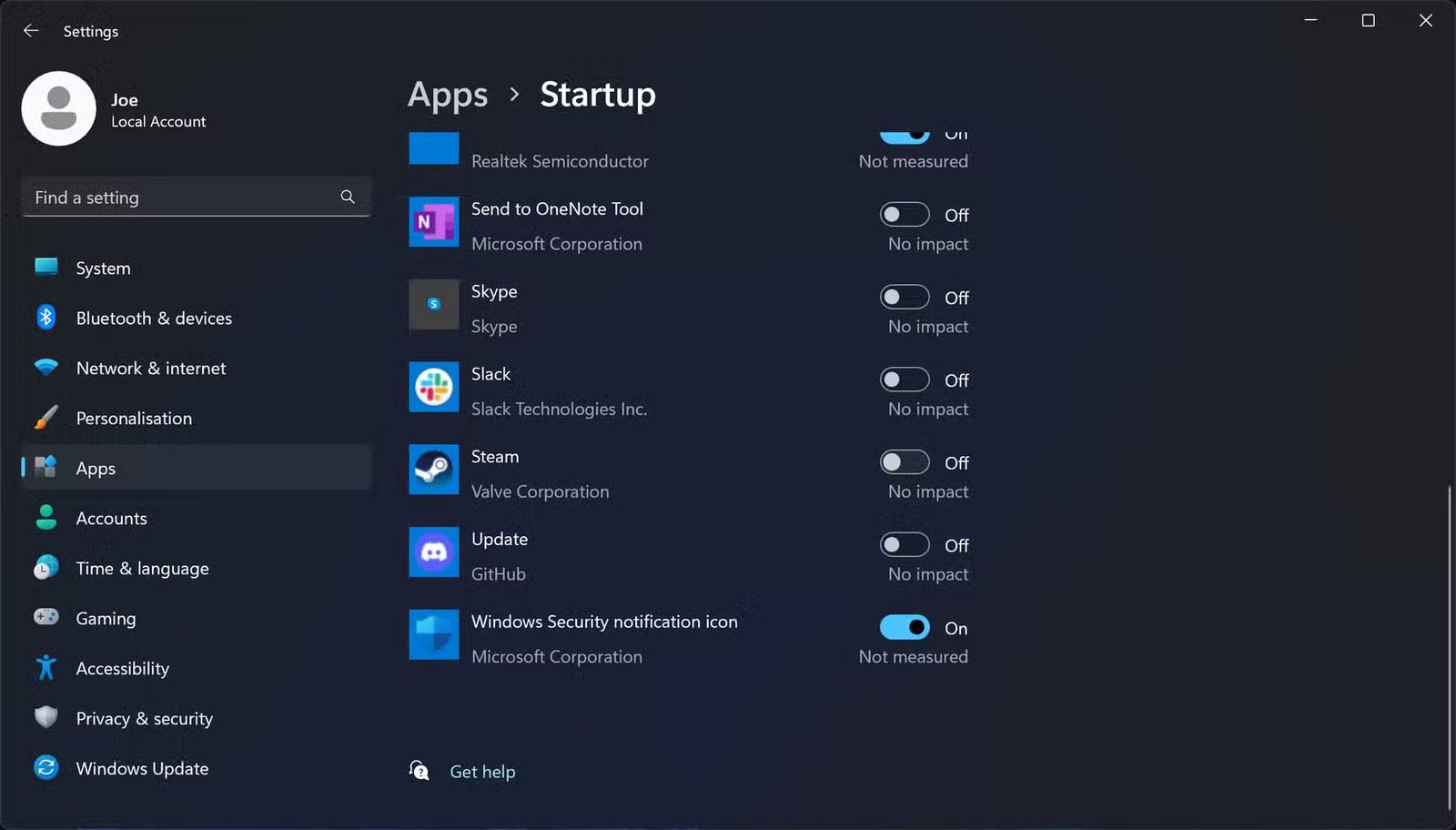
I hit the Ctrl + Shift + Esc keyboard shortcut to open Task Manager on my PC. Then, I selected Startup apps from the sidebar. You can also navigate to Settings -> Apps -> Startup. I sorted the apps list by the Startup impact column to see how much an app was slowing down my PC during the boot process. The apps are categorized as Low, Medium, High, or Not measured, based on factors such as an application’s CPU usage and disk activity during startup. This gave me a useful starting point for identifying programs that could be slowing things down.
I initially focused on applications marked High, but I didn’t disable everything I found right away. I wanted to identify programs that were consuming resources without providing any real benefit immediately after signing in. I also checked the publisher column to understand which applications were launching. This helped me distinguish familiar programs from utilities I barely recognized.
These were the startup apps I didn’t need
Here’s what I disabled
Frankly speaking, I was surprised to see how many familiar applications were there on my startup list. I used some of them regularly, but I did not need them as soon as I turned on my PC. These were the biggest offenders in my case:
- Spotify: I listen to music while working, but I don’t need Spotify to open automatically. I can launch it whenever I want to listen to something.
- WhatsApp: I rarely use WhatsApp on my PC and it was still running in the background and tanking my PC performance.
- Microsoft Teams: Teams is useful for work meetings and communication, but I don’t necessarily need it running before I’ve even opened my work files. I can launch it when I’m ready.
- Discord: My brother uses Discord for occasional gaming sessions, so I had little reason to have it running from the moment Windows starts.
- Adobe Creative Cloud: Its desktop launcher can run background processes for updates and syncing. I don’t regularly use Adobe applications or rely on automatic syncing, so I don’t need it launching at startup.
- Dropbox, but not OneDrive: I only use Dropbox for a couple of shared folders, so it went. I kept OneDrive because it backs up my Documents folder, and a sync client protecting my files shouldn’t depend on me remembering to launch it.
- Updaters. Adobe’s Creative Cloud and a couple of other apps ran their own update checkers at sign-in. They can check for updates when I open them instead.
- Manufacturer utilities and Copilot. My PC maker’s support assistant loaded on every boot just to tell me the system was healthy, and it was rated High impact. I also checked whether Copilot needed to launch automatically. If your PC came with preinstalled software, start here.
I’m not saying these applications are bad or that I never use them altogether. I simply realized that I could open them manually whenever I needed them. That distinction helped me identify which programs were worth removing from my startup routine.
I knew which startup apps to keep enabled
I didn’t want a faster startup at the expense of my PC’s security

Some background applications provide essential security or hardware functionality, so I reviewed these separately before making changes.
I kept Windows Security and its essential protection components enabled, particularly those responsible for real-time threat protection. Microsoft Defender continuously monitors for malware and other security threats, so disabling its essential components isn’t worth the small performance gain. If you use a third-party antivirus program, make sure its real-time protection remains active, too. I also avoided disabling unfamiliar security-related entries without checking what they did.
I was equally careful with background applications I relied on. Audio, touchpad, and keyboard utilities can manage microphone settings, sound enhancements, gestures, and shortcuts. I also kept OneDrive and Google Drive enabled because I rely on automatic file synchronization.
My goal wasn’t to empty the Startup Apps list; it was to stop unnecessary programs from launching automatically while keeping essential functionality intact.
These changes improved my startup time
I checked to make sure

After disabling unnecessary apps, I restarted my PC to see whether it felt faster. I checked both how quickly Windows reached the desktop and how soon I could open apps without delays. The desktop can appear before background applications finish loading, so these aren’t always the same thing. With fewer apps launching automatically, there was less background activity competing for system resources. My PC felt more responsive after signing in.
I also checked the Windows Startup folder, since some desktop applications use it instead of Task Manager. I pressed Win + R, typed shell:startup, and pressed Enter to open it in File Explorer. I reviewed the shortcuts and deleted any I no longer needed. This only removes the startup shortcut, not the application itself.
There’s also a system-wide Startup folder, which you can open by entering shell:common startup in the Run dialog. It contains shortcuts that apply to all users. I checked these carefully before removing anything, as some may belong to software or utilities I rely on.
My rule for startup apps
I ask three questions about every entry. Do I need it the moment I turn on my PC? Does it need to run in the background for syncing files or sending notifications? Is it rated High impact? If the answer to the first two is no, it goes. If I use it daily, but it’s rated High, I’d rather launch it myself once the desktop has settled.
I’ve also made it a habit to check Task Manager occasionally to see whether newly installed apps have added themselves to the startup list. This will make sure that unnecessary programs don’t pile up over time.