Your recent apps screen shows you the apps that you have opened on your phone. If you don’t clear it, it keeps the apps running in the background for you to switch back to from the moment you left them open. But that’s the thing right there. Your phone keeps your previously opened apps running and hogging your resources, which is why, at times, you might feel your phone has slowed down. Once I switched it off, although not a night-and-day difference, the phone felt snappier almost right away.
It fits with other Samsung features worth disabling, and if you’ve already tried a few hidden settings that make your phone feel faster, this one’s a quick addition.
The row under your recent apps needs your attention
It’s a shortcut you didn’t ask for
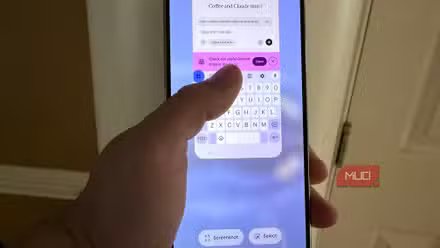
If you swipe up to see your open apps on a Samsung Galaxy phone, you might notice a strip of app icons near the bottom. That is an entire row of recommended apps that are shown because the phone, based on your app opening and usage behavior, thinks they are something that you would like to open.
Honestly, I never tapped it. I’d glance at it out of habit, then reach for the app I actually wanted. Since I like my phone to be minimal, even a small bit of clutter on the screen starts to bug me. So I decided to turn it off and see what happened.
Thankfully, turning it off is quite easy, and you can do that in about 10 seconds:
- Open the Recent apps section with a gesture or with the dedicated button.
- Tap the three-dot menu icon in the top-right corner and choose Settings.
- Toggle off the Show recommended apps option.
After turning it off, when you open the Recent apps section, you will no longer see the row of apps just below your last opened app. If you like tinkering, there’s another route. The Task Changer is now moved into the Home Up module, so you can customize your recent screen from Good Lock too. To tweak it, you need to navigate to Good Lock > Home Up > Task Changer. Just keep an eye on it.
Something changed on my phone
The device felt a bit snappier

There wasn’t a drastic change in the whole experience, but the Recent apps screen was snappier. Opening the Recent apps menu felt lighter, and the little hiccups vanished. Plus, jumping between apps felt more fluid. Since I didn’t run a benchmark, I can’t tell you the exact percentage, but the difference was there.
The biggest advantage for me was that it made the screen less cluttered. Now, the Recent apps screen just shows me the apps that I’ve opened, not a row of apps that my phone thinks I’d like to open. I’d say you have to turn on the Show recommended apps option and see for yourself if your phone behaves lighter or not.
The reason why things might feel smoother is that, when you leave an app, Android keeps it cached in memory, so it can reopen it quickly. And when the memory runs low, it clears cached apps. Anything that adds extra work around app switching or the Recent apps screen (like the row of recommended apps) is one more thing your phone has to deal with. Switching the row off simply trims that.
You can pair it with a few other settings
Put heavy apps to sleep

If you have a Samsung Galaxy phone, then you can put apps into sleeping or deep sleeping states so they stop running in the background. The sleeping apps won’t run in the background much, and deep sleeping apps will never run until you open them. In fact, if you apply a few tricks, your Samsung phone can optimize itself overnight.
A daily restart is the first thing you should do. Samsung itself says that auto restart and auto optimization inside Device Care work wonders. When you restart your phone, all active and background apps stop running, temporary memory is cleared, and all minor glitches are fixed.
You should also give RAM Plus a check. It is a feature that uses a slice of your storage and dedicates it as extra memory. This helps keep more apps available in the background. But modern processors are intelligent, and they manage memory efficiently. So, if your phone is working fine, you should disable it.
Should you use it?
If you’ve been using the recommended apps, then you should turn it off and see for a week if you miss it or not. If you do, then you can simply switch it on. If you don’t need it, then congratulations, you’ve removed some clutter and also gained a smoother Recents UI experience. Aside from this, there are a few ways you should apply to make your phone faster.