I spend a lot of time in Excel, but some of my favorite Excel workflows barely happen inside Excel at all. One spreadsheet became an interactive map. One reporting workbook now pulls in new files whenever I refresh it. Some Excel problems now get solved with a quick conversation with ChatGPT before I even open the workbook.
None of these apps replaced Excel in my workflow. They just made it easier to do specific jobs that spreadsheets aren’t always the best tool for. These are the five companion apps I return to most often.
Google My Maps
Seeing location data instead of just storing it
A spreadsheet full of locations tells me where things are. Seeing how those locations fit together is another story.
I ran into that while putting together a spreadsheet of major airports in the New York area. Excel handled the list perfectly well, but rows of airport names and coordinates didn’t tell me much about how those airports related to one another. Importing the data into Google My Maps changed that immediately. It became an interactive map showing exactly where JFK, LaGuardia, Newark, and the region’s smaller airports sat in relation to each other.
I’ve used the same approach for trip planning, customer locations, and other place-based projects. Excel keeps the data organized, and My Maps helps me make sense of it.
When a dataset includes physical locations, a map often reveals things that are easy to miss in a worksheet.
ChatGPT
Making sense of complex spreadsheets

I’ve tested ChatGPT, Claude, Gemini, and Copilot extensively with Excel. Claude has impressed me most with large automation projects, Gemini has often produced the most precise implementation plans, and Copilot has become surprisingly capable inside Excel itself.
I keep coming back to ChatGPT, though, when I’m working through an Excel problem. It’s usually the fastest way to explore options, compare approaches, and figure out what to build next.
That problem might be a formula that keeps returning the wrong result or a dashboard layout I’m struggling to organize. Sometimes it’s a VBA project, a particular workflow, or a report that’s getting more complicated than it needs to be.
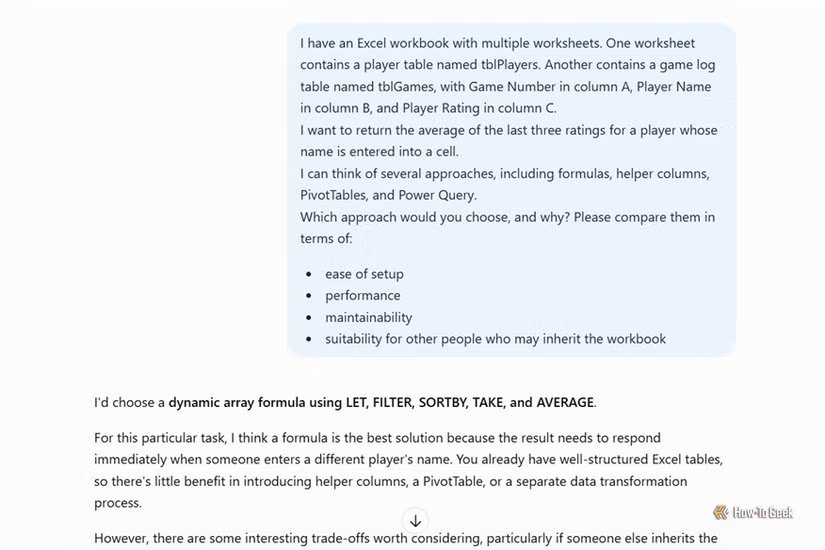
One recent example involved working through several possible solutions to an Excel problem. Before committing to a particular approach, I used ChatGPT to compare the trade-offs between formulas, helper columns, PivotTables, and Power Query. The final solution still came from me, but the conversation helped me spot unnecessary steps much faster than I would’ve on my own.
With ChatGPT in particular, I find I can describe the situation, challenge the suggestions, ask for alternatives, and refine the solution as I go—often with more success than with the other bots. In many cases, I already know Excel can solve the problem. The challenge is deciding which solution makes the most sense.
Having that sounding board available whenever I need it has saved me a surprising amount of time.
VS Code
Working with CSVs Excel struggles with

For years, I thought of CSV files as spreadsheets. They’re really text files.
That distinction became useful once I started using Visual Studio Code alongside Excel. One of the first things I used it for was inspecting a CSV containing more than two million rows. Excel couldn’t display the entire file in a worksheet, but VS Code opened it without complaint.
Since then, I’ve used it to compare different versions of CSVs, fix encoding problems, search large datasets, and make bulk edits across multiple files. Many of those jobs are possible in Excel, but it’s not always a comfortable fit.
Excel is where I analyze and present the data. VS Code helps me work with the raw files before they reach that stage.
Notion
Giving spreadsheet data a friendlier home
I’ve spent plenty of time comparing Notion and Excel, but I’ve had just as much success combining them.
I see this most in project work. I often build and maintain structured data in Excel because spreadsheets are hard to beat for entering, cleaning, and analyzing information. Sometimes, though, I want different ways to interact with that same data.
Recently, I imported a task tracker CSV into Notion and turned it into a database. The same rows became a table, a board grouped by status, and a calendar view based on due dates.
I could recreate many of those views in Excel, but Notion already has most of the foundations built in. That makes it much quicker to experiment with different ways of looking at the same information.
Different tools encourage different ways of working with information. Excel helps me build and analyze datasets. Notion helps me organize and explore them. That combination has proved more useful than choosing one over the other.
File Explorer
Automating reports behind the scenes

This is probably the least glamorous tool on the list, yet it has saved me more repetitive work than most of the others.
Once I discovered Excel’s folder connector in Power Query, I started treating folders differently. Power Query does the actual consolidation, but the folder is part of the workflow too, since that’s where new files land. Instead of manually combining files every week, I could point Power Query at a folder and let it pull the data together for me. Adding another report became a matter of dropping a file into the right location and refreshing the workbook. Later, I configured the report to refresh automatically whenever it opened.
The setup only took a few minutes, but it removed a task I would otherwise have repeated indefinitely. That’s usually my favorite kind of automation.
Most of the time, I forget the workflow is even there. The report updates itself, and I move on to something more interesting.
Excel doesn’t have to work alone
Over the years, I’ve spent plenty of time learning new Excel functions, features, and tricks. Some of the biggest improvements to my workflow came from looking outside Excel. A map can reveal patterns hidden in rows and columns. An AI assistant can help work through a problem before I start building. Sometimes the best solution is simply using a tool that fits the job better. Excel still sits at the center of my workflow, but what surrounds it has grown.